People who need easier reading and navigation
Spoken feedback, magnification, larger text or keyboard navigation may make screen content and controls more usable. The feature must also work with the documents and apps used each day.


Start with a computer, tablet or phone whose built-in accessibility features address the task you need to do. Consider specialist input hardware, software or a dedicated task device when those features leave a practical obstacle; check the exact device, operating-system version, connection method and everyday apps before buying.
Spoken feedback, magnification, larger text or keyboard navigation may make screen content and controls more usable. The feature must also work with the documents and apps used each day.
Voice commands, a switch, an external keyboard or another adaptive input method may suit someone who finds conventional controls difficult. The choice depends on the actions they need to perform and the device they use.
Dictation, recording, reminders or a focused device such as an electronic organiser may help with a particular routine. Compare the steps required for that routine rather than the number of available features.
Identify the task and a workable input or output method first; then check whether a built-in feature, a compatible add-on or a dedicated device can carry it through.
| Priority | What to check | Your needs |
|---|---|---|
| Reading the screen | Try spoken feedback, magnification and text or display controls with the actual content you read. Check navigation within required apps and websites. | I need to read messages, documents and controls, or have them spoken aloud, without losing track of where I am. |
| Controlling the device | Test the actions needed with voice, a keyboard, a switch or a pointer. For an add-on, confirm its connection method, any adapter and which actions it can perform. | Touch or a standard keyboard may not work for me; I need another way to select, type and move between apps. |
| Writing and routine tasks | Compare dictation and built-in reminders with a recorder, organiser or other focused device. Check the controls, output and steps needed for the particular task. | For notes, reminders or calculations, a short and repeatable routine matters more to me than extra functions. |
| Compatibility | Confirm the operating-system version, required language, accessory connection and app behaviour. Microsoft documents Voice Access for Windows 11 version 22H2 and later; Google lists English among Android Voice Access languages. | I rely on particular apps or equipment, so the feature needs to work in my daily setup—not just appear in a settings menu. |
A device feature and a required app may not work together in the way a task demands.
Test unlocking, messaging, documents, calls and any essential work or school tools using the intended input and output methods.
A switch, keyboard or microphone also needs the right operating-system support and usable controls.
Check the exact device model, connection method, adapter requirements and functions before choosing the accessory.
Adapters, mounting or charging equipment may add to the setup if the intended arrangement requires them.
Entering text, navigating a device and controlling an app are different requirements.
List the voice actions needed. Microsoft specifies Windows 11 version 22H2 or later for Voice Access; check the required language for Android Voice Access.
A general-purpose device can require more navigation and setup than the task itself warrants.
Compare the steps and controls for a reminder, recording or spoken calculation with those of a dedicated organiser, recorder or talking calculator.
These manufacturer-documented features provide starting points for checking a device, not a guarantee that a particular app or accessory will work.
A reference for checking built-in options on iPhone and iPad when spoken feedback, magnification or alternative input is needed.
A reference for Windows computer users comparing spoken feedback, magnification, keyboard input and voice-based control.
A reference for Android phone and tablet users considering spoken feedback, voice commands or switch input.
These options include a focused note-taking device, a computer, a phone and a tablet. Match each one to the task and accessibility method you intend to use; the selection does not establish that its particular apps or accessories will be compatible.
 No image available
Consider this focused notebook for writing and planning tasks if its controls suit your routine. Its title lists voice-to-text and handwriting-to-text functions; transcription requires an internet connection. Check the languages you need and the audio-output options if spoken playback matters.
 No image available
Consider this laptop for computer-based tasks if its keyboard, pointer and required software suit your way of working. The display is listed as non-touch. Confirm the installed Windows version—Microsoft requires Windows 11 version 22H2 or later for Voice Access—and test essential apps and peripherals.
 No image available
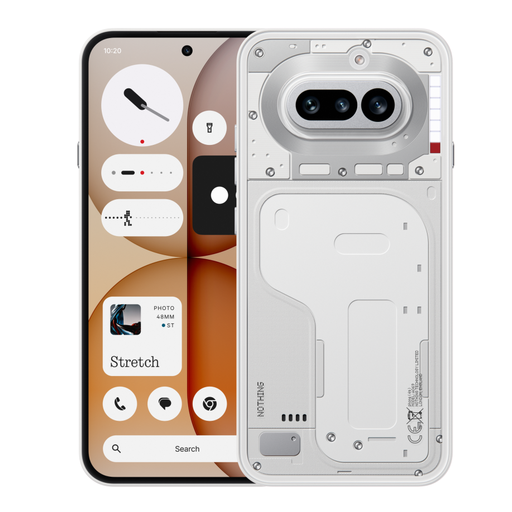
For everyday phone tasks, check whether the input and spoken-feedback methods you need work on this exact model. Google documents Android options including TalkBack and Switch Access, but test their behaviour with your apps and any intended accessory.
 No image available
Consider this tablet for reading and routine digital tasks if its controls and required apps work for you. Confirm the accessibility features on this exact model, including their behaviour with any keyboard, switch or other intended input accessory.
Try them first when the main task is reading or enlarging screen content, changing the display, dictating, using voice commands or navigating with a keyboard. GOV.UK notes that phones, computers and tablets often include accessibility features. Consider specialist input hardware if conventional touch, mouse or keyboard use remains impractical.
Check the exact device and operating-system version, connection method, required adapter and actions the accessory can perform. Apple and Google document switch or keyboard input options on their respective platforms, but that does not establish compatibility for every accessory or app.
No. Check whether you need text entry, device navigation, app commands or a combination. Microsoft specifies Windows 11 version 22H2 or later for Voice Access, while Google lists supported Android Voice Access languages, including English; also check the tasks and microphone setup you intend to use.
A dedicated device is worth comparing when reminders, recording or spoken calculation is the main task and a general-purpose interface adds unnecessary steps. GOV.UK lists electronic organisers, audio recorders and talking calculators as assistive technology examples; check the device’s controls and output against the task before choosing.