Start with the study task that is difficult, then try the accessibility settings on the learner’s existing device before buying equipment. An ordinary peripheral may address a specific typing, pointing, display or audio need, but check its fit and compatibility; specialist input or communication equipment may call for individual advice or a needs assessment, particularly when a funding decision depends on one.
Who this is for
Learners who need another way to access on-screen content
If reading or seeing study materials is the barrier, try spoken text, screen reading, magnification or display adjustments on the existing device. Microsoft Support, Apple Support and Google Chromebook Help document different built-in options; test them with the materials and applications the learner uses.
Learners who need a different typing or pointing setup
Key reach, mouse movement, clicking or device positioning may make a standard setup difficult. AbilityNet describes keyboard and mouse alternatives, but the useful choice depends on the particular action and the learner’s physical fit.
Learners considering specialist access equipment
When settings and ordinary accessories do not meet a study or communication need, individual advice may help identify an appropriate setup. Learners seeking disability-study support should check the applicable assessment process: the England guidance published by GOV.UK and the Scotland guidance published by the Student Awards Agency Scotland describe distinct routes.
What matters when choosing
Decide whether the barrier is in the software experience, a physical interaction or a study task that needs specialist support. The routes below are starting points, not interchangeable solutions.
Built-in accessibility settings
Consider when: The existing Windows PC, Mac or Chromebook offers a way to access the required text, display or controls.
Trade-off: Feature availability and behaviour can vary by device, operating system, language, region and application.
Everyday peripherals
Consider when: A different keyboard, pointing device, headset or display addresses a clearly identified task.
Trade-off: A suitable connection does not establish that the shape, controls or study software will suit the learner.
Specialist equipment
Consider when: Ordinary settings and peripherals do not provide the required method of access or communication.
Trade-off: Selection may involve assessment, setup and training; funding procedures differ between UK nations.
| Concern |
What to check |
Who this matters to |
| Reading and screen access |
Try the existing screen reader, spoken-text and magnification settings with actual study materials. For a separate monitor, check the host device’s video connection and display positioning. |
If I need text read aloud or enlarged, I want to know whether my current device makes the material usable before adding a screen. Around 25% of consumers would put reading and screen access first. |
| Typing and pointer control |
Identify the difficult action, such as key reach, clicking or dragging; check the peripheral’s connection and physical fit. |
When a keyboard or mouse movement interrupts my work, I need a setup that suits that particular action. Roughly 25% of consumers would make typing or pointer access their main concern. |
| Audio and spoken participation |
Test a microphone with the study application and check the required audio connection. Try built-in captions, dictation or voice controls where relevant. |
For online lessons or voice-led work, I need to hear, speak or enter text in a way that works with my software. Around 19% of consumers would prioritise audio and spoken participation. |
| Specialist access and assessment |
Ask about individual assessment and the applicable support process before a funding-dependent purchase. |
If ordinary controls still prevent me from completing study tasks, I need advice on a more individual equipment route. About 31% of consumers would place specialist access first. |
Purchasing pitfalls
-
Buying hardware before trying existing settings
Microsoft Support, Apple Support and Google Chromebook Help document built-in accessibility tools that may already address the task for which an accessory is being considered.
Try the intended documents, websites and learning applications with the learner’s current settings, then identify what remains difficult.
-
Assuming an ergonomic label establishes individual fit
AbilityNet describes a range of keyboard and pointing alternatives. Their layouts and controls address different interaction difficulties, so a category label alone cannot establish suitability.
Check the difficult movement, connection, available ports and positioning. A trial or individual accessibility advice can help with more complex requirements.
-
Assuming a named feature works in every study setup
Apple Support identifies hardware, language and regional limits for some features. Accessibility controls also need to work with the learner’s actual documents and applications.
Check the exact device and operating-system version, then test the feature in the browser and education platform used for study.
-
Buying equipment before an England DSA assessment
For a learner expecting Disabled Students’ Allowance reimbursement in England, GOV.UK advises against buying equipment before assessment because the purchase will not be reimbursed.
Complete the applicable needs-assessment process before making a funding-dependent purchase. Check the relevant funding body’s process separately elsewhere in the UK.
Relevant brands and platform features
Microsoft
For learners using Windows, Microsoft Support documents accessibility tools to try before selecting additional equipment.
- Windows resources cover screen reading, magnification and speech-based controls.
- Test the required third-party study application and any external accessory with the learner’s actual setup.
Apple
For learners using a Mac, Apple Support documents settings for vision, hearing, mobility and speech.
- Options include VoiceOver, Zoom and display adjustments.
- Some features have hardware, language, country or regional conditions; check availability on the exact Mac.
Google
For learners using a Chromebook, Google Chromebook Help documents built-in accessibility controls.
- Options include ChromeVox, Select-to-speak, dictation and Switch Access.
- Check the education service and any external input device with the learner’s Chromebook before relying on the setup.
Joybuy products for specific study tasks
These products cover headset use, keyboard and mouse input, and a separate display. Choose by the task and connection the learner needs; a conventional mouse is not a substitute for a trackball when stationary pointing is required.
 No image available
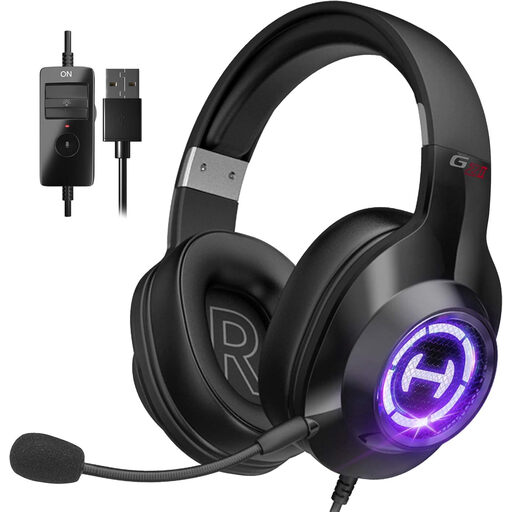
Edifier G2II Wired USB Headset, Black
Consider this headset when listening and speaking are both part of computer-based study. Its name specifies a wired USB connection and microphone; check that the learner’s device and study application accept the connection and microphone before buying.
View on Joybuy
 No image available
HP 960 Split-Layout Wireless Keyboard with Padded Wrist Rest
Consider the split layout if keyboard positioning is the learner’s main difficulty. Check the key arrangement and physical fit, as well as the wireless connection required by the host device; the layout alone does not establish individual suitability.
View on Joybuy
 No image available
Logitech MX Master 3S Mouse, Black
Consider this conventional mouse if a change to mouse handling could help with computer-based study. It is not a trackball: check whether its shape and movement suit the learner, and confirm the supplied connection options before purchase.
View on Joybuy
 No image available
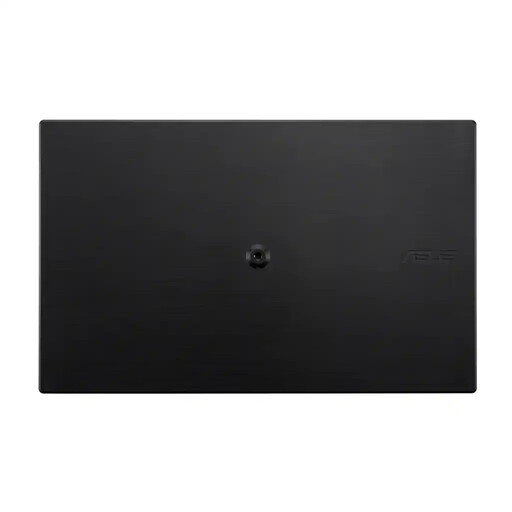
ASUS ZenScreen MB166C 15.6-inch Full HD USB-C Portable Monitor
Consider a separate screen when display space or positioning is the task to address. This model’s name specifies a 15.6-inch Full HD IPS display with an anti-glare surface; check that the host device supports the required USB-C video connection. A monitor does not replace accessible documents or screen-reader support.
View on Joybuy
Frequently asked questions
Should I check computer settings before buying a screen reader or magnifier?
Yes: first try the accessibility tools available on the learner’s exact device with their study materials. Microsoft Support documents Windows options including Narrator and Magnifier; Apple Support documents VoiceOver and Zoom on Mac; and Google Chromebook Help documents Chromebook screen-reading and magnification features. Their usefulness depends on the materials and applications involved.
Will an ergonomic mouse or trackball suit any learner who finds pointing difficult?
No single pointing-device design suits every interaction difficulty. AbilityNet describes alternatives to standard mice; identify whether movement, clicking, precision or positioning is the barrier, then check compatibility and, where possible, try the device before choosing.
Can I buy equipment first and claim it through England’s Disabled Students’ Allowance later?
Do not buy it first if you expect reimbursement through that route. GOV.UK advises learners not to purchase equipment before their assessment because those costs will not be reimbursed; follow the applicable assessment and support decision before making a funding-dependent purchase.
Are disability-study equipment procedures the same throughout the UK?
Do not assume they are. GOV.UK’s cited DSA needs-assessment guidance applies to England, while the Student Awards Agency Scotland says first-time DSA applicants in Scotland must provide a Needs Assessment Report. Check the relevant funding body and education provider’s process before purchasing equipment in expectation of support.


