Who needs a different way to use a device?
GOV.UK describes built-in accessibility features on phones, tablets and computers, as well as assistive technology for communication, reading, writing and managing tasks. The useful starting point is the interaction you need to make work.
People needing spoken or enlarged access
If standard visual interaction makes messages, web pages or documents difficult to use, check screen reading, larger text, magnification, contrast controls or compatible braille output against your regular tasks.
People needing an alternative to touch or mouse control
If direct touch, a mouse or a conventional keyboard is difficult, the deciding factor may be whether you can navigate, enter text and correct mistakes using your intended voice, switch, keyboard or other input method.
People setting up communication or task support
Reading, writing, communication and keeping track of tasks may call for a combination of device settings and accessories. For complex communication needs, an individual assessment can help establish the equipment and setup required; NHS assistive communication services describe assessment and initial training as part of their work.
What should you check before choosing?
Choose the device format for your repeated tasks, then check that your access method works with its software and any accessory. An accessory is part of that setup, not a substitute for checking the device itself.
Smartphone
Consider it: When portable communication, information and task reminders are central to your day.
Trade-off: A pocket-sized screen and controls may make sustained reading or detailed input difficult with your access method.
Tablet
Consider it: When a larger portable interface or an external keyboard would help with reading, learning or communication.
Trade-off: It is less pocketable than a phone, and desktop-only applications may still require a computer.
Computer
Consider it: When long-form writing, desktop applications or a dedicated screen-reader or voice-control workflow drives the purchase.
Trade-off: Check the installed operating-system version and the hardware required for the particular feature; Microsoft specifies Windows 11 version 22H2 or later for Voice Access.
| Concern |
What to check |
Who this matters to |
| Reading and navigation |
Try your essential apps with the exact device’s screen reader, magnification or text controls. If you use braille, confirm the display model and connection method. |
If I need spoken, enlarged or braille access, I must be able to read messages and navigate services without relying on standard visual controls. For around 27% of consumers, this would be the primary purchasing concern. |
| Alternative input |
Confirm the operating-system version and your specific switch, keyboard, voice or eye-control setup; check that you can complete setup using that method. |
When touch or mouse control is difficult, I need to enter text, select controls and recover from mistakes another way. Around 33% of consumers would put alternative input first. |
| Hearing and communication access |
Check captions in your essential applications and confirm the compatibility of any microphone, hearing device or communication accessory. |
If I rely on captions or another communication method, calls and everyday services need to be usable with my chosen setup. That would be the leading concern for around 20% of consumers. |
| Writing and task organisation |
Try the reading, writing and reminder tasks you repeat, including any keyboard or software you intend to use. |
I may be able to navigate a device but still need a workable way to write, learn or keep track of appointments. For around 20% of consumers, those tasks would take priority. |
Relevant brands and platforms to explore
These platform features provide starting points, not a guarantee that a particular app, language or accessory will suit your setup.
Apple
iPhone, iPad and Mac are worth examining if your intended setup uses Apple’s built-in accessibility features or a supported braille display.
- Apple describes VoiceOver across iPhone, iPad and Mac, alongside Magnifier features and braille-display support.
- Confirm the exact app, language, device and accessory combination; Apple notes that some features and services vary by region or language.
Google / Android
Android phones and tablets are a route to investigate when TalkBack or switch-based control is central to everyday use.
- Google describes TalkBack as an Android screen reader and Switch Access as a way to use switches or supported external input instead of direct touch.
- Check the precise device, Android version and accessory setup; a general Android feature description does not confirm every handset or peripheral combination.
Microsoft
Windows computers merit consideration when desktop work needs to be combined with built-in screen reading, captions or alternative control.
- Microsoft documents Narrator and other Windows 11 accessibility features, including magnification, live captions and voice access.
- Microsoft specifies Windows 11 version 22H2 or later for Voice Access. Confirm the installed version and any required hardware or applications.
Joybuy products to consider
These choices cover a portable phone and a computer for everyday tasks. Check your required accessibility features and accessories on the exact device before deciding.
 No image available
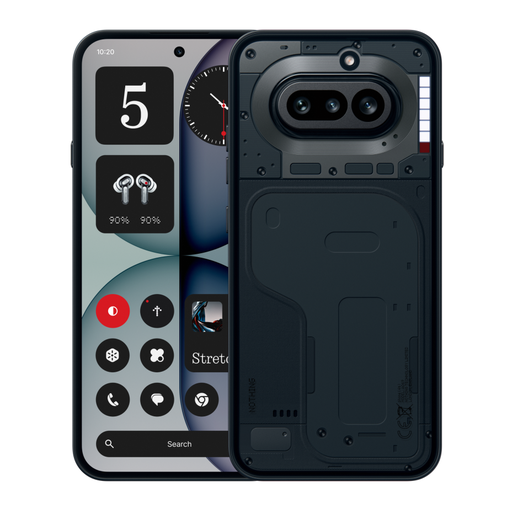
Nothing Phone (4a) 12+256GB Black
Consider this phone for portable communication and information access if its software and controls work with your essential tasks.
12+256GB configuration; Black. If you plan to use a switch or external keyboard, confirm the exact accessory and setup with this model.
View on Joybuy
 No image available
ASUS Vivobook 14 X1407QA-LY003W Copilot+ PC, Quiet Blue
Consider this computer for writing and desktop tasks if its installed software supports the screen reader, voice workflow or peripheral you need.
Snapdragon X; 16GB RAM; 512GB SSD. Confirm the installed operating-system version and compatibility of your essential applications before buying.
View on Joybuy
Frequently asked questions
Which accessibility features should I check on a phone, tablet or computer?
Check the features needed for your own tasks on the exact model and installed software version. That may mean trying screen reading or magnification for reading, switch or voice control for input, or captions for spoken content; also check your essential apps and accessories.
When should I seek an assistive-technology assessment?
Consider an assessment when the purchase depends on a highly individual access method, specialist communication equipment or several components working together. NHS assistive communication services describe assessment, initial training and setup for complex communication needs; ask about the eligibility and referral route available to you.
Can I return an online purchase if the setup does not work for me?
For UK distance purchases, GOV.UK says customers generally have 14 days after receiving an item to notify the seller that they are cancelling, then another 14 days to return it. Exceptions and handling-related deductions can apply, so check the product-specific terms before opening or adapting an item. Cancellation rights are distinct from remedies for goods that are faulty, damaged or misdescribed.
Should I buy work or study equipment before applying for support?
Check the relevant support route before purchasing equipment you expect it to cover. GOV.UK says Access to Work may support eligible work-related specialist equipment and software; for Disabled Students’ Allowance, it specifically says not to buy equipment before the needs assessment if you expect reimbursement.
How can I keep an accessible setup usable after purchase?
Keep a record of the settings and accessory models your essential tasks depend on, and try those tasks again after major software changes. Retain pairing and power instructions for accessories, and ask about training or follow-up support if the setup is specialised.


