Start with the tasks you need to complete and try the accessibility tools built into a suitable phone, tablet or computer. A larger tablet screen may help with on-screen reading, while sustained writing or required desktop software may point towards a computer; consider a specialist accessory only after checking its connection, operating-system and software compatibility.
Who needs which access method?
People using speech, magnification or braille to read
If reading and navigating a screen is the main difficulty, try the device’s screen reader, text and display settings with familiar tasks. Apple, Google and Microsoft describe built-in tools, but a braille display also needs a compatible device and connection.
People using alternative input
If touch, a standard keyboard or a mouse is difficult to use, assess voice control or switch input alongside the device itself. Apple and Google document switch setup for their platforms; the intended switch and connection still need to work with the chosen model.
People managing everyday communication and tasks
For calls, messages, information and routines, decide which tasks must work away from home and whether a larger screen changes how comfortably you can use them. GOV.UK notes that phones, tablets and computers often include accessibility features; RNIB also highlights the screen-size difference between phones and tablets.
What matters when choosing?
Choose the device around the task and the way you will control it, then check whether its built-in tools are enough before adding equipment. A phone or tablet suits portable tasks, while a computer may be needed for a particular desktop workflow.
| Concern |
What to check |
Who this matters to |
| Reading and visual access |
Try reading a message, entering text and navigating a necessary app with the screen reader or display settings. For braille, confirm the display model and connection. |
If I rely on spoken output, braille or enlarged text, I need to complete familiar tasks rather than judge a device by screen size alone. Around 27% of consumers put visual access first. |
| Physical input |
Check the device and operating-system version, switch or keyboard connection, and the scanning method you intend to use. |
When touch or a standard keyboard is difficult, I need an input method I can use for the whole task. Physical input is the primary concern for around 27% of consumers. |
| Communication and writing |
Try creating and editing text in required apps; check voice-control language and whether the intended workflow needs internet access. |
If messages or documents are my priority, I need to know whether voice input or a keyboard lets me create and correct them. Around 26% of consumers place communication and writing first. |
| Tasks away from home |
Identify which tasks need a connection outside Wi-Fi coverage, then check mobile-data capability and whether the screen is usable for those tasks. |
For directions, messages and routine information on the move, I need access where I will actually use the device. Portable everyday tasks come first for around 20% of consumers. |
Checks that are easy to miss
-
Assuming every Android device has the same controls
Google says accessibility feature names and navigation can vary by device and market, so general Android instructions may not match the phone or tablet you choose.
Check documentation for the exact model and operating-system version, and try the features you need where possible.
-
Choosing an accessory by connection type alone
A compatible plug or wireless connection is not the whole workflow. Apple requires an external switch to be connected and assigned for iPad Switch Control; Google documents USB or Bluetooth options for Android Switch Access. Microsoft says Narrator’s braille-display connection uses USB or serial, not Bluetooth.
Confirm the host device, software, accessory model, connection and intended input method together before ordering.
Allow for the time needed to pair or configure an input device; the chosen connection may also require a compatible cable or adapter.
-
Choosing a tablet for screen size without checking connectivity
A larger display does not establish whether a particular tablet can get online away from Wi-Fi.
If directions or communication must work while travelling, check the exact model’s mobile-data options and your intended connectivity arrangement.
Relevant brands and platforms
Apple
iPhone, iPad and Mac are worth examining if you want to use accessibility settings across Apple devices or already have an accessory intended for that ecosystem.
- Apple documents VoiceOver speech and braille output, magnification and Switch Control.
- Check feature availability on the intended device and confirm that an external switch or braille display pairs and works as required.
Google Android
Android is relevant when you want to compare phones or tablets from different manufacturers while assessing TalkBack, display settings, Voice Access or Switch Access.
- Google documents spoken feedback, display-size and magnification settings, voice control and external switch options.
- Google says feature names and navigation may vary by device and market; check the exact model rather than assuming a platform-wide setup.
Microsoft
Windows is relevant when the required tasks involve a computer, desktop applications, keyboard navigation or a particular speech or braille workflow.
- Microsoft documents built-in Narrator and Voice Access; the latter supports English-UK on Windows 11 version 22H2 and later.
- Microsoft specifies USB or serial connections for braille displays used with Narrator, not Bluetooth. Check the display and software combination before purchase.
Pretorian Technologies
Pretorian Technologies makes specialist switch-input equipment to consider when a suitable device still needs an external control method.
- Pretorian describes its APPlicator as a Bluetooth switch interface for supported iOS, Android and other Bluetooth-connected device workflows.
- Confirm the intended host device, switches, pairing steps and required functions; the manufacturer’s description is not a compatibility test of your setup.
Phones and tablets to consider
These Joybuy choices are phones and tablets for assessing portable reading, communication and everyday access. Try the accessibility settings and necessary apps on the exact model before deciding whether it meets your needs or requires an additional input device.
 No image available
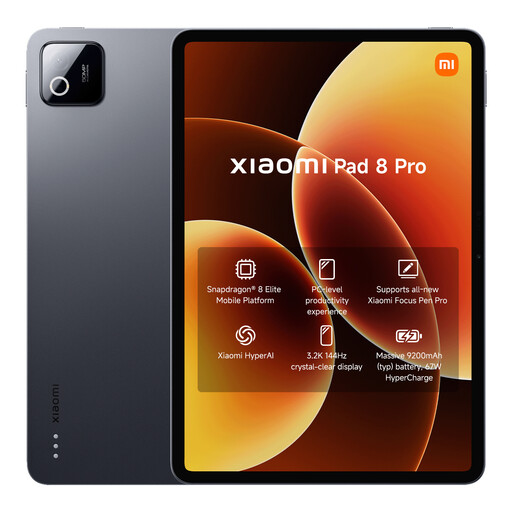
Xiaomi Pad 8 Pro Gray, 12G RAM, 512G ROM
Consider this tablet if you need a portable screen for reading or routine tasks; try your usual text size, navigation method and apps on the device.
The listed configuration is 12G RAM and 512G ROM. Check the accessibility features and connectivity required for your workflow.
View on Joybuy
 No image available
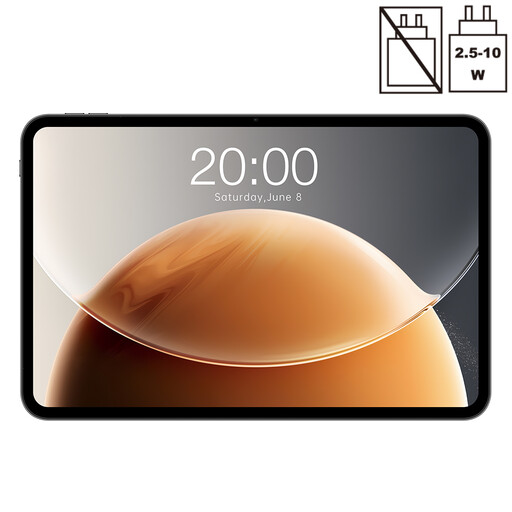
Teclast T65 tablet, 13.4-inch, dual-SIM 4G
Consider this tablet if more screen area matters for your portable tasks, but try reading and navigating on the actual display before choosing it.
The title lists a 13.4-inch, 120Hz screen and dual-SIM 4G. Confirm the network options, accessibility controls and apps needed for your use.
View on Joybuy
 No image available
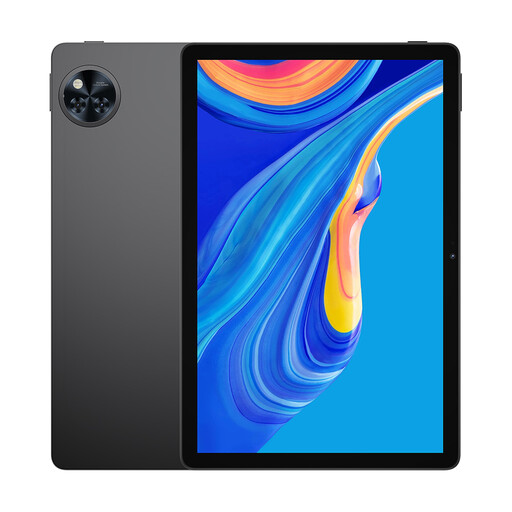
DOOGEE U11 PRO Black, 11-inch tablet
This tablet is an option to try if you want a portable display for reading and everyday tasks; assess it with your own text settings and navigation method.
The title lists an 11-inch, 90Hz IPS screen. Check the exact device’s accessibility controls and support for any required accessory.
View on Joybuy
 No image available
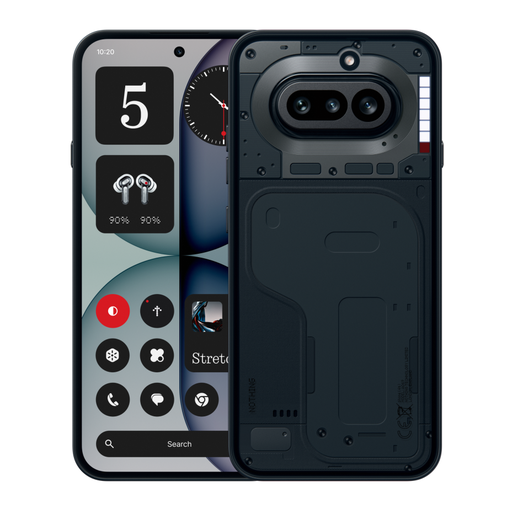
Nothing Phone (4a) Black, 12+256GB
Consider this smartphone if calls, messages and other phone tasks are the priority; try those tasks using the access settings you intend to rely on.
The listed variant is 12+256GB in Black. Confirm its screen, input and app behaviour on the exact model before buying.
View on Joybuy
Common questions
Should I try built-in accessibility tools before buying an accessory?
Yes—try them against the tasks you need to complete before choosing additional equipment. GOV.UK notes that phones, tablets and computers often have built-in accessibility features; an accessory is worth assessing if those tools do not provide the input or output you need.
What should I check before buying a switch for an iPad or Android device?
Check the device, operating system, connection and scanning method together. Apple says an external switch must be connected and assigned for iPad Switch Control; Google documents compatible USB or Bluetooth external switches or keyboards for Android Switch Access.
Will a Bluetooth braille display work with Windows Narrator?
Not through Bluetooth using Narrator’s documented braille connection method. Microsoft specifies USB or serial connections and says Bluetooth is unavailable for braille displays used with Narrator; confirm the exact display, driver and screen reader you plan to use.


