Readers who use enlarged text
If books, email or websites are easier to use with larger text, compare the screen alongside magnification, text-size and contrast controls. Try the settings in the apps the reader will actually use.


Choose a tablet around the reader’s preferred way to access it: enlarged text and display controls, spoken navigation, or both. An iPad may suit someone already using Apple services, while an Android tablet may suit someone familiar with Android and TalkBack; a Fire tablet calls for a check of every essential app before purchase. If compatible library ebooks are the main goal and communication apps are unnecessary, a Kobo e-reader is a separate, reading-focused option.
If books, email or websites are easier to use with larger text, compare the screen alongside magnification, text-size and contrast controls. Try the settings in the apps the reader will actually use.
Visual enlargement alone may not meet this need. Apple documents VoiceOver and braille-related features, while Google documents TalkBack for spoken navigation on Android. Check the intended tablet and any particular braille display together.
Allow time to set up the reader’s Wi-Fi, accounts, accessibility shortcuts and essential apps with them. RNIB’s Android guidance notes that setup uses personal details such as an email address and Wi-Fi information.
Start with the reader’s access method, then try their reading and communication tasks on the device; screen size or a feature name alone cannot settle the choice.
| Priority | What to check | Your needs |
|---|---|---|
| Readable text | Try magnification, text size and contrast in a book, email and a web page. Compare the usable reading area at the enlargement the person needs, not screen size alone. | I want to enlarge text without losing track of what I am reading or where to tap next. |
| Spoken navigation | Try the screen reader and its touch gestures with the intended user. Apple documents VoiceOver, Google documents Android TalkBack, and Amazon documents VoiceView for Fire tablets; check the controls on the exact device. | If I rely on speech, I need to find controls and move through my reading and communication apps, not just have text read aloud. |
| Familiar setup | Check the reader’s existing accounts, available setup help and accessibility shortcuts. For an older or refurbished tablet, confirm its current software and app support by exact model. | Staying with a familiar account and way of navigating may make it easier for me and my helper to set up and use the tablet. |
| Books and apps | Check the required email, calling, social and library apps on the intended operating system. Libby lists support for iOS 10+, Android 7.1+ and newer Fire tablets; the library chooses its available titles and formats. | My library loans and the services I use to stay in touch need to work on the same device. If I only need library ebooks, I can also check whether the particular titles work on a compatible Kobo e-reader. |
A larger display does not establish whether the reader can navigate touch controls or use the apps they need. Screen-reader navigation also changes the gestures used on the device.
Have the intended user try enlargement, speech navigation, an accessibility shortcut and a familiar reading or communication task.
Libby says libraries choose their available titles and formats. It also says not every Libby ebook works on Kobo, and Libby audiobooks and magazines are not supported on Kobo devices.
Check the reader’s library service, card, preferred titles and formats before choosing between a tablet and an e-reader.
The presence of accessibility settings does not establish that the required app versions or updates will remain available on a particular older or refurbished model.
Confirm the exact model, installed operating system, available updates and operation of the essential apps before buying.
Moving to different accounts, app stores and accessibility gestures can add work for both the reader and anyone helping with setup.
Start with the reader’s existing services, then try another platform if a required access feature or app makes the change worthwhile.
These examples show different accessibility and app routes; the reader still needs to try the exact device and required services.
An iPad is a route to consider for someone already using Apple accounts and services. Apple lists an 11-inch display for the iPad (A16).
Samsung’s Android tablets are worth considering when the reader uses Android or Google services. Samsung lists the Galaxy Tab A9+ as an 11-inch example.
A Fire tablet is a reading and Amazon-content route if the reader’s other essential services also work on it. Amazon identifies the Fire HD 10 as a 10.1-inch, 2023-release model.
These Android tablets offer larger screens to consider for enlarged reading and mobile connectivity. Try their accessibility controls and confirm the reader’s essential apps on the exact model before choosing either one.
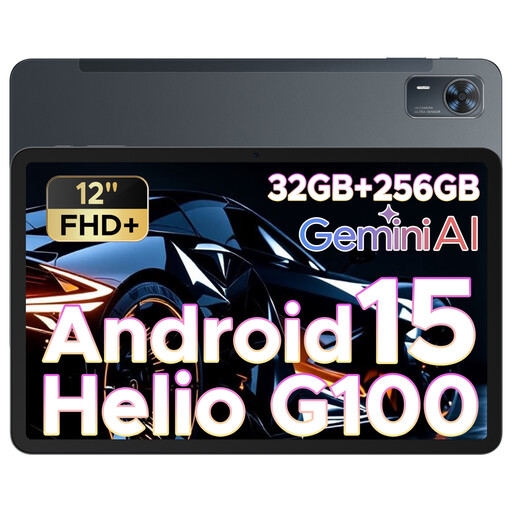 No image available
The 12-inch display gives someone using enlarged text room to try their preferred reading layout. The product name specifies FHD+, Android 15 and a SIM slot; check magnification, speech navigation, mobile-service requirements and the necessary apps on this exact tablet.
 No image available
The 12.7-inch display is another size to try with enlarged books and interface text. The product name specifies 4G LTE and an included case; confirm the exact tablet’s accessibility controls, software support and required library and communication apps.
Choose according to how the person navigates and reads: enlargement can help someone who uses visual content, while a screen reader provides spoken feedback for navigation. Both may be useful, so try the actual reading and communication apps with the intended user.
Yes, but set it up around the reader’s own accounts, Wi-Fi and preferred access settings so they can use it afterwards. RNIB notes that Android setup requires personal details and Wi-Fi information; make sure the reader can access or recover any account created during setup.
It can if the tablet supports the library’s app and the desired format is in that library’s collection. Libby lists support for iOS 10+, Android 7.1+ and newer Fire tablets, while each library chooses which titles and formats it offers.
Not if the reader also needs the tablet’s email, calling, social and general apps. A compatible Kobo can serve a library-ebook reading need, but Libby says some ebooks do not work on Kobo and its audiobooks and magazines are not supported there.
It is worth considering if the exact model runs the reader’s required apps and accessibility features and has suitable current software support. Check its condition, account-reset status, included accessories and the seller’s stated terms alongside a hands-on access test.