Choose a TV or streaming device whose menus and setup you can use, then check the broadcasters, apps and programmes you actually watch. Spoken menus, magnification and caption controls can make the device easier to operate, but they cannot supply subtitles, audio description or signing when a programme or playback platform does not offer them. Check live and on-demand viewing separately where both matter.
Who needs which features?
Viewers needing spoken or easier-to-see menus
If reading a programme guide or completing setup is difficult, look for spoken feedback, magnification, larger text or high-contrast controls on the exact device. Ofcom’s research on access services also highlights the importance of finding content and navigating interfaces consistently.
Viewers relying on captions or subtitles
Check whether your priority apps provide subtitles for the programmes you watch, where the controls are located and whether you can adjust their appearance. Roku and Google note that device-wide caption preferences do not govern every app.
Viewers relying on audio description or signing
Start with the services and programmes you want to watch, then confirm support on the intended device. Audio description and signed content depend on the provider and title as well as the playback platform.
What should you check before buying?
Check that you can operate the interface before comparing access services in your priority apps. A smart TV keeps viewing in one TV interface, while a separate streamer has its own menus and settings; neither choice establishes what every app or programme will provide.
| Concern | What to check | Who this matters to |
|---|
| Menus and setup |
Confirm spoken navigation or the required text, magnification and contrast controls on the exact model. Check whether they work during setup. |
I need to find apps and change settings without struggling to read the screen or navigate the menus; around 36% of consumers put independent operation first. |
| Subtitles and captions |
Try subtitles in priority apps and titles, including live viewing if relevant. Check whether appearance controls sit in the app or device settings. |
If subtitles are essential to following a programme, I need to find and read them in the services I use; roughly 29% of consumers make caption access their primary concern. |
| Audio description and signing |
Find relevant labelled programmes and confirm that the intended service and device support their playback. |
I choose programmes partly by whether audio description or signing is available on my device; about 21% of consumers place that access need first. |
| Live and on-demand viewing |
Check access services separately for live channels, catch-up and on-demand titles across must-have providers. |
My viewing moves between live programmes and several apps, so one working title is not enough; around 14% of consumers prioritise that combination of services and viewing routes. |
Mistakes to avoid
-
Assuming a device setting works in every app
A screen reader or caption control helps with the functions it supports, but an app may use separate controls or lack the required access track for a particular title.
Try a priority title in each essential app on the intended device. Test live and on-demand playback separately if you use both.
-
Checking only the audio-description switch
An audio-description control cannot select a track that the service does not provide on that platform. Channel 4 says its streaming audio description is not currently available on Amazon Fire TV.
Identify audio-described titles in your priority service and confirm its current support for the exact playback device.
-
Treating live and catch-up as interchangeable
Access-service support can change within the same provider according to whether you watch live, catch-up or other on-demand content. ITVX distinguishes these viewing routes in its accessibility guidance.
List what you watch by viewing route before checking subtitles, audio description or signing.
-
Overlooking TV Licence rules when switching devices
The screen or streaming device you use does not, by itself, determine whether you need a TV Licence.
TV Licensing says a licence is needed to watch live TV on streaming services and to watch BBC iPlayer. Check its guidance against your planned viewing.
Relevant brands for reference
Apple
Apple TV 4K is a streaming-device option for viewers who need spoken navigation or adjustable visual and input controls.
- Apple documents VoiceOver, Zoom, contrast controls, switch control, captions and audio-description controls for Apple TV 4K.
- Apple says feature and content availability varies by region and hardware model. Check the intended apps and titles too.
Amazon Fire TV
Fire TV is a streaming-device option for viewers considering spoken interface navigation.
- Amazon documents VoiceView, which speaks on-screen menu text during navigation.
- VoiceView works with Fire TV remotes rather than the Fire TV Remote App, and support varies by device. Channel 4 says its streaming audio description is not currently available on Amazon Fire TV.
Google TV
Google TV and specified Google streaming devices offer options for viewers needing spoken navigation or alternative controls.
- Google documents TalkBack, high-contrast text, switch access and TalkBack-assisted setup for specified streaming devices.
- Google says caption preferences might not apply in certain apps; confirm features on the device and services you intend to use.
Roku
Roku devices and Roku TVs are worth examining when caption activation and appearance are the main priorities.
- Roku documents caption modes and controls for text, background and window appearance.
- Captions require provider support, and some apps use their own controls instead of Roku-wide settings.
Samsung
Samsung smart TVs are an all-in-one TV route for viewers considering built-in menu accessibility.
- Samsung documents Voice Guide, magnification, high contrast and enlarged menus among its TV accessibility features.
- Confirm which settings the exact TV model offers. Its audio-description setting also depends on the broadcast providing audio description.
Joybuy smart TV choices
This smart TV option is relevant if you want spoken feedback within the TV interface. Check its exact settings and your priority apps before deciding whether it meets your viewing needs.
 No image available
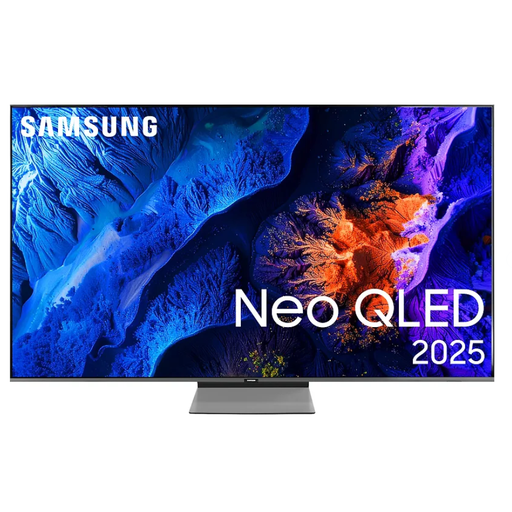
Samsung Neo QE55QN85FAUXXH 55-inch 4K Ultra HD Smart TV, Silver
For viewers who need spoken feedback when navigating a smart TV, Voice Guide is listed for this model.
55-inch (139.7 cm) 4K Ultra HD TV with Wi-Fi and a silver finish.
Check magnification, high-contrast controls and spoken setup on this exact model. Confirm subtitles, audio description or signing in the apps and programmes you rely on.
Joybuy
Frequently asked questions
Does an accessible TV guarantee subtitles or audio description in every app?
No. Device controls can help you use access services that are available, but the programme, app and playback platform must supply the relevant subtitles or audio-description track. Check signing at the programme and service level as well.
What should I try before choosing a TV or streamer?
Try the required menu feature during setup, then open your priority apps and play titles offering the access services you need. Check live playback separately from on-demand viewing, and note whether each control is in the app or device settings.
Why might an app ignore my device’s subtitle settings?
The app may use its own subtitle controls. Roku says its device caption settings do not affect some providers, while Google warns that Google TV caption preferences might not apply to certain apps.
Will an audio-description setting find programmes for me?
Not on its own. The setting can use an available track, but you still need an audio-described title supported by the service on your device. Channel 4, for instance, says its streaming audio description is not currently available on Amazon Fire TV.
Do I need a TV Licence for a streaming device in the UK?
A streaming device does not automatically require one. TV Licensing says you need a TV Licence to watch live TV on streaming services or to watch BBC iPlayer; check its guidance for your planned viewing rather than deciding by device type.


