People who need another way to control a computer
If a conventional keyboard, mouse or touchscreen makes an essential task difficult, compare voice control, adjusted input settings and alternative peripherals against that specific task.


Start with the task that is difficult, then try the accessibility features on the device and applications you already use before choosing separate equipment. If built-in tools do not let you complete essential tasks reliably, consider compatible software or peripherals; complex setups and equipment for work may also call for training or an employer-led assessment.
If a conventional keyboard, mouse or touchscreen makes an essential task difficult, compare voice control, adjusted input settings and alternative peripherals against that specific task.
Speech output, braille, magnification and display adjustments are different ways to access screen content. The useful choice depends on the device and the websites or applications that must be navigated.
Equipment for study or work must fit the required software and support arrangements. AbilityNet advises that individual training and customisation can help; workers may also need to discuss their setup with their employer.
Identify the task that matters most, try the relevant built-in feature, then check whether any additional equipment will work with the complete setup.
| Concern | What to check | Who this matters to |
|---|---|---|
| Alternative control | Try the required typing, pointing or navigation tasks. Check input method, physical placement and any required connection or controller. | If ordinary keys or pointer controls are difficult to use, I need an input method I can operate for my essential tasks. Around 29% of consumers put alternative control first. |
| Screen access | Test speech, braille or display adjustments with the actual device, documents and essential applications. | When I cannot comfortably read or navigate the screen, access to my everyday documents and services takes priority. Screen access comes first for around 29% of consumers. |
| Writing and communication | Decide whether the task calls for dictation, voice control, captions or call audio; check the microphone and application setup. | If writing or joining calls is the obstacle, I need the chosen method to work in the places and applications I use. Around 24% of consumers prioritise writing and communication. |
| Supported setup | Check application compatibility, configuration, training and, for work equipment, the employer's assessment and support arrangements. | With several devices or services to coordinate, I need a workable setup and help learning to use it before choosing equipment. Supported setup is the primary concern for around 18% of consumers. |
A new input device may not address a difficulty with reading the screen or navigating an application. GOV.UK notes that phones, computers and tablets often include accessibility features.
Try the relevant screen, keyboard or voice setting on the device and application you use; choose separate equipment for a task that remains difficult.
Platform requirements differ: NV Access lists Windows 10 and later for the current NVDA download, while Microsoft lists Windows 11 version 22H2 and later for Voice Access.
Check the operating-system version, required applications, language, connections and any controller or organisational permissions before committing to a setup.
A compatible screen reader or alternative input device may still need individual configuration and practice. AbilityNet advises that many people benefit from one-to-one training and customisation.
Ask who will configure the equipment, teach its use and provide continuing support.
Arrange time to learn and practise the setup, particularly when several tools must work together.
GOV.UK describes Access to Work support for individual work needs, while the Health and Safety Executive says workstation assessments should consider a worker's special requirements.
Discuss the workstation and required adjustments with the employer, then consider whether Access to Work is relevant to additional support.
An Apple-device route for people assessing built-in screen access.
A Windows route for assessing built-in screen, caption and input features.
A screen-reader software route for a supported Windows PC.
A peripheral brand to consider when assessing alternative mouse positioning or specialist controls.
These mice and keyboard offer different physical input layouts to assess, while the conference speaker is a group-call audio option. Check each against the task, device and applications you need to use.
 No image available
Consider this vertical mouse if a different pointer-control position is the task you need to assess. Try its shape and six-button layout against your reach and grip.
The named features include Bluetooth and 2.4GHz wireless modes and an adjustable sensor listed at up to 1600 DPI; check the connection required by your computer.
 No image available
This wireless mouse is worth assessing if the position of your hand and wrist rest matter to pointer use. Check its shape, controls and detachable wrist rest for individual fit.
 No image available
Consider the split layout if conventional key positioning makes typing difficult. Assess the key arrangement and padded wrist rest in the position where you will use the keyboard.
 No image available
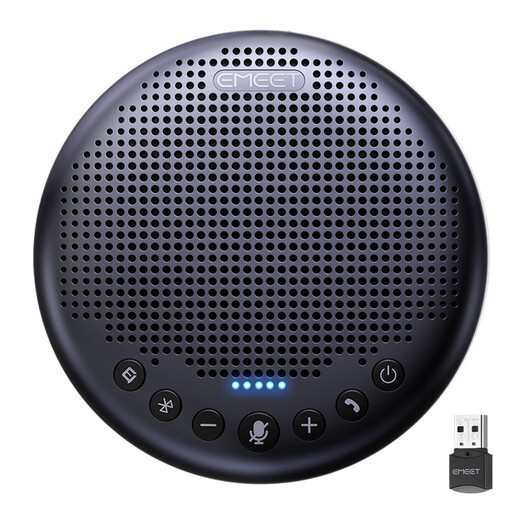
This conference-speaker format may be relevant to group calls, rather than private headset use. Check whether it suits your room, intended device and calling application.
The product name lists eight microphones, 360° voice pickup, dual connection and a 5W speaker; those features alone do not establish call clarity in your setting.
Seek advice before buying if several devices and applications must work together or if a screen reader, speech-control or switch setup needs individual configuration. AbilityNet notes that one-to-one training can help people customise how they use a device; for essential work tasks, discuss requirements with the employer as well.
It may help with eligible work-related support at home. GOV.UK describes Access to Work grants for practical support, including specialist equipment and assistive software; the support awarded depends on individual circumstances, so discuss employer arrangements separately.
The Health and Safety Executive says employers must assess workstations for employees who use display screen equipment daily as part of normal work for continuous periods of an hour or more. The assessment should take account of the workstation, the job and any special requirements.
Do not assume it will work with every app. Check the required operating-system version and test the exact documents, websites and work or learning applications needed for your tasks.
Arrange training when configuration or learning the controls is part of making the setup usable, particularly with a screen reader or alternative input. Ask who will provide initial instruction and help if the equipment or software needs adjusting later.