Who is this setup for?
The useful starting point is the task a person needs to complete, not an accessibility label on a device.
People who struggle with standard inputs
If a conventional keyboard or mouse makes writing or navigation difficult, try the required tasks with adapted physical controls, on-screen controls or voice input. AbilityNet describes keyboard and mouse alternatives, but the workable choice depends on the person’s movements and tasks.
People who need accessible reading
Enlarging text, hearing selected text and navigating a whole screen by speech are different tasks. Try the option you need with the documents, websites and controls you use regularly.
People with complex communication needs
A communication aid needs to work with the person’s access method and support arrangements. NHS augmentative and alternative communication services describe individual assessment and setup, making professional advice more useful than choosing specialist equipment from a feature list alone.
What should you check first?
Try a familiar task on an existing device, then identify whether the remaining barrier is reading, control, communication or compatibility. A microphone, larger display and screen reader address different parts of that task and can be used together.
| Priority |
What to check |
Your needs |
| Reading and navigation |
Try a usual document and website with display scaling, spoken text or a screen reader. Check whether you need menus and controls spoken as well as the text itself, and whether enlargement leaves enough room to work. |
I need to read the content and find the controls, not just enlarge a sample page. |
| Text entry and control |
Test composing, correcting and navigating separately. For a keyboard or alternative control, check its layout and positioning; for voice input, check both dictation and the controls you need to operate. |
Writing without standard keys matters to me, but I also need a way to move through the app and correct mistakes. |
| Device and software fit |
Check the exact operating system, specialist-software edition and required connections. Run representative work or study tasks in the apps and documents you actually use. |
I want the setup to work with my existing computer and everyday tasks before I commit to another tool. |
| Communication access |
Try the intended communication task with the person’s input method and support arrangements. For complex needs, ask an appropriate local communication-aid service about assessment before selecting specialist equipment. |
Being able to select a message reliably matters more to me than the number of features on a device. |
| Setup and support |
Allow for a trial, learning and any specialist-software update arrangements. Check work or study support through the applicable programme separately from choosing a retail product. |
I need to know how I will learn and maintain the setup, and which support route applies to my circumstances. |
Brands and tools to consider
These references help distinguish built-in features from specialist software; a brand name does not establish that a particular setup will work for someone’s apps or input method.
Microsoft
Windows built-in tools are a starting point if your required tasks use Windows applications.
- Microsoft documents Narrator for reading and interacting with on-screen text and controls, alongside Windows display-size settings.
- Check the Windows version and try voice, reading and enlargement features in your required applications.
Apple
An iPad offers a portable, touch-based route if its input method and apps suit the task.
- Apple documents VoiceOver and magnification features for iPad.
- Apple notes that feature, app and service availability can vary by region or language; try the required tasks rather than assuming touch input will be usable.
Google
ChromeOS built-in reading tools are worth trying when the required work can be done on a Chromebook.
- Google distinguishes ChromeVox screen reading from Select-to-speak for selected content.
- Check required apps and documents on the particular Chromebook under consideration.
Dolphin Computer Access
SuperNova is a specialist visual-access software route to assess when built-in tools do not meet the task.
- Dolphin describes separate SuperNova editions for magnification and combinations with speech or screen reading.
- Confirm the edition, system requirements and any accessories needed for the particular functions you intend to use.
Freedom Scientific
JAWS is a specialist Windows screen reader to evaluate for reading and navigating computer content.
- Freedom Scientific offers a JAWS trial, allowing you to check required tasks before selecting a licence.
- A trial with your apps is still needed; the product name alone does not establish compatibility with every workflow.
Joybuy product options
These Joybuy options cover physical input and display accessories: keyboards, microphones and a portable monitor. Use the task and connection checks above to decide whether an accessory belongs in your setup; none replaces an individual communication assessment or establishes that particular software will work for you.
 No image available
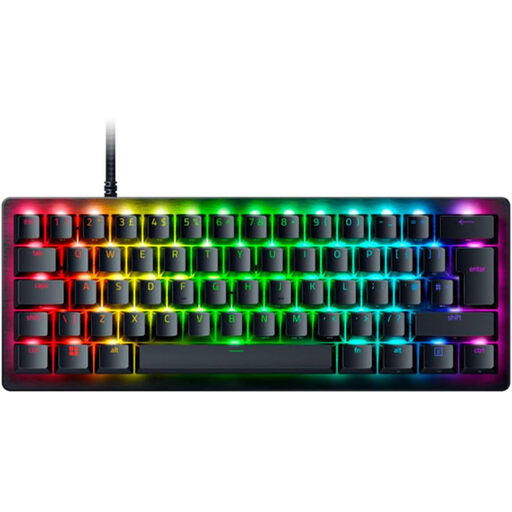
Razer Huntsman V3 Pro Mini 60% Analog Optical Keyboard
Consider this physical-input option if you want to try a different keyboard for writing and navigation. Test whether its 60% layout provides convenient access to the keys your tasks require, and check how you would set up any adjustments you need.
View on Joybuy
 No image available
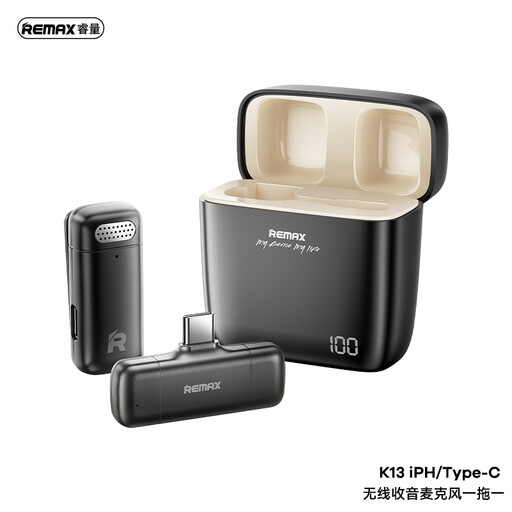
REMAX K13 1-to-1 USB-C Wireless Microphone, Black
For voice input away from a desk, check that the intended device accepts this USB-C microphone and try it with the dictation or voice-control software you plan to use. Audio capture alone does not establish that you can edit text or navigate your apps by voice.
View on Joybuy
 No image available
ASUS ZenScreen MB166CR FHD
An additional display is an option when you need more screen space for reading or arranging windows. Check its connection requirements against your computer, then try the text scaling and layout you need; a display is not a substitute for screen-reading software.
View on Joybuy
 No image available
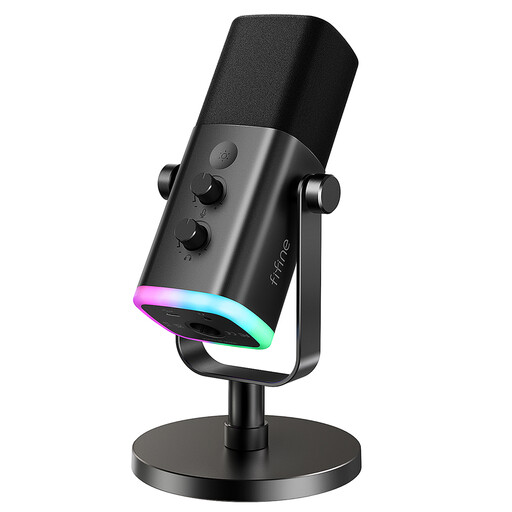
FIFINE AM8 USB/XLR Dynamic Microphone
For a desk-based voice-input setup, decide whether you will use its USB or XLR connection and check the equipment that connection requires. Try your own speech-recognition software with typical writing and control tasks; the microphone does not perform those software functions itself.
View on Joybuy
 No image available
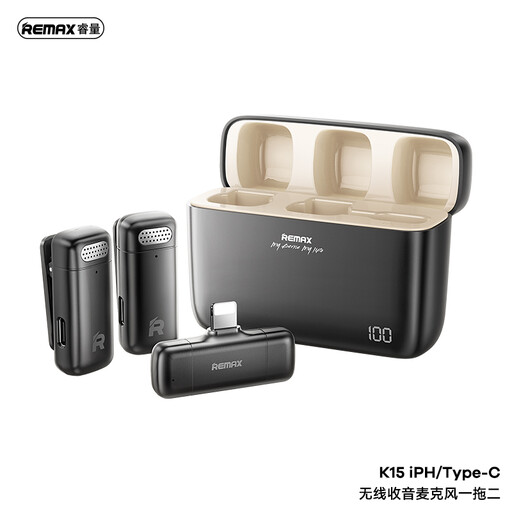
REMAX K15 2-in-1 Lightning Wireless Microphone, Black
Consider this voice-input accessory only for an intended device with the appropriate Lightning connection; a USB-C device needs a different connection. Test the device’s dictation or voice-control features with your usual tasks before choosing a microphone.
View on Joybuy
Common questions
How can I try screen reading before buying software?
Start with the built-in feature that matches your task. Microsoft documents Narrator for text and controls, Google distinguishes ChromeVox from Select-to-speak, and Apple documents VoiceOver on iPad. Try a familiar document, message and website, including their menus and controls.
When is a communication-aid assessment useful?
Seek advice from an appropriate local augmentative and alternative communication service when communication needs or access methods are complex. NHS services describe assessment and equipment setup; ask the relevant service about its local referral arrangements before choosing specialist equipment.
What should I check for specialist visual-access software?
Check the precise edition and operating-system requirements against the functions you need. Dolphin Computer Access notes that some SuperNova functions may also require equipment such as a camera or scanner, so confirm the requirements for your intended workflow.
Should I check study support before buying equipment?
Yes, check the student-support route that applies to you before purchasing. The Student Loans Company describes a Needs Assessment before Disabled Students’ Allowance support; Scotland’s Student Awards Agency and Northern Ireland’s nidirect publish separate information. A product description cannot determine an individual award.
Where should I ask about equipment support for work?
Check the work-support service applicable where you live rather than assuming one route covers the whole UK. The Department for Work and Pensions states that Northern Ireland has a separate service, and nidirect describes Access to Work (NI) support for special aids and equipment. Ask the relevant service about your circumstances before treating support as part of a purchase decision.


