Climbers reviewing movement
If you want to revisit foot placements, body position or a route sequence, choose an angle that keeps the movement in frame. Frame rate and stabilisation matter particularly when the camera moves during the attempt.


Choose a secure camera position before choosing recording features. For moving footage or detailed replay, check the frame rate and stabilisation available in the mode you will use; for solo clips, consider how you will check the framing. Do not assume a helmet attachment is acceptable: check the instructions for your helmet and the climbing wall’s rules, and use a suitable non-helmet position if approval is absent.
If you want to revisit foot placements, body position or a route sequence, choose an angle that keeps the movement in frame. Frame rate and stabilisation matter particularly when the camera moves during the attempt.
When you set up the shot yourself, a front-facing or flip screen can help you check the framing before climbing. The support still needs a secure position that does not interfere with other climbers.
Several attempts make recording time, compatible spare batteries and storage more important than they are for a single short clip. Plan around the settings and conditions you expect to use.
Settle on a safe filming position first, then choose recording modes for the movement you want to review. Finally, check that power and storage will cover the length of your session.
| Concern | What to check | Who this matters to |
|---|---|---|
| Secure placement | Check the camera’s mounting interface and whether a stable, non-helmet support can be positioned clear of ropes, belaying and landing areas. Check the exact helmet instructions before considering an attachment. | I need to see my movement without putting equipment or other climbers in the way; around 33% of consumers would put secure placement first. |
| Movement detail | Check the resolution and frame-rate combination you intend to use, plus stabilisation availability in that mode and whether you can edit the files. | If I am reviewing a quick move, I want playback that lets me examine its sequence. Roughly 27% of consumers would make movement analysis their primary concern. |
| Solo framing and indoor light | Check whether you can see the screen from the planned camera position and which recording modes remain available under the wall’s lighting. | I set up clips alone and need to know I will stay in frame at a dim wall; approximately 20% of consumers would prioritise framing and visibility. |
| Session endurance | Compare runtime at your chosen settings, then check compatible batteries, charging and storage for repeated attempts. | Several attempts mean I do not want to interrupt practice to manage power or files; around 20% of consumers would put session workflow first. |
An attachment can affect how a helmet performs in an impact. Petzl says camera mounting is not authorised for its helmets.
Read the instructions for your exact helmet. If the manufacturer does not expressly permit the attachment, choose a securely positioned non-helmet support instead.
GoPro’s published HERO13 recording times differ by video mode and are subject to its stated test conditions.
Choose your resolution, frame rate and stabilisation setting before deciding how much compatible spare power to carry.
A longer session may also call for a charging solution and memory card.
A camera-side mount may not connect directly to the tripod, grip or other support you plan to use.
Compare both connections and check what is included before buying. Insta360 says its Ace Pro 2 Standard Mount needs a separately sold 3-prong-to-1/4-inch adapter for a selfie stick or some other accessories.
Recording functions can change with the selected mode and accessories; DJI notes such limits for some Osmo Action 6 aperture functions.
Make a short test clip using the resolution, frame rate, aspect ratio and stabilisation settings you intend to use at practice.
The HERO13 Black is worth considering if high-frame-rate replay and optional specialist lenses fit the clips you want to make.
The Osmo Action 6 offers a square capture format to consider if you intend to choose the final crop after filming.
The Ace Pro 2 is an option for solo filming when seeing the framing from the planned support position is important.
These action cameras offer options for movement review, solo framing or planning power for repeated attempts. Check how each would fit a secure, permitted filming position before choosing a recording mode or bundle.
 No image available
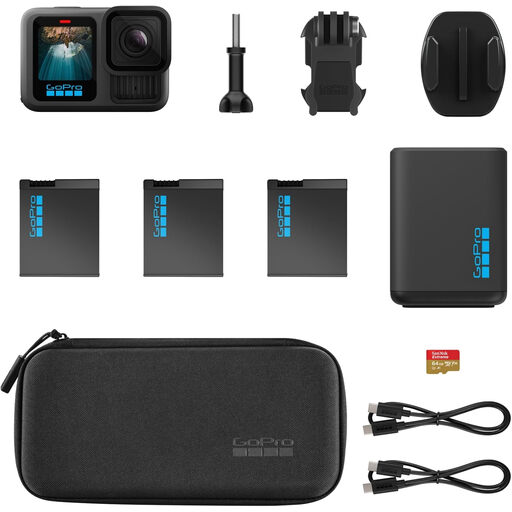
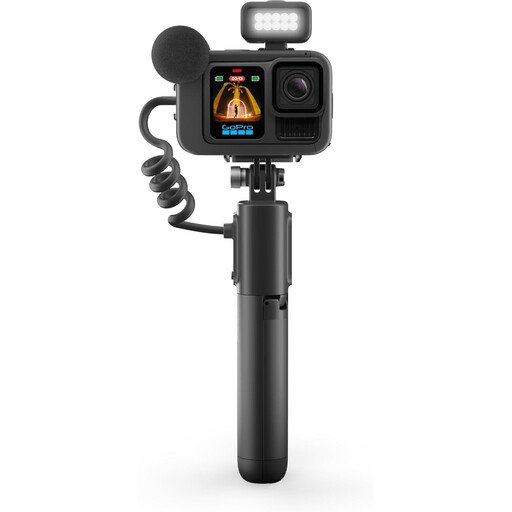
Consider this bundle if you want HERO13 Black recording options while planning power for repeated attempts. GoPro specifies up to 5.3K/120fps for HERO13 Black; confirm the bundle contents and runtime at your chosen settings. Use a permitted, secure filming position rather than assuming an adhesive mount is suitable for a climbing helmet.
 No image available
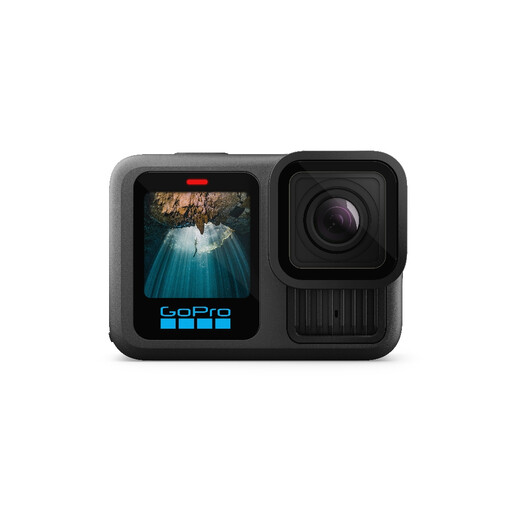
For reviewing dynamic moves, GoPro specifies up to 5.3K/120fps and a 720p Burst Slo-Mo option up to 400fps for HERO13 Black. Check how you would attach it to your chosen non-helmet support and plan battery capacity around the recording mode you will use.
 No image available
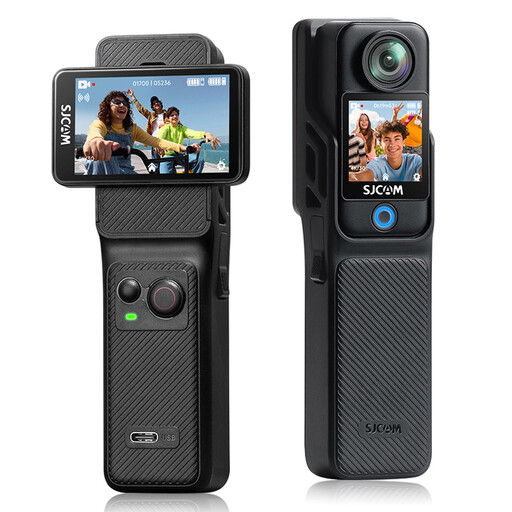
The flip-screen configuration is relevant if you need to check a solo shot before climbing. Its product name specifies 6-axis electronic image stabilisation and a 2.29-inch flip touchscreen. Confirm the included support, battery configuration and runtime at your intended settings before planning a full session.
 No image available
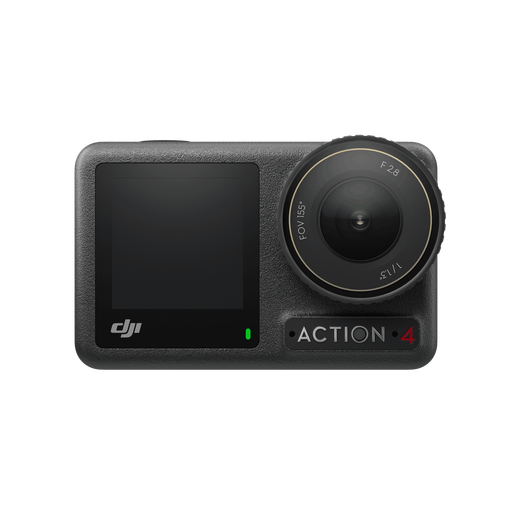
Its stated 4K/120fps mode is relevant to reviewing fast moves, while the Adventure Combo is worth checking if you expect repeated attempts. The product name also specifies a 1/1.3-inch sensor. Confirm the included batteries and compatibility with your planned non-helmet support; do not apply Osmo Action 6 specifications to this model.
 No image available
Consider this kit if you want to arrange a fixed shot and can check whether its grip and support suit the space available at the wall. Confirm the high-frame-rate mode and recording time you need for movement review, and follow the helmet manufacturer’s instructions rather than treating an adhesive mount as approval.
Do not assume that a camera attachment is permitted. Petzl says mounting a camera on its helmets is not authorised because attachments can alter helmet performance. Check the instructions for your exact helmet and use a securely positioned non-helmet support if the manufacturer does not expressly allow the attachment.
Start with a frame rate that suits the playback you want, then choose a resolution and aspect ratio that keep the relevant part of the route visible. GoPro specifies up to 5.3K/120fps for HERO13 Black, DJI specifies up to 4K/120fps in 4:3 for Osmo Action 6, and Insta360 lists 4K/120fps for Ace Pro 2. Check which other functions remain available in the exact mode you select.
Plan from your intended recording mode and session length rather than a maximum runtime claim. GoPro’s published HERO13 battery figures vary with resolution and use specified test conditions; DJI specifies 50GB of built-in storage for Osmo Action 6. Check compatible spare batteries and removable storage before relying on either for a longer session.
Check the specific wall’s filming rules before setting up a camera. For London locations, Film London advises that even apparently public locations may require notification or permission, while filming in a private interior requires permission from the relevant owner or representative. Its guidance does not establish one rule for every UK climbing wall.