Connect a monitor directly, using a suitable cable or adapter, when your laptop has a documented video output that supports the screen setup you want. Choose a compatible USB-C or Thunderbolt dock if you also need a repeatable connection for desk peripherals and possibly charging; consider a USB-A DisplayLink dock for a supported laptop without suitable native video output, accepting its software requirements and separate laptop charging.
Who needs which setup?
Multi-screen home workers
If you want documents, meetings or applications on two or more screens, establish how many external displays your exact laptop supports before choosing a dock. Apple Support and Microsoft Support describe model-specific display limits that can also depend on resolution and refresh rate.
One-cable desk users
If you regularly connect a monitor, keyboard, mouse or printer at your home desk, a dock may reduce the number of connections you make each time. Dell describes single-connection docking options, but the ports and laptop charging capability depend on the particular dock.
Users with older or port-limited laptops
If your laptop lacks a suitable native video connection, an explicitly DisplayLink-based USB-A dock or adapter may be worth assessing. Check operating-system and software support, and plan to keep the laptop charger connected: DisplayLink says USB Standard A-B docks are not designed to charge the computer.
What matters when choosing connections?
Start with the laptop’s exact model and the screens you intend to connect. That determines whether a direct cable, a dock or a software-based display connection is worth considering.
Direct video or a matching adapter
Choose when: Your laptop has a documented video output for the monitor arrangement you need; use an adapter if its connector differs from the monitor input.
Trade-off: Displays and other desk devices may need separate connections.
USB-C or Thunderbolt dock
Choose when: You want to reconnect displays and peripherals through a compatible laptop port, potentially with laptop charging.
Trade-off: Dock outputs do not override the laptop’s display limits, and host charging depends on the dock and laptop.
USB-A DisplayLink dock
Choose when: A supported laptop needs a display connection that its available native video ports cannot provide.
Trade-off: This route depends on compatible software; a USB-A dock does not replace the laptop charger.
| Concern |
What to check |
Who this matters to |
| Multi-screen capability |
Check the exact laptop model’s external-display count and supported resolution and refresh-rate combinations against the intended screens. |
If I work across several screens, I need to know that my laptop can drive the whole arrangement, not merely connect to a dock with enough sockets. Around 36% of consumers put that multi-screen capability first. |
| Desk consolidation |
Match the dock’s host connection and peripheral ports to the laptop; if charging matters, compare its stated host power with the laptop’s requirement. |
When I return to my desk, I want my screen and everyday peripherals ready without reconnecting each one. For around 29% of consumers, that one-connection need comes first. |
| Older-laptop expansion |
For a DisplayLink product, confirm operating-system support, software installation requirements and the separate charging arrangement. |
If my available ports cannot provide the display connection I need, I can consider a software-based route only if I can use its required software. Around 21% of consumers primarily need that older-laptop option. |
| One extra screen |
Match a documented laptop video output to the monitor input, then check the required resolution and refresh rate for the cable or adapter. |
I only need more room for one screen, so I would rather use a suitable existing video output than build a full docking setup. That simple connection is the first concern for around 14% of consumers. |
Common connection mistakes
-
Assuming every USB-C socket outputs video
USB-C describes the connector, not a guaranteed display function. VESA’s guidance on USB-C video adapters applies to sources that support DisplayPort Alt Mode.
Look up the exact laptop model and confirm a documented video-capable port before selecting a USB-C monitor cable, adapter or dock.
-
Counting dock outputs instead of supported screens
Two or more video sockets do not establish that your laptop can run every connected screen at the settings you want. Apple Support and Microsoft Support describe model-specific limits and resolution or refresh-rate trade-offs.
Write down the intended screen count and settings, then check the laptop, dock, cable and monitor combination.
-
Expecting USB-A docking to charge the laptop
DisplayLink says USB Standard A-B docking stations are not designed to charge the connected computer.
Keep the laptop’s usual power adaptor in your desk plan if you choose a USB-A DisplayLink dock. If charging through the dock is essential, assess a compatible USB-C or Thunderbolt model instead.
-
Overlooking DisplayLink software requirements
A DisplayLink display connection depends on host software. DisplayLink Support says its Manager app on macOS requires Screen Recording permission to operate.
Confirm that the exact product uses DisplayLink, supports your operating system and can be set up with the required software and permissions.
Docking brands to consider
Dell
Dell offers USB-C and Thunderbolt docks for laptop desk setups.
- Dell describes single-connection options for displays, audio and data, with charging on compatible setups.
- Check the individual dock’s display and charging specifications against your laptop; features are not uniform across Dell docks.
StarTech.com
StarTech.com offers docks using laptop-native display capability alongside universal and hybrid connection options.
- Its range includes products with USB-C and USB-A host connection options.
- Check the individual product’s display technology, driver needs and operating-system support rather than relying on a universal-compatibility description.
Plugable
Plugable offers docks using USB-C, Thunderbolt and DisplayLink connection routes.
- Its range includes options for connecting displays and desk peripherals through a dock.
- Plugable’s DisplayLink guidance calls for compatible software; screen support and charging specifications vary by model.
CalDigit
CalDigit offers Thunderbolt stations and USB-C docks and hubs for suitably equipped laptops.
- The range provides options for buyers who have the required Thunderbolt or USB-C host connection.
- Check charging on the exact model: CalDigit explicitly lists its Thunderbolt 3 mini Dock Dual HDMI as offering no laptop charging.
Joybuy workstation connections
These docking stations and adapters are options to assess for USB-C laptop desk connections. Choose by the screen arrangement and peripherals you need, then check the exact laptop’s video output, display limits and charging requirements before buying.
 No image available
Targus USB-C Universal Dual HDMI 4K Docking Station, 100W PD Pass-Thru
Consider this dock if your laptop supports the two-screen arrangement you intend to use through its USB-C connection.
Its product name specifies dual HDMI connections and 100W Power Delivery pass-through. Confirm the supported display settings and whether the external power adaptor needed for your setup is included.
View on Joybuy
 No image available
V7 V7UC-U3CRJ45HDVG-BLK USB-C Adapter
For a laptop desk needing a display connection alongside wired networking and USB peripherals, first confirm that the laptop’s USB-C port supports video.
The product name specifies 4K HDMI, VGA, Gigabit Ethernet, dual USB 3.0 ports and 100W Power Delivery. If you need two screens at once, confirm whether the HDMI and VGA outputs can operate simultaneously.
View on Joybuy
 No image available
USB-C adapter with 2 HDMI, DP, 2 USB 3.0, 2 USB 2.0, RJ45, PD, SD/TF and audio
This adapter offers a choice of display connectors for a laptop desk, but multiple sockets alone do not establish simultaneous multi-screen support.
Check the exact laptop and operating system against the display combination you want, including each screen’s resolution and refresh rate.
View on Joybuy
 No image available
MOVESPEED DK5A1 USB-C 10-in-1 Docking Station
Consider this for a single-monitor desk with additional USB, card and audio connections, provided the laptop supports video through the required USB-C connection.
The product name lists 4K 60Hz HDMI, USB-C 10Gbps, USB-A 10Gbps/5Gbps, SD/TF 160MB/s and 3.5mm audio. Check laptop charging separately rather than assuming a USB-C port on the dock supplies it.
View on Joybuy
 No image available
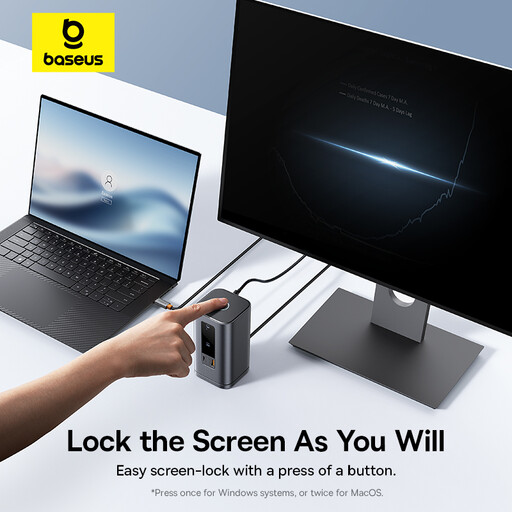
Baseus Wisdom Series 11-in-1 (WIN) Workstation, Space Gray
If your aim is a multi-screen desk, assess this workstation dock against the exact laptop and operating system before deciding it meets that need.
In particular, confirm the number of screens and the resolution and refresh rate available when they are used together; a dock’s video connections do not establish those limits for your laptop.
View on Joybuy
Questions about laptop monitor setups
Does a USB-C port automatically support an external monitor?
No. USB-C identifies the connector, not a guaranteed video output. Check the exact laptop specification for DisplayPort Alt Mode, Thunderbolt or a documented USB4 display function; VESA says an appropriate adapter can carry video from a USB-C source that supports DisplayPort Alt Mode.
Can a dock add more monitors than my laptop normally supports?
Do not assume a dock’s extra sockets raise the laptop’s native display limit. Apple Support and Microsoft Support describe model-specific limits that can depend on each display’s resolution and refresh rate, so check the complete configuration you intend to use.
Will a USB-A DisplayLink dock charge my laptop?
Not through its USB-A connection. DisplayLink says USB Standard A-B docks are not designed to charge a laptop, so plan to keep its normal power supply connected.
What setup does a DisplayLink dock need on a Mac?
DisplayLink-controlled screens on macOS require DisplayLink Manager and the Screen Recording permission needed for it to operate, according to DisplayLink Support. Confirm that the exact dock uses DisplayLink and supports your Mac before choosing that route.


