Choose an all-in-one PC when an integrated screen and a straightforward fixed-desk setup matter more than replacing the computer and monitor independently. If you expect to change the display or upgrade components later, compare a tower or mini PC with a separate monitor; if the computer must travel, consider a laptop-based setup. Whichever route you take, check the exact configuration against your work, connections and desk position.
Who each setup suits
People keeping one permanent desk tidy
An all-in-one PC puts the computer and screen in one unit, reducing the number of separate items to arrange. Check that its display position and connections work at your desk before choosing it for its compact layout.
People working at a screen for long sessions
Screen position matters as much as the computer itself. The Health and Safety Executive advises considering viewing distance, screen height and keyboard position, so assess the complete workstation rather than screen size alone.
People planning to keep or adapt a setup for years
If you may change the screen, storage or computer separately, compare an all-in-one with a tower or mini PC and monitor. Box.co.uk notes that memory and storage access varies between all-in-one models; check the exact model before relying on an upgrade.
What matters when choosing
The deciding question is whether your computer needs to stay at the desk, travel with you or change independently of its screen. Once you have chosen a route, check the configuration and physical setup you would actually use.
All-in-one PC
Choose it when: You want a computer and display together at one permanent desk.
Accept: The screen and computer are tied to the same purchase, while internal upgrade options depend on the model.
Tower and separate monitor
Choose it when: You want to select or replace the display independently and place a high priority on future hardware changes.
Accept: The case and monitor occupy separate spaces, with more components to select and connect.
Laptop with monitor and dock
Choose it when: The same computer must leave your home workspace.
Accept: A sustained desk setup also calls for suitable screen and input-device positioning; confirm dock compatibility before relying on one-cable connections.
Mini PC and separate monitor
Choose it when: You want a compact computer but prefer to keep the monitor as a separate choice.
Accept: You still need to arrange a monitor and peripherals, and service options depend on the particular mini PC.
| Concern |
What to check |
Who this matters to |
| Long-term flexibility |
For an all-in-one, check the exact model’s service information for accessible memory and storage. Decide whether you need to replace the screen independently. |
I want to keep my desk setup useful as my requirements change, without replacing its display and computer together. Roughly 33% of consumers place that flexibility first. |
| Screen and desk fit |
Check screen size, stand adjustment and desk depth. The Health and Safety Executive advises a screen about an arm’s length away, with its top roughly at eye level. |
For daily desk work, I need to position the screen and keyboard comfortably, not just choose a larger panel. Around 27% of consumers make screen and workstation fit their main concern. |
| Work and connections |
Match the exact processor, memory, storage and ports to your software and devices. Check whether a video port is an input or an output. |
If I use several peripherals or more demanding software, I need the configuration to suit those tasks from the outset. About 20% of consumers put workload and connections first. |
| Simple setup |
Check which peripherals come with the computer and whether the display, stand and available ports meet your needs. |
I would rather arrange one integrated computer at my permanent desk than select several separate components. Roughly 20% of consumers prioritise that simpler setup. |
Buying pitfalls
-
Assuming every all-in-one can be upgraded like a tower
Box.co.uk notes that some all-in-ones allow memory or storage changes, while others have soldered memory or difficult-to-access parts. That difference matters if you intend to keep the computer through changing workloads.
Find the exact model’s service manual and check compatible memory, storage slots, access requirements and warranty terms before counting on a future upgrade.
-
Choosing the display without planning its position
A screen size or resolution does not tell you whether an integrated stand will place the display comfortably at your desk. The Health and Safety Executive advises checking screen height, viewing distance and keyboard position together.
Measure your desk and seated eye height, then check the model’s stand adjustment or supported mounting options.
If the position does not work as supplied, you may need to change the desk arrangement or add a suitable riser.
-
Treating any HDMI port as a video input
An HDMI output does not let another computer use the all-in-one as its monitor. HP states that its standard 24- and 27-inch all-in-one models have HDMI output, while specified OmniStudio X models have both input and output.
If connecting a laptop or console to the built-in screen matters, confirm video-input capability for the exact model rather than judging by the port’s shape.
Brands to consider
These ranges offer different starting points for comparing all-in-one configurations; the details still depend on the individual model.
Apple
The iMac is a macOS option if its integrated, 23.5-inch actual-diagonal display suits your desk and your software runs on macOS, according to Apple UK’s iMac specifications.
- Apple UK lists M4 configurations with different memory and Thunderbolt-port options.
- If you want a different screen size or to replace the monitor independently, compare a separate computer-and-display setup.
HP
HP Store UK lists all-in-ones in several screen sizes and configurations, giving Windows buyers models to compare by display and connections.
- Its listed range includes 23.8-inch FHD and 27-inch QHD configurations.
- Port direction varies by line: HP distinguishes HDMI output on standard 24- and 27-inch models from input and output on specified OmniStudio X models.
Dell
Dell UK’s cited OptiPlex all-in-one configuration is worth checking if wired networking and several physical connections matter at your desk.
- The cited configuration lists USB-C, USB-A, DisplayPort and Gigabit Ethernet connections.
- Those ports and its listed storage slots describe that configuration, not every OptiPlex all-in-one; check the exact model and stand.
All-in-one PCs on Joybuy
These integrated computer-and-screen options are relevant if you have decided to keep a computer at one desk. Compare their listed configurations with your workload and screen-position needs; the separate-computer routes above remain alternatives.
 No image available
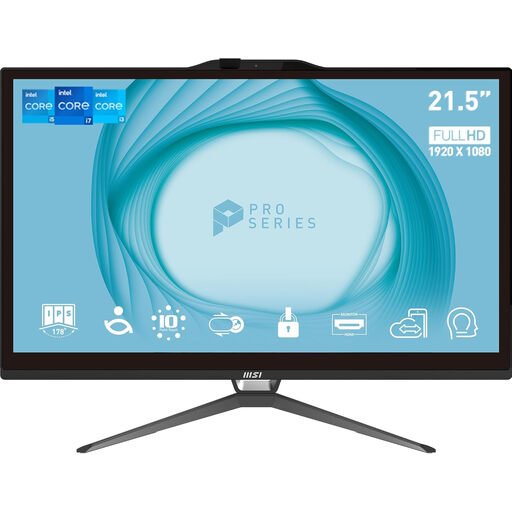
MSI Pro AP222T 13M 21.5-inch touchscreen all-in-one PC
Consider this for a fixed desk if a 21.5-inch touchscreen suits your space. Check that its listed memory and storage meet your intended workload, and confirm screen positioning and any video-input requirement for the exact model.
Intel Pentium Gold G7400; 4GB RAM; 128GB SSD; Windows 11 Pro.
View on Joybuy
 No image available
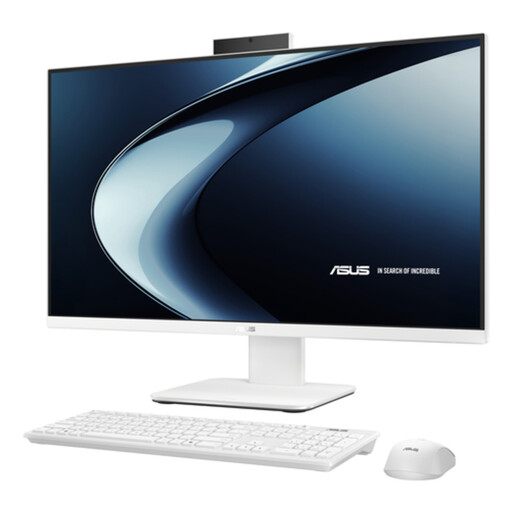
ASUS V400 AiO V470VAK-WPE032W 27-inch all-in-one PC, white
Consider this if you want a 27-inch integrated display at a permanent desk. Check that the screen can be positioned comfortably and consult the exact model’s service information if future memory changes matter.
Full HD; Intel Core i7-13620H; 16GB DDR5 RAM; 512GB SSD; Windows 11 Home.
View on Joybuy
Common questions
How should I position an all-in-one screen at a fixed desk?
Position it so the top of the screen is roughly at eye level and the screen is about an arm’s length away, following Health and Safety Executive guidance. Keep the keyboard just below elbow height; if the all-in-one’s stand cannot achieve a suitable position, reassess the stand or desk arrangement before buying.
Can I use an all-in-one PC as a monitor for my laptop?
Only if that exact all-in-one accepts video input. HP says its standard 24- and 27-inch all-in-one models provide HDMI output, whereas specified OmniStudio X models offer input as well as output. Check the model’s port specification for input capability.
What if a newly bought computer is faulty?
UK statutory rights may provide a remedy for faulty goods independently of a retailer’s voluntary returns policy. The Consumer Rights Act 2015 requires supplied goods to be of satisfactory quality; where its right to repair or replacement applies, the trader must act within a reasonable time, without significant inconvenience, and bear the necessary costs, subject to the Act’s conditions.
What should I plan for when replacing an old computer?
Plan for both your data and the old device’s disposal. GOV.UK describes computers as electrical equipment covered by the UK waste electrical and electronic equipment framework; use an appropriate collection or recycling route and erase personal data before handing the device over.


