Workers at one fixed desk
If you want fewer separate desktop components, an all-in-one is worth considering. Measure the space available for its screen and stand rather than assuming every integrated computer will fit a shallow desk.


Choose an all-in-one PC if the computer will stay at one desk, you want the screen and computer in one unit, and the exact model meets your needs for screen position, ports and future changes. A separate desktop and monitor gives you independent monitor choice; consider a model with explicitly documented upgrades if changing memory or storage matters. Keep a laptop-and-monitor setup if working away from the desk remains essential, after checking its display connections.
The useful starting point is whether the computer must move, how the whole desk will work and what you might want to change later.
If you want fewer separate desktop components, an all-in-one is worth considering. Measure the space available for its screen and stand rather than assuming every integrated computer will fit a shallow desk.
Consider screen position, furniture, keyboard and mouse placement alongside the computer. The UK Health and Safety Executive advises looking at the whole workstation, not just its equipment.
If extra displays, numerous peripherals or future memory and storage changes matter, check the exact model’s connections and service options. An integrated design alone cannot tell you what it supports.
Choose it when: The computer will stay at one desk and combining the main screen and computer matters more than choosing those components independently.
Trade-off: Screen adjustment, external-display support and options for later changes depend on the particular model.
Choose it when: You want to select or replace the main monitor independently, or buy a desktop with documented memory and storage upgrade options.
Trade-off: A tower and monitor are separate pieces of hardware; PCMag UK notes that an all-in-one can take less desk or floor space than that combination.
Choose it when: You still need to take the computer away from your home-office desk.
Trade-off: The fixed-desk arrangement also needs a suitable display connection, charging arrangement and space for the laptop.
Once you know whether portability or an independently chosen monitor is essential, compare the exact computer and desk arrangement against these checks.
| Priority | What to check | Your needs |
|---|---|---|
| Desk space | Measure the available width and depth. Check the complete screen-and-stand dimensions, not just the display size. | I want a fixed computer without finding space for a separate tower, but the screen and stand still need to fit my desk. |
| Workstation layout | Check screen height, tilt or mounting options; then consider desk depth and keyboard and mouse placement. The Health and Safety Executive advises assessing the whole workstation. | For regular desk work, I need to position the screen and input devices comfortably, not merely choose a computer with suitable internal specifications. |
| Connections | List required USB, audio, network and display connections. Confirm the exact model’s external-display count, resolution and refresh-rate limits, plus any adapter requirements. | Extra screens and the peripherals I use must connect in the intended arrangement; a connector name alone does not settle that question. |
| Configuration and changes | Compare the exact processor, RAM, SSD and display configuration. If later changes matter, read the model’s upgrade or service documentation and consider whether the monitor can be replaced separately. | I need a configuration for my current work, with a clear plan if I later want more storage, memory or a different screen. |
Screen adjustment, glare, furniture and input-device placement still affect the desk arrangement. The Health and Safety Executive’s guidance considers the whole workstation rather than favouring a PC form factor.
Check the exact screen’s adjustment or mounting options and lay out the keyboard and mouse before deciding. If you work for an employer, ask how its display screen equipment assessment applies to your home workstation.
If the integrated screen or supplied input devices do not suit the arrangement, a different keyboard, mouse or display setup may be needed.
Connections and supported display combinations vary by model and configuration. A dock or adapter does not automatically increase the number of displays a computer can drive.
Write down the screens and peripherals you intend to use, then check the precise computer’s ports, display limits and required cables or adapters.
Memory, storage, the built-in display and options for later changes can differ between configurations. Dell advertises upgradeable memory and storage for its cited Inspiron desktop line, but that does not establish the same options for every desktop or all-in-one.
Compare the complete configuration and its service documentation. If changing the main monitor independently is important, compare a separate desktop-and-monitor setup.
The computer being replaced may still hold personal information, and its electrical-waste collection route needs planning.
Back up files you need, remove personal data and check the applicable local-authority recycling or retailer take-back arrangements. Oxfordshire County Council specifically advises clearing personal information before taking a computer for recycling; local collection arrangements vary.
These product-line examples show why a brand name is not enough: check the size, display and connections of the configuration you would actually buy.
Dell’s UK all-in-one listings include 24-inch and 27-inch lines for a fixed desktop workspace.
HP lists all-in-ones in different sizes and configurations, including its OmniStudio X line.
The ThinkCentre M90a Gen 5 illustrates a business-oriented all-in-one to examine when external displays are important.
The 24-inch iMac is an integrated macOS desktop for buyers whose software and peripherals fit that platform.
These options include an all-in-one PC with a built-in screen and separate-computer alternatives: one desktop tower and three mini PCs. For the separate computers, plan the monitor and check what peripherals are supplied.
 No image available
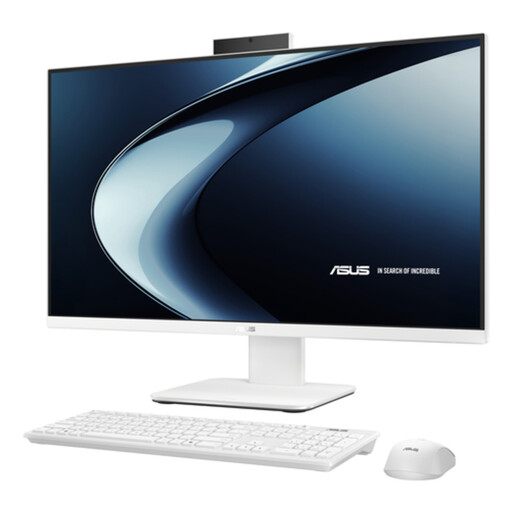
An integrated-screen option for a computer that will remain at one desk. The listed configuration has an Intel Core i7-13620H, 16GB DDR5 RAM, a 512GB SSD and Windows 11 Home. Check the exact screen adjustment, ports and supplied keyboard and mouse against your workstation plan.
 No image available
A separate desktop for a desk where you want to choose the monitor independently. The listed configuration has 8GB RAM, a 1TB SSD and Windows 11 Home; its description lists two DDR5 DIMM slots. Check which processor this SKU has, what comes in the box and the connections required by your chosen monitor.
 No image available
A compact separate-computer option if you want to choose the desk display yourself. Its title lists a Ryzen 5 7640HS, 24GB LPDDR5 RAM, a 512GB PCIe 4.0 SSD, USB 4.0, HDMI 2.1 and 2.5G Ethernet. It advertises 4K triple-screen output; confirm the precise display limits, operating system and supplied accessories for your setup.
 No image available
Another compact computer to pair with a separately chosen monitor. The title lists a Ryzen 7 7735HS, Radeon 680M graphics, 16GB RAM, a 512GB SSD and dual M.2 slots. It advertises triple-display support; check the exact outputs and limits, operating system and supplied accessories before planning a multi-screen desk.
 No image available
A mini PC for a fixed desk with an independently chosen display. Its title lists a Ryzen 5 7430U, 16GB LPDDR4 RAM, a 512GB SSD and Wi-Fi 6. It advertises 4K triple-screen support; check the actual output ports and display limits, operating system and supplied accessories for the arrangement you intend to use.
No. The UK Health and Safety Executive advises considering the whole workstation, including equipment, furniture and working conditions. Check whether the exact screen can be positioned appropriately and whether the keyboard, mouse and desk arrangement suit your work; ask your employer about its workstation assessment where applicable.
Some can, but the number and supported resolutions depend on the model. Apple specifies up to two external 6K displays at 60Hz or one 8K display for the four-port 2024 iMac; Lenovo specifies up to two external monitors for the ThinkCentre M90a Gen 5. Check the precise configuration, outputs and cable requirements before buying.
Do not assume so. PCMag UK reported a height-adjustable screen on the HP OmniStudio X 31.5 it tested, which is a finding about that configuration rather than every all-in-one. Confirm the stand’s adjustments or mounting options for the model you are considering.
Back up anything you need, remove personal information and check a suitable local electrical-recycling or retailer take-back route. Oxfordshire County Council advises clearing personal data before taking a computer to a recycling centre; collection arrangements differ by area.