Window-side animators judging work on screen
If you create or review animation near daylight, compare the exact panel’s brightness, surface finish and colour characteristics before deciding which hardware configuration suits you.


Start with the exact display panel: its brightness specification alone will not tell you how distracting window reflections will be. A MacBook Pro is an option if your macOS applications and plug-ins are compatible; choose a Windows laptop with an NVIDIA RTX GPU if your Blender Cycles workflow specifically needs CUDA or OptiX, then check its memory and carrying demands against your projects.
If you create or review animation near daylight, compare the exact panel’s brightness, surface finish and colour characteristics before deciding which hardware configuration suits you.
If you use Blender Cycles, check the intended GPU-rendering backend and available graphics memory. Blender Foundation guidance notes that complex scenes can encounter GPU-memory limits.
If the same laptop travels between desks and handles animation alongside media work, weigh its screen and graphics configuration against what you need to carry, how you work unplugged and which applications must run.
For a bright-window desk, establish whether the screen will suit your working position, then choose the graphics platform around your actual renderer and applications.
Consider it when: Your animation tools support your chosen macOS and Apple-silicon configuration. Apple specifies 1,600 nits peak HDR brightness for its Liquid Retina XDR display and offers a nano-texture finish on current M5 Pro and M5 Max models.
Check before choosing: Confirm the exact display finish and unified-memory configuration; do not assume a Windows renderer, plug-in or device driver will work in your macOS workflow.
Consider it when: You intend to use Blender Cycles with a qualifying NVIDIA CUDA or OptiX GPU. The Blender Foundation documents these rendering backends for supported NVIDIA hardware.
Check before choosing: GPU and memory configurations differ within laptop lines, while the machine and charger may be less convenient to carry. Assess its screen separately from its graphics specifications.
| Concern | What to check | Who this matters to |
|---|---|---|
| Daylight readability and colour | Compare the exact panel’s stated brightness, surface finish and colour coverage. Check whether your desk position puts a direct window reflection on the screen. | If I judge animation beside a bright window, I need to see the image without a reflection obscuring it and assess its colours on the panel I will use. Around 42% of consumers put daylight viewing and colour judgement first. |
| 3D rendering and graphics memory | Confirm that your renderer supports the installed GPU and operating system; check graphics memory and system RAM against your projects. | When my Blender scenes become complex, I need a graphics setup that works with my chosen rendering backend and has enough memory for the work. GPU-backed rendering is the primary need for around 33% of consumers. |
| Portable mixed-media work | Check the exact laptop’s weight, charger, storage and required ports, alongside application and plug-in compatibility. | If I move between workspaces while editing animation and media, I need a machine and charger I can carry without giving up the connections my tools require. Around 25% of consumers place that working balance first. |
Brightness and reflections are separate considerations. Lenovo lists one Legion 5 Gen 10 OLED configuration as glossy, while Apple offers a nano-texture option on certain MacBook Pro models; neither detail describes every version of those laptop lines.
Check the finish of the exact panel and, where possible, position the desk so the window does not reflect directly in it.
The installed GPU and memory affect which rendering setup you can use. The Blender Foundation also notes that complex scenes can run into GPU-memory limits and that rendering on the GPU driving the display can affect interactivity.
Before checkout, record the exact CPU, GPU, graphics memory, system memory, display and operating-system configuration.
Rendering capability does not settle whether a laptop and its power supply fit frequent travel or work away from a socket.
Compare the laptop’s weight, supplied charger and the time you need to work unplugged.
Lenovo specifies a 245W adapter for the cited Legion 5 Gen 10 configuration; carrying its power supply adds to what you need to take between locations.
Blender offers different graphics backends, and Autodesk publishes platform-specific requirements for Maya 2026. A compatible laptop operating system alone does not establish that every renderer, plug-in or tablet driver in your workflow will work.
Check the current requirements for each application and add-on against the exact operating system, processor architecture and graphics setup you plan to buy.
MacBook Pro is a macOS option for animators assessing a bright display and an Apple-silicon workflow.
The ProArt P16 H7606 line offers Windows creator-laptop configurations with dedicated NVIDIA graphics.
Specific Legion configurations are worth assessing when Windows RTX graphics and the display specification both matter.
These laptops are relevant to Windows-based animation workflows with dedicated graphics. For work beside a bright window, assess each exact display and your software requirements as well as the graphics configuration.
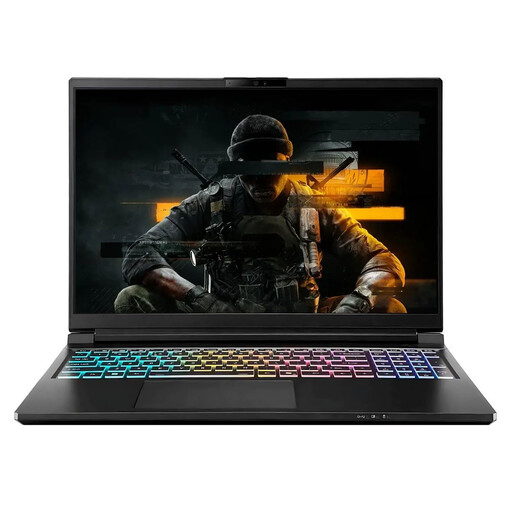 No image available
Consider this configuration if your animation work calls for the named 5080 graphics option and substantial project storage.
The product name specifies QHD+, an Ultra 9 processor, 32GB memory and 4TB storage. Check the exact panel’s brightness, finish and colour characteristics for your window-side desk, as well as your software compatibility.
 No image available
Consider this Windows configuration if your renderer supports its NVIDIA graphics and you need a high-resolution touchscreen for creative work.
Its name specifies a 16-inch 4K OLED touchscreen, an RTX 5080 with 16GB graphics memory, 64GB RAM and a 2TB SSD. Confirm the panel’s brightness and surface finish before relying on it beside the window.
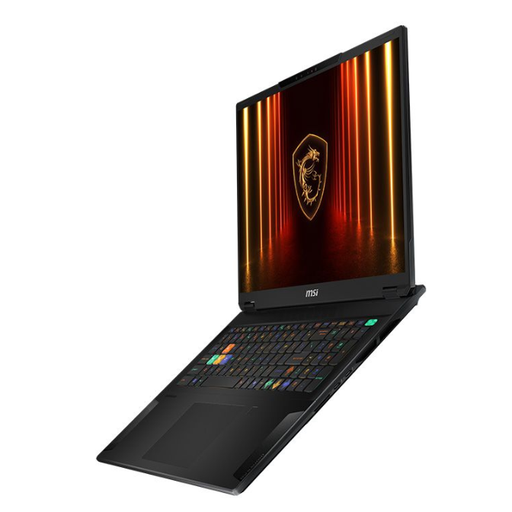 No image available
Consider the larger screen if your animation workspace benefits from it and you can accommodate an 18-inch laptop.
The product name specifies an Intel Core Ultra 9 processor, 32GB RAM, a 2TB SSD and RTX 4070 graphics. Check the screen’s brightness and reflection handling for your desk before choosing it for daylight viewing.
 No image available
Consider this Windows configuration if your chosen animation tools can use its NVIDIA graphics and you need the listed system memory.
The name specifies a 16-inch model with an Intel Core Ultra 9 processor, 64GB RAM, a 2TB SSD and RTX 5090 graphics. Confirm the precise screen finish and brightness, along with its carrying and power requirements.
 No image available
Consider this configuration if your animation workflow suits its listed NVIDIA graphics and you can assess the display in your intended lighting.
Its name specifies a 15.6-inch 144Hz FHD display, 16GB RAM and a 1TB SSD. The Blender Foundation recommends 32GB system RAM for Windows and Linux, so compare the listed memory with your projects; check the screen’s daylight suitability separately.
Check the exact display’s brightness, surface finish and colour characteristics before comparing processors. A high brightness figure does not prevent a glossy screen from reflecting the window, so consider where the laptop will sit on your desk.
No, not for every Blender workflow. If you specifically plan to render with CUDA or OptiX, the Blender Foundation documents those routes for qualifying NVIDIA hardware; confirm the GPU, operating system and driver support for the version you will use.
Choose memory against your applications and the scenes you intend to work on, rather than treating one figure as sufficient for every project. The Blender Foundation lists 32GB RAM and 8GB graphics memory in its recommended Windows and Linux requirements; Autodesk recommends 16GB or more RAM for Maya 2026.
A retailer subject to electrical-waste take-back obligations must offer to take back waste equipment of the same type as the item purchased, according to GOV.UK guidance. Ask the seller how to arrange take-back for your order before disposing of the old laptop.