Artists moving active projects between workstations
A portable drive can carry scenes, textures and renders between desks. Check its capacity and the workstations’ connection standards before choosing it for regular transfers.


Choose a portable SSD if artists mainly carry active project files between workstations, or a desktop external HDD for a large archive kept at one desk. If several people need controlled access to the same current-project folders, consider network-attached storage instead of passing a USB drive around. Whichever route you take, keep a separate recovery copy.
A portable drive can carry scenes, textures and renders between desks. Check its capacity and the workstations’ connection standards before choosing it for regular transfers.
Completed productions, source assets and exports need room to accumulate. Plan where the archive will sit and keep a separate copy that can be used for recovery, as the National Cyber Security Centre advises.
When several people need access to centrally managed folders, a network-attached storage system is more relevant than circulating one USB drive. Synology documents shared folders and access management for its NAS systems.
Choose it when: Artists regularly carry active project files between workstations.
Allow for: Rated peak speeds depend on the host connection, and the drive does not provide centrally managed shared folders.
Choose it when: A large project archive or local backup target can stay at a fixed desk.
Allow for: Desk placement makes it less convenient for frequent physical hand-offs; it must not be the only copy of studio work.
Choose it when: Several team members need one centrally managed location for current projects.
Allow for: Drives, networking, permissions administration and a separate backup plan.
| Concern | What to check | Who this matters to |
|---|---|---|
| Active-project transfers | Compare the drive’s stated read and write speeds with the workstation’s USB mode and the cable you will use. | Moving scenes and renders between desks is my priority, and slow hand-offs interrupt the work. Around 29% of consumers put active-project transfers first. |
| Archive capacity and backup | Allow room for retained projects and versions; identify a separate location for the recovery copy. | I need to retain finished projects and their source files without relying on one drive for recovery. For around 29% of consumers, archive capacity and backup are the primary concern. |
| Shared access | Confirm how many people need concurrent access, what permissions they need and how the network storage will be backed up. | Our team needs a common current-project location rather than multiple copies passed between desks. Central access comes first for around 24% of consumers. |
| Format and security | Check the required operating systems and applications before formatting; plan access to encryption passwords where sensitive files are stored. | Files must open in our intended workflow, and any sensitive material needs appropriate protection. Around 18% of consumers prioritise compatibility and security. |
A drive holding the only working copy cannot also provide a separate recovery copy. The National Cyber Security Centre advises keeping backups in a separate safe location.
Keep a protected copy elsewhere, disconnect a backup device when it is not in use and check that files can be restored.
Losing the working copy can mean rebuilding project files and interrupting production.
The workstation port and cable affect achievable transfer speed. Crucial says full USB 3.2 Gen 2x2 performance on its X10 Pro requires a compatible USB-C host.
Check each workstation’s connection standard and use a cable suited to the required data mode.
Formatting erases the files on a volume. The format also needs to suit the studio’s operating systems and production applications.
Agree the format before first use, and make a separate copy before erasing or reformatting a drive.
A portable drive can transfer files, but it does not itself provide the centrally managed shared-folder access described in Synology’s NAS documentation.
If several people need controlled access to current work, assess network storage, permissions and its backup arrangements.
Passing files between desks can leave the team reconciling duplicate project copies.
The X10 Pro is a portable SSD line for moving active project files.
The T7 Shield line is a portable SSD option for physical project hand-offs.
The Expansion Desktop line is intended for desk-based storage, backup and archiving.
The DS923+ illustrates the network-attached storage route for centrally shared studio folders.
These portable SSDs and external HDDs suit different ways of carrying or keeping studio project files locally. Choose by the size of the working set, whether the drive must move between desks and the need for a separate backup; centrally managed shared access calls for a different storage route.
 No image available
Consider this portable SSD for moving a sizeable active-project folder between workstations. The product name specifies USB 3.2 Gen 2; check the host port and cable before relying on that connection mode, and keep a separate recovery copy.
 No image available
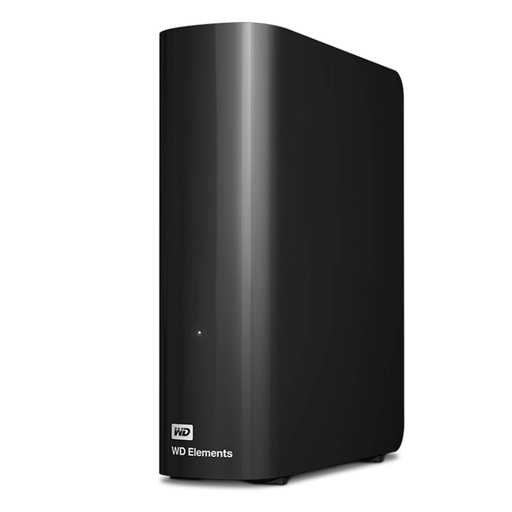
Consider this desktop HDD for a large project library kept at a fixed studio desk. Check the intended workstations’ file-system requirements before copying files, and arrange another location for a recovery copy.
 No image available
Consider this portable SSD for active-project hand-offs if the working files fit within 1 TB. Its name specifies USB 3.2 Gen 2; confirm the workstation connection and leave room for the project versions you need to retain.
 No image available
Consider this portable SSD for carrying active files when a 2 TB working drive fits the project. Check the connection and write-speed requirements of your transfer workflow, as well as the format needed across studio computers.
 No image available
Consider this portable HDD for a larger local project library that may need to move between desks. Its name specifies USB 3.0; check whether an HDD suits the intended transfer workflow and whether the drive’s format suits each workstation.
Choose the format around the computers and applications that will use the drive. Apple documents exFAT for disks over 32 GB intended for both Mac and Windows computers, while it recommends APFS for external storage used with Final Cut Pro, Motion and Compressor on Mac. Make a separate copy before reformatting, which erases the volume.
No: the working drive should not be the only copy of important studio files. The National Cyber Security Centre describes a backup as a copy kept in a separate safe location; keep the recovery copy protected and check that you can restore files from it.
Consider encryption when a portable or backup drive holds personal information or other sensitive project material. The Information Commissioner’s Office says encrypting personal information on USB and backup media can help protect it against unauthorised access. Agree who holds the password or recovery key so authorised staff can still retrieve the files.
Plan for both the files on the drive and the equipment itself before disposal. Securely erase studio data, then use an appropriate electrical-equipment collection or recycling route; UK Government WEEE guidance addresses businesses involved in disposing of electrical and electronic equipment.