Choose an arcade stick for the console or computer running your puzzle game, not for the size of the screen: the host needs its own connection to the TV or monitor. Then check whether the game accepts the stick's directional input and whether a wired or wireless setup fits where you sit.
Who is an arcade stick for?
PC or Switch classic-game players
If your puzzle or retro arcade games run on a Windows PC or Switch connected to a large display, you may want the option to place the controller away from the host. Check the connection methods offered by the exact stick.
Console-specific living-room players
If you play mainly on Xbox or PlayStation, match the stick's stated compatibility to your console before weighing up its controls or size. A model intended for one console family should not be assumed to work on another.
Multi-system retro setup owners
If you switch among compatible hosts such as a PC, Switch and mini retro hardware, documented support for each device may matter more than a single-console control layout. A wired, full-size stick also needs a suitable place to sit.
What matters when choosing?
Start with the device running the game and the game's controller support. Once those match, compare directional controls, where the stick will sit and whether you need to reuse it across systems.
| Concern |
What to check |
Who this matters to |
| Host compatibility |
Check the exact console generation or computer, the game's controller support and any required adapter or firmware. |
If my game runs on a particular console, I need a stick documented for that host before its other features matter; around 33% of consumers put host compatibility first. |
| Directional input |
Check the game's input mapping and the exact model's lever and gate arrangement. |
For a puzzle game built around precise directional moves, I want controls that behave as the game expects; roughly 27% of consumers prioritise directional feel. |
| Placement and reach |
Decide where the stick will rest, then check its size, connection method and cable reach if playing wired. |
If I play from a sofa or table, the stick needs a workable position and connection to the host; around 20% of consumers put placement first. |
| Reuse and adjustment |
Check support for each intended host and whether the exact model offers the remapping or hardware changes you want. |
When I move between games or systems, I want to know which settings and connections I can actually reuse; roughly 20% of consumers prioritise setup flexibility. |
Mistakes to avoid
-
Choosing a stick for the TV instead of the game host
An arcade stick controls a compatible console or computer; it does not replace that device's connection to the large display. A compatible stick alone will not complete the setup.
Identify where the game runs, confirm how that device connects to the screen, then check the stick's support for the host.
-
Assuming a USB connection means every console will work
8BitDo says its standard Arcade Stick does not work with PS4, PS5, Xbox One or Xbox Series. Mayflash describes particular accessory-dependent methods for using the F500 Elite with PS5 or Xbox Series X|S.
Read the current instructions for the exact stick, console generation and firmware before ordering.
Some Mayflash current-generation-console setups require an additional compatible adapter or wired controller.
-
Assuming every lever suits the same puzzle games
8BitDo describes its standard stick as an eight-way square-gate design, while Mayflash describes the F500 Elite joystick as four-way and lists an octagonal gate accessory. The useful configuration depends on the game and its input mapping.
Check the intended game's directional controls and the stick's installed configuration before planning a gate change.
-
Overlooking where the controller will sit
A full-size wired stick needs surface space and a workable cable route. A wireless option changes the placement decision but adds charging and connection steps.
Measure the distance to the host and consider whether you will play with the stick on a desk, table or lap.
Brands and product lines to consider
8BitDo
8BitDo has separate arcade-stick models for Switch and Windows, and for Xbox and Windows. Choose by the host rather than treating the two versions as interchangeable.
- 8BitDo lists Bluetooth, 2.4G and wired USB-C for its standard Arcade Stick; its Xbox model lists 2.4G and wired USB-C.
- According to 8BitDo's FAQ, the standard Arcade Stick does not work with PS4, PS5, Xbox One or Xbox Series.
Mayflash
The wired F500 Elite is a route to consider when you need documented support across several compatible hosts and have space for a full-size case.
- Mayflash lists PC, Switch, Android, older consoles and selected mini retro systems among the F500 Elite's supported devices, alongside PC input modes and Sanwa components.
- Mayflash's PS5 and Xbox Series X|S instructions describe specific adapter or wired-controller methods; check the method for your setup rather than assuming plug-and-play use.
Qanba
The Drone 2 is a PlayStation-focused option for a game running on PS4, PS5 or PC.
- Qanba states that the Drone 2 is officially licensed for PS5 and includes a touchpad and headset input.
- Check another model if you need Switch or Xbox support; Qanba's stated Drone 2 compatibility covers PS4, PS5 and PC.
Joybuy product choices
These HORI variants are relevant to Xbox Series X/S and PS5 setups respectively. Choose for the console running your puzzle game, then confirm that the game accepts arcade-stick input and that the controls suit it.
 No image available
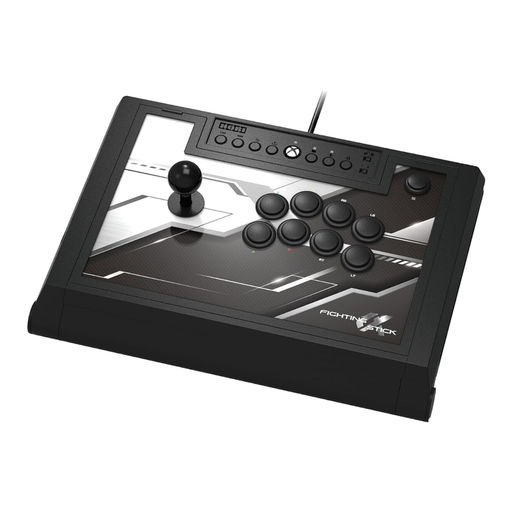
HORI Fighting Stick Alpha for Xbox Series X/S
Consider this Xbox Series X/S variant if that console runs your puzzle game. Before choosing it, confirm the game accepts arcade-stick input, check the lever's directional behaviour and plan where the stick and its connection will sit.
View on Joybuy
 No image available
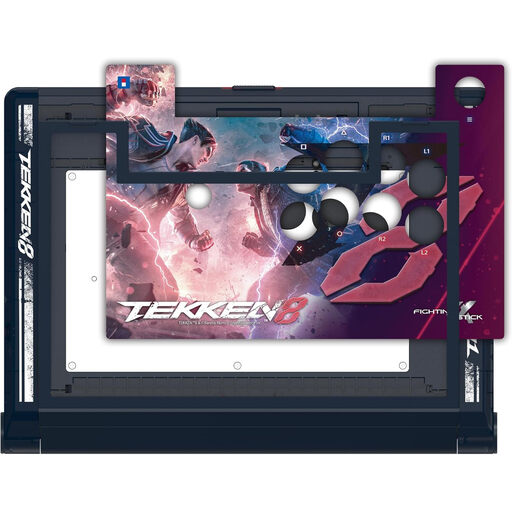
HORI Fighting Stick Alpha Tekken 8 Edition for PS5
Consider this PS5 variant if your puzzle game runs on that console; the Tekken 8 edition name does not establish support for other games. Confirm the game's input mapping and the lever's directional behaviour, and check that a wired connection suits your seating position.
View on Joybuy
Frequently asked questions
Does an arcade stick connect directly to a TV or monitor?
The arcade sticks discussed here are controllers for a compatible console or computer, not display-output devices. Connect the game host to the TV or monitor using the host's appropriate display setup, then connect the stick to that host.
Will the standard 8BitDo Arcade Stick work on PlayStation or Xbox?
No: 8BitDo's FAQ expressly excludes PS4, PS5, Xbox One and Xbox Series for its standard Arcade Stick. That model is documented for supported Switch and Windows setups; check the separate Xbox model if Xbox is your host.
Can the Mayflash F500 Elite work with PS5 or Xbox Series X|S?
Mayflash documents specific methods for those consoles rather than unconditional plug-and-play support. Its instructions describe an adapter or compatible wired-controller route for PS5 setups and a wired Xbox Series controller method for Xbox Series X|S; check the current instructions, firmware and required accessories for your configuration.


