Who these tools may help
The relevant tool depends on whether entering text, controlling a pointer or accessing information is the task that breaks down. GOV.UK identifies built-in accessibility features and specialised input tools as different ways to support everyday activities.
People who struggle with standard typing or pointing
If a conventional keyboard, mouse or trackpad prevents you from completing assignments or work tasks, compare the input method with the task it needs to support. AbilityNet describes alternative keyboards and pointing devices; neither type of device solves every input difficulty.
People who need non-visual or enlarged-screen access
Reading documents and navigating applications may call for spoken output, braille, magnification or keyboard-led navigation. Apple documents built-in Mac accessibility settings, while NV Access describes a separate Windows screen-reader route. Test either route with the materials you actually need to use.
People considering speech-based access
Spoken commands or dictation may be worth testing when typing or pointer control is difficult. Microsoft specifies system and setup requirements for Windows Voice Access, and AbilityNet notes that voice clarity and background noise can affect speech recognition.
What matters when choosing
Choose the primary task first, then test a possible tool with the documents, applications and physical setup used for work or study. A device can be suitable for one task without addressing the others.
| Concern |
What to check |
Who this matters to |
| Text entry and keyboard access |
Try the key layout and spacing with real writing tasks. Check the connection and whether essential shortcuts remain usable. |
If I must type assignments or emails but keep missing conventional keys, a different layout or input method needs to make text entry manageable. About 27% of consumers would put keyboard access first. |
| Reading and navigation |
Test a screen reader or magnifier with essential websites, documents and applications. Check braille-display compatibility if needed. |
When reading a course document or finding controls on screen is the barrier, I need a way to follow the content and move through it. Roughly 27% of consumers would prioritise reading and navigation. |
| Voice control and dictation |
Confirm operating-system and language support. Try the intended microphone in the usual room, including correcting dictated text. |
If speaking is easier than typing or using a mouse, I need commands and dictation that fit my normal workspace. About 20% of consumers would make speech-based access their primary concern. |
| Pointer and switch access |
Try the movement or switch action needed for clicking and dragging. Confirm the connection and any required software support. |
I may be able to read and write yet still struggle to select controls with a standard mouse. Around 13% of consumers would put pointer or switch access first. |
| Organisation and sustained use |
List the recurring activities the tool must support, then allow time for setup and practice. Identify who can help if the workflow changes. |
If keeping track of instructions and completing repeated learning tasks is the main difficulty, I need support that fits those routines. About 13% of consumers would prioritise organisation and continued use. |
Brands and accessibility routes to consider
These examples show how built-in features, software and physical input devices address different tasks. A brand’s stated capabilities do not establish that a particular application or setup will work for you.
Microsoft
Built-in accessibility features for supported Windows PCs, including Voice Access, Narrator and Magnifier.
- Microsoft says Windows 11 Voice Access can control a PC and enter text by voice. After initial setup, it can work without an internet connection.
- Voice Access requires Windows 11 version 22H2 or later and an internet connection for initial setup. Check language support and the applications you need.
Apple
Built-in Mac settings for visual, hearing, mobility, speech and cognitive accessibility needs.
- Apple documents Mac features including VoiceOver, Zoom, spoken commands and assistive-device controls; VoiceOver can work with a refreshable braille display.
- Check the particular Mac, peripheral and work or study applications you intend to use together.
NV Access
Developer of NVDA, a free, open-source Windows screen reader offering speech and braille feedback.
- NV Access lists support for common browsers and office applications.
- Its current recommended requirements specify 64-bit Windows 11 or Windows Server 2022/2025, 4 GB RAM and 150 MB storage. Check the exact computer and essential third-party applications.
Clevy
A specialist physical-keyboard route for people assessing an alternative to a conventional layout.
- Clevy describes Keyboard 3 as a mechanical keyboard designed for children and people with motor impairments, with wired and wireless connection options.
- Try the layout and key reach with the intended user, and confirm the connection suits their device.
Pretorian Technologies
Alternative computer-input devices, including switch interfaces.
- Pretorian says its Track-IT! interface enables cursor movement and mouse clicks through a remote switch.
- Check the switch, applications and selection workflow together; using a different input method can take practice.
Joybuy pointing-device options
These mice are options to consider when the physical handling of a conventional mouse is the main pointing difficulty. Neither replaces a screen reader, specialist keyboard or switch-access setup; try the shape and controls with representative work or study tasks.
 Image unavailable
HP 920 Ergonomic Wireless Mouse, black, with detachable wrist rest
Consider this wireless mouse if you want to try a different physical pointing shape. It has a detachable wrist rest; try the mouse and rest together with the movements your tasks require, and confirm the connection works with your computer. Its shape alone does not establish that it meets an individual access need.
View on Joybuy
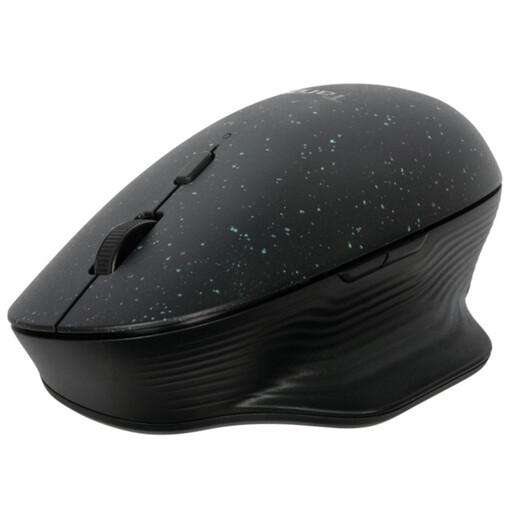 Image unavailable
Targus Ergoflip EcoSmart® Ergonomic Wireless Mouse
Consider this wireless mouse if left- or right-hand pointing is important to your setup; it can be switched between those orientations. Try its controls with your own tasks and confirm the connection works with your computer. Check tracking on the intended desk surface, particularly if it is glass or mirrored.
View on Joybuy
Common questions
Should I try built-in accessibility features before buying hardware?
Yes, when the relevant feature is available on your device: test it against the task you need to complete before buying another input device. GOV.UK notes that computers, phones and tablets often include accessibility features; Microsoft and Apple document built-in voice, reading and magnification options. Dedicated hardware becomes worth considering when you need a different physical way to perform the task or the existing route does not work for your essential workflow.
What should I test before choosing a screen reader or voice tool?
Test the actual work or study sequence, including signing in, reading a document, entering and correcting text, and saving or submitting it. Check operating-system and language support, the applications and document types involved, and any microphone or braille display you intend to use. A feature’s presence on a device does not establish that every website or application works with it.
Can Access to Work help with an assistive access tool?
It may help with support related to work, depending on your circumstances and the applicable scheme. The Department for Work and Pensions describes Access to Work support for people in England, Scotland and Wales, while nidirect provides separate Access to Work information for Northern Ireland. Check the relevant official guidance before assuming a particular tool or purchase will be covered.
Can a student seek support for assistive technology?
Disabled Students’ Allowance may support study-related needs for eligible students. GOV.UK explains that a needs assessment, where required, helps identify support for the course. Check the student-finance arrangements that apply to you and the assessment process before assuming a particular item will be funded.
Will I need time to learn a new access tool?
Plan for setup and practice, particularly if the tool changes how you navigate, dictate or select controls. GOV.UK describes assistive technology as ranging from simpler tools to more complex software and devices. Try a few essential tasks repeatedly and establish where you can get help if the setup needs adjusting.


