People who find typing difficult
If ordinary keyboard entry is difficult, compare keyboard settings, a different key layout and voice input. AbilityNet, Microsoft Support and Google Chromebook Help describe these options.


Start by trying the accessibility settings on the computer you already use, then identify whether typing, pointer control or access to visual information remains difficult. If those settings do not meet the task, choose hardware or software for that specific need and check its fit, compatibility and trial options; funding depends on the relevant scheme and individual circumstances.
If ordinary keyboard entry is difficult, compare keyboard settings, a different key layout and voice input. AbilityNet, Microsoft Support and Google Chromebook Help describe these options.
If moving a pointer or operating its buttons is the main challenge, compare settings with vertical, trackball or other controls. AbilityNet and Kensington describe different pointing-device approaches.
Consider whether the difficulty is locating physical keys, reading on-screen content or both. RNIB and Microsoft Support describe options including larger key markings, magnification and screen reading.
Try built-in settings on your current device first, then test any alternative input method against the tasks and applications you need for study or desk work.
| Concern | What to check when buying | Who this matters to |
|---|---|---|
| Finding a workable way to type | Try keyboard settings, then test key reach and layout on a real typing task. | If changing key settings or trying a different layout is my priority, I want to practise on the writing tasks I actually do. Around 25% of consumers put typing first. |
| Controlling the pointer and clicks | Trial cursor movement, scrolling and clicks; check hand fit and handedness. | When pointer movement or clicking is the obstacle, I need to compare the movements each control requires rather than choose by shape alone. Consumers who prioritise pointer control make up around 25%. |
| Seeing keys and screen content | Test key markings in usual lighting; separately try screen access on your usual applications. | If I can press keys but struggle to locate them or read the display, I need to distinguish key visibility from on-screen access. Around 19% of consumers put visibility first. |
| Using input beyond a standard keyboard or mouse | Try voice or navigation tools in the actual applications; check all required switch components and connections. | For text entry or navigation without conventional input, I would test the method with the software I use. Consumers who prioritise voice or specialist input make up around 19%. |
| Making the whole setup work | Test the workflow on the intended operating system; confirm local trial or assessment options before relying on them. | If I need a complete setup for study or work, the device, applications and support arrangements all need to fit together. Around 12% of consumers put the whole setup first. |
Your existing device’s accessibility controls may address the task, and some education providers offer equipment trials. Services and eligibility vary by provider.
Try the relevant settings first and ask your education provider or employer whether you can trial equipment before choosing a device.
Trackballs, split keyboards and conventional mice involve different movements and key or button actions; a product’s shape alone does not show whether its controls will suit your tasks.
Try the specific typing, clicking and scrolling tasks, and check the model’s size, layout and handedness.
Microsoft says compatible Adaptive Buttons are sold separately from the Adaptive Hub, so the Hub alone may not provide the complete input arrangement you need.
Check every required component, port and host-device compatibility before ordering.
Study and workplace support have jurisdiction-specific eligibility and assessment routes. GOV.UK, Student Awards Agency Scotland, Welsh Government and nidirect publish guidance for their respective schemes.
Confirm the relevant process and eligibility with the appropriate provider or employer before relying on support for a particular item.
The ERGO K860 family is a split-keyboard option to consider when trialling a changed typing layout.
Its Pro Fit Ergo keyboard and Orbit trackball offer different ways to approach keyboard layout and pointer control.
The PERIBOARD-512 is a wired split-keyboard option with a listed English (UK) layout variant.
Windows includes built-in accessibility tools to try; the Adaptive Hub is a separate option for some switch-based setups.
Large-print and braille-labelled keyboard variants offer physical key-identification options.
These Joybuy choices are physical keyboards for comparing layouts and input options; check each model’s key arrangement and connection against your computer and tasks.
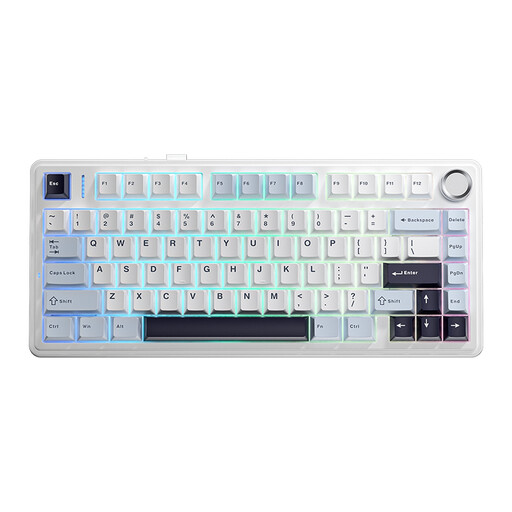 Image unavailable
A physical keyboard to consider when comparing compact layouts for desk-based typing; check that the US key arrangement suits your tasks.
75% layout; wired, Bluetooth and 2.4 GHz connections; QWERTY US layout.
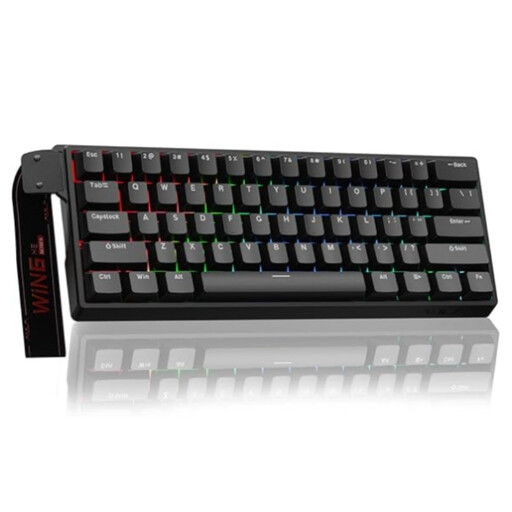 Image unavailable
A compact wired keyboard for physical input; check whether its reduced layout includes the keys you need for study or work.
The title specifies a 60% layout, magnetic switches and adjustable actuation. The product information warns that the magnetic switches should be kept away from pacemakers and magnetic-sensitive medical devices.
 Image unavailable
A split-layout option to compare when considering a different physical typing arrangement; check the exact layout and whether it fits your desk and typing tasks.
The product name specifies a wireless keyboard and padded wrist rest.
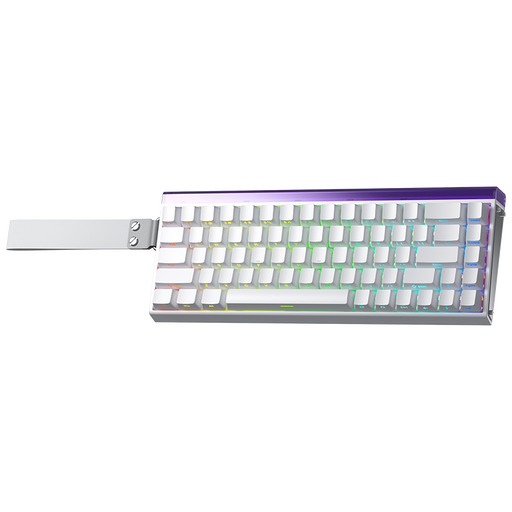 Image unavailable
A compact wired keyboard for physical input; check the US layout against the keys and shortcuts needed for your tasks.
The title specifies a 60% layout, Hall Effect magnetic switch, adjustable actuation and a US layout.
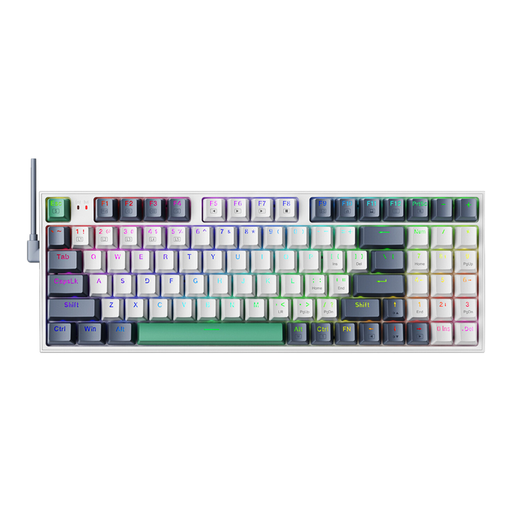 Image unavailable
A wired physical keyboard to compare if you want a layout smaller than a full-size keyboard; check that its US arrangement suits your typing tasks.
The title specifies a 90% layout, QWERTY US keys and red switches.
Try the settings on your current device that address the task, then test them with the applications you need. Microsoft Support documents Windows tools such as Narrator, Magnifier and voice features; Apple Support and Google Chromebook Help describe built-in alternatives for their respective devices. A feature being available does not establish that it will work with every application you use.
Some providers offer trials, but availability and eligibility depend on the provider. The University of Edinburgh describes short-term trials and demonstrations of ergonomic keyboards and mice, while LSE describes temporary hardware loans for its stated groups. Ask your own provider what you can try.
Ask your education provider about the study-support route that applies to your student-finance jurisdiction; an individual needs assessment informs support but does not guarantee a chosen retail item. At work, discuss adjustments with your employer. GOV.UK’s Access to Work guidance applies to England, Scotland and Wales, while nidirect describes a separate Access to Work (NI) route.
Check the exact model’s connection, layout and any separate components, then test it with the applications you use. For example, Perixx lists a USB-A cable for the PERIBOARD-512, and Microsoft says Adaptive Buttons are sold separately from the Adaptive Hub.
For an applicable UK distance sale of goods, the statutory cancellation period ends 14 days after the goods come into your physical possession, subject to the conditions and exceptions in regulation 30 of the Consumer Contracts (Information, Cancellation and Additional Charges) Regulations 2013. This concerns cancellation after a distance purchase, not the separate process for faulty or misdescribed goods; check the seller’s process without treating a voluntary returns policy as a substitute for statutory rights.