What should you check before choosing?
Use a real study or work task to identify the barrier, then test the relevant settings and input methods on the device you will use.
| Priority |
What to check |
Your needs |
| The task barrier |
Pinpoint whether the difficulty is reading content, entering text, moving the pointer, selecting items or sustaining a comfortable working position. Try the exact task before changing equipment. |
I want help with the action that stops me completing my work, rather than a device chosen solely by its product category. |
| Built-in features |
Check your operating-system version and required apps. Microsoft describes Voice Access for Windows 11; Apple describes VoiceOver and Voice Control. Test the relevant feature in your own workflow. |
If my current device can make reading or control more accessible, I would rather try that before adding equipment. |
| Keyboard input |
Check key size and layout, accidental key presses, any keyguard option and how the keyboard connects. Pretorian describes 25 mm keys and an optional keyguard on its SimplyWorks Keyboard; other models need their own checks. |
Typing notes or assignments is difficult with my current keys, so I need to try the layout and the way I press them. |
| Pointer control |
Try the movements needed to point, click and drag. Check connection methods, available ports and whether a managed computer permits pairing or installation. |
Moving or clicking a standard mouse is the obstacle; I need a control that works for my movements and desk setup. |
| Voice input |
Check that speaking suits the room and task. Test the microphone with your device, required applications, background noise and privacy needs; practise correcting dictated text. |
Speaking may be more practical than typing for some tasks, but I still need to control and edit the result. |
| Screen reading |
Try the built-in reader with actual documents, websites and applications. Check the navigation commands you would need before considering separate software. |
I need spoken access to the content I use for study or work, not just a reader that operates on its own. |
| Assessment and support |
Check the applicable route before buying equipment intended for funding. GOV.UK says DSA support depends on a student’s individual needs and that Access to Work could help with specialist equipment or assistive software. The Access to Work staff guide applies to England, Scotland and Wales. |
If I expect support with specialist equipment, I want to understand the assessment and purchasing steps before placing an order. |
Which brands and built-in tools are relevant?
These references help you investigate particular tools; a brand’s features do not establish that they will work with every device or application.
Microsoft
Windows users can check built-in controls before choosing another way to access their study or work applications.
- Microsoft describes Voice Access as a way to control a Windows 11 PC by voice.
- Try the feature with your operating-system version, required applications and any managed-device restrictions.
Apple
People using a Mac, iPhone or iPad can investigate the device’s accessibility controls before adding separate equipment.
- Apple describes VoiceOver for spoken access and Voice Control for device navigation.
- Check the exact device and applications needed for your tasks.
Pretorian Technologies
Pretorian’s specialist input products are relevant when standard keyboard or pointer controls are the barrier.
- Pretorian describes 25 mm keys and an optional keyguard for its SimplyWorks Keyboard, and says its mouse alternatives do not require drivers.
- Match the particular device to your movements, connection requirements and desk tasks rather than assuming one layout or controller will suit everyone.
Joybuy options for voice and pointer input
These microphones are options to examine if speaking is practical and you are considering computer voice input. The mice offer different standard pointer designs to assess for desk use; none should be treated as a substitute for trying the movements you need to make.
 No image available
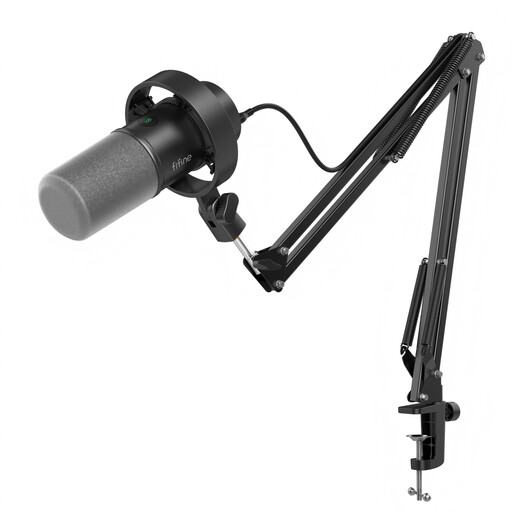
FIFINE K688CT USB/XLR microphone kit with boom arm
Consider this desk-mounted kit if you want to try speaking instead of typing for some tasks; check it with your computer and required speech-recognition application.
The named kit includes a boom arm, mute button, headphone jack and gain knob. Check that the arm fits your desk; an XLR cable is not included, and the listed microphone controls are unavailable in XLR mode.
View on Joybuy
 No image available
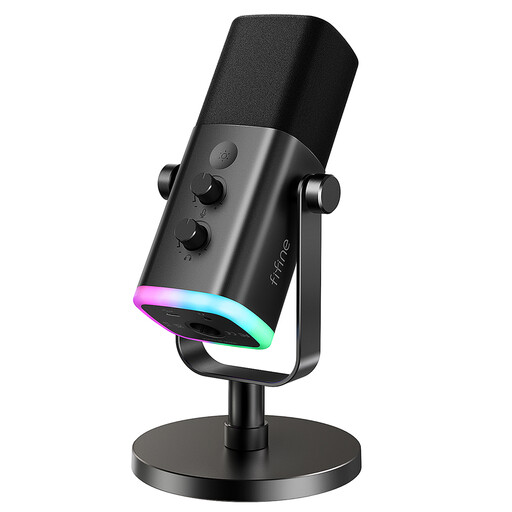
FIFINE AM8 USB/XLR microphone with desktop stand
The desktop stand offers another placement to assess for voice input. Test the microphone with your device, speech-recognition application and speaking environment.
The product name specifies a mute button, headphone jack and RGB light. An XLR cable is not included; the listed RGB and function keys are inactive in XLR mode.
View on Joybuy
 No image available
HP 920 ergonomic wireless mouse, black
If your current mouse position is difficult to maintain, assess this mouse’s shape and movement with the clicks and pointer tasks you perform; its ergonomic name does not establish individual fit.
The product name specifies a detachable wrist rest. Check the connection you plan to use and whether a managed computer permits it.
View on Joybuy
 No image available
Logitech MX Master 3S ergonomic mouse, black
Try the shape and button positions against the pointer movements you need for desk work; this is a computer mouse, not a specialist alternative controller.
If you intend to use Logi Bolt, confirm whether a receiver is included before relying on that connection. Check whether any button customisation you need works on your computer.
View on Joybuy
 No image available
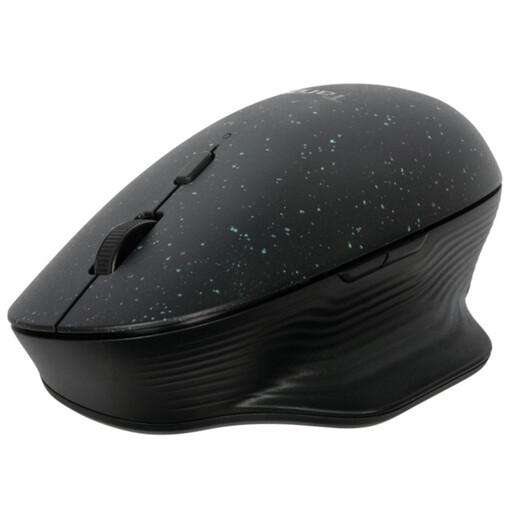
Targus ErgoFlip EcoSmart ergonomic wireless mouse
Consider the switchable hand position if left- or right-handed pointer use matters to you, and trial the shape for the clicks and movements your tasks require.
Check Bluetooth pairing permissions on a managed computer. The listing cautions that tracking may not work on some glass or mirrored surfaces, so consider the desk surface too.
View on Joybuy
Questions about equipment and support
Should I try my computer’s accessibility settings before buying hardware?
Yes—try the feature that addresses your specific task on the device and applications you use. Microsoft describes Windows 11 Voice Access, while Apple describes VoiceOver and Voice Control; if the task remains difficult, that trial can help you decide whether different physical input, a microphone or separate software is worth exploring.
When should I consider a specialised keyboard?
Consider one when the size, layout or operation of standard keys remains the obstacle. Check the exact layout, connection, desk position and any keyguard option, then try the typing tasks you need to perform.
Can voice access take the place of a keyboard and mouse?
It is an option when speaking is practical, but test the tasks you need rather than assuming it covers every workflow. Microsoft describes Windows 11 Voice Access as a way to control a PC by voice; check your applications, microphone, privacy needs and background noise.
Could Disabled Students’ Allowance change when I buy equipment?
Yes, if you are an eligible higher-education student seeking equipment through that route, check its assessment and purchasing steps first. GOV.UK says Disabled Students’ Allowance support depends on individual needs, so do not choose a funded-equipment configuration without checking how your needs will be assessed.
Could Access to Work help with assistive computer equipment?
GOV.UK says Access to Work could help pay for specialist equipment and assistive software for eligible work needs. Its staff guide applies to England, Scotland and Wales; check eligibility and the appropriate route for your location and circumstances before planning a purchase around it.


