Buying priorities
Work from the task that is difficult, then check whether the proposed route works with the existing device and can be used comfortably for the required study or work session.
| Priority |
What to check |
Your needs |
| Task barrier |
Identify whether the main barrier is typing, pointing, reading on screen, writing by voice, communication or managing tasks. Match the route to that activity rather than to a broad product category. |
I need the access method to address the part of study or work that currently stops me completing a task. GOV.UK notes that assistive technology can support reading, writing, memory and task tracking. |
| Compatibility |
Confirm the operating system, device model, USB ports, Bluetooth support and any required receiver, tracker, microphone or language setting. Check software requirements before ordering. |
I want the peripheral or feature to work with the computer, tablet or phone I already use, including the systems required for study or work. |
| Set-up and comfort |
Consider positioning, reach, posture, pairing, calibration and any training needed. Voice features may require a language download, while eye-control routes require compatible hardware and set-up. |
I need a route that I can position, learn and use through a full session, not merely connect successfully. |
| Assessment and funding |
For bespoke equipment or specialist software, check whether a needs assessment is appropriate before purchase. For eligible students in England, GOV.UK says DSA equipment bought before assessment will not be reimbursed. |
I need to know whether an assessment, employer adjustment or Access to Work discussion should come before I spend money on specialist equipment. |
Joybuy product options
Joybuy options for keyboard and alternative pointing-device routes where the user can continue using hand-operated computer input. Check individual fit, device compatibility and any assessment requirements before choosing.
 No image available
HP 960 Ergonomic Split Layout Wireless Keyboard
Consider for sustained desk-based typing where a split layout and adjustable control placement may help with positioning.
Stated features include Bluetooth 5.0, a 2.4 GHz dongle connection, pairing for up to three devices, 20 programmable keys, negative tilt, a padded wrist rest and a repositionable numeric keypad.
Check key spacing, key force, wrist-rest position and HP Accessory Center compatibility with the intended operating system and software. For DSA support under the England guidance, wait for assessment before buying if reimbursement is expected.
Joybuy
 No image available
V7 MW500BT Bluetooth Vertical Ergonomic Mouse
Consider for routine navigation when a conventional mouse position is difficult and a different hand posture may be useful.
The listing states a vertical handshake grip, concave thumb rest, dual Bluetooth and 2.4 GHz connection, six buttons, adjustable 800/1200/1600 DPI and Windows 10/11 and macOS 13.6+ support.
Check hand fit, button reach, device permission for Bluetooth or a receiver, and whether hand-operated pointing remains workable. This is not a substitute for an assessment-led eye-control or switch route where hand use is not workable.
Joybuy
 No image available
Targus EcoSmart Full-Size Wireless Keyboard (UK)
Consider for desk-based study or work when a conventional full-size UK keyboard and an adjustable typing position are suitable.
The listing specifies Bluetooth BLE 5.0, a supplied 2.4 GHz USB-A dongle, pairing for up to three devices, an adjustable kickstand and low-profile scissor keys.
It is listed as compatible with Windows, macOS, Chrome OS, Android and iOS/iPadOS. Check key size, spacing, force and the available USB-A port or adapter before purchase.
Joybuy
 No image available
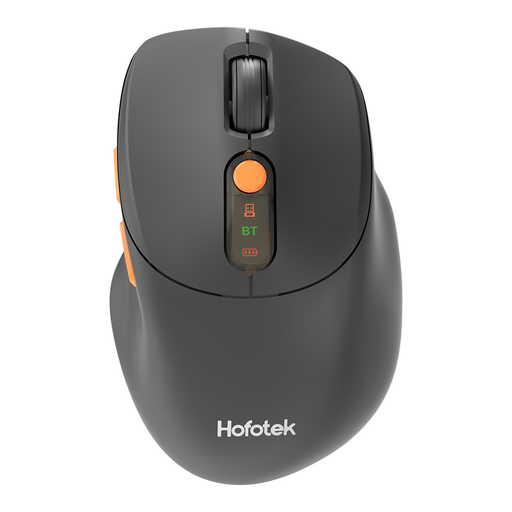
HOFOTEK M311 Silent Office Mouse
Consider for laptop or desktop navigation where a hand-operated ergonomic mouse shape and quiet clicks are relevant.
The listing states Bluetooth 5.1 and 2.4 GHz wireless connection, switching for up to three devices, five DPI settings, a 62 g weight and compatibility with Windows, macOS and Android.
Check grip fit, button reach, range of motion and whether Bluetooth pairing or a USB receiver is permitted on the intended device. It does not replace switch, eye-control or non-hand-operated access routes.
Joybuy
 No image available
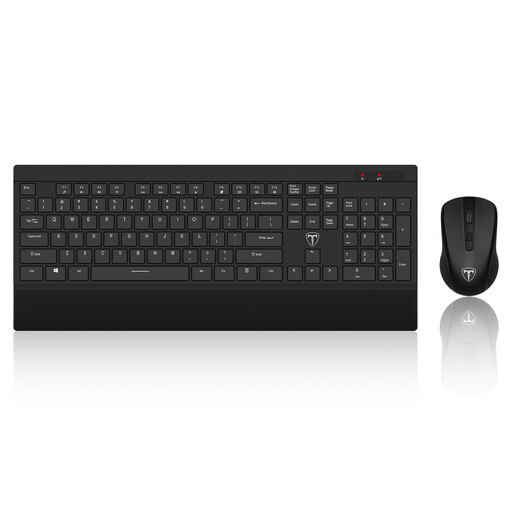
ET Silent Wireless Keyboard and Mouse Combo
Consider only where a standard full-size keyboard and hand-operated mouse remain suitable for desk-based work.
The listing specifies a shared 2.4 GHz receiver, a full-size keyboard, optical mouse, 10 m wireless range, quiet keystrokes, integrated wrist rest and adjustable mouse resolution.
The keyboard uses a US layout, so check that its key legends suit UK study or work. Confirm operating-system compatibility, posture and fit before purchase.
Joybuy
Frequently asked questions
Should I try built-in accessibility features before buying a specialist peripheral?
Usually, yes, when the existing device has a feature that addresses the task barrier. Microsoft Support describes Voice Access as a Windows 11 voice-control route, while Apple devices include VoiceOver, Voice Control and Switch Control. Consider specialist hardware when built-in features do not provide adequate physical input, screen access, precision or sustained usability.
What should I check before buying an adapted keyboard or mouse?
Check the input problem first, then the connection and physical set-up. Confirm whether the item uses Bluetooth, a USB receiver or a cable; whether the device supports that connection; and whether key size, layout, reach and working posture suit the user.
When should I seek a DSA needs assessment before buying?
If you are applying for DSA under the England guidance and expect equipment or software support, wait for the needs assessment and entitlement process. GOV.UK says the assessment determines support and that equipment bought before assessment will not be reimbursed.
Can Access to Work pay for assistive software or specialist equipment?
For eligible people who need support to get or stay in paid work, Access to Work may provide a grant towards specialist equipment and assistive software. It does not pay for reasonable adjustments that an employer must legally make; the cited GOV.UK staff guidance applies to England, Scotland and Wales.
Is an eye tracker a straightforward replacement for a mouse?
No. Microsoft states that Windows Eye Control requires supported eye-tracking hardware, set-up and calibration, and some people may need help to complete set-up. Treat eye tracking as an individually assessed route when hand-free access is essential rather than as a generic mouse substitute.


