Students accessing reading and writing
You need to read course materials, dictate text or organise written work, and want to compare existing tools with software designed for a particular task.


Start by testing an existing accessibility feature on the study task, file and application you actually use; consider specialist software if that workflow does not meet an identified need, and new computer equipment only if your current setup cannot support it. Before paying, check compatibility and institutional arrangements, and follow the current Disabled Students’ Allowance process for your UK nation—no named product is automatically funded.
You need to read course materials, dictate text or organise written work, and want to compare existing tools with software designed for a particular task.
You need screen reading, magnification or computer access that works with the applications required for your course.
You need captions, notes or a way to revisit spoken material, subject to what your institution makes available or permits.
Start with the study task that is difficult, then check whether your existing device and applications can handle it before deciding whether specialist software or different equipment is needed.
| Concern | What to check before buying | Who this matters to |
|---|---|---|
| Reading course materials | Try the actual course PDFs and web pages; check supported file types and whether the feature works on the required pages. | If I rely on reading course materials in different formats, I need the tool to work with those files and pages; around 20% of consumers put accessible reading first. |
| Producing and editing written work | Test the microphone, application, subject vocabulary and correction workflow you will use for assignments. | If typing is a barrier, I need voice input and editing to work in my assignment software; around 20% of consumers prioritise producing and editing text. |
| Screen navigation and magnification | Test the required course applications with the proposed reader or magnifier; check the product’s operating-system and hardware recommendations. | If I need to navigate controls or enlarge the interface, I need access beyond reading selected passages aloud; around 20% of consumers prioritise screen access. |
| Following and revisiting spoken teaching | Check caption availability, whether teaching is already recorded, and the institution’s permission and file-handling rules. | If spoken teaching is hard to follow or revisit, I need to know whether captions, notes or an authorised recording workflow will help; around 20% of consumers prioritise spoken teaching access. |
| Organising work and computer setup | Try a mapping or outlining task, then check whether your existing computer supports the software and course applications you need. | If organising ideas or getting a usable setup is my main concern, I need to assess that task before considering new equipment; around 20% of consumers prioritise planning or computer setup. |
A purchase you choose yourself is not necessarily the same as equipment assessed and authorised through a support route. GOV.UK guidance for England says equipment bought before assessment will not be reimbursed.
If you are using England’s Disabled Students’ Allowance route, wait for the assessment and follow the award and supplier instructions. If your funding authority is elsewhere in the UK, check its separate process.
Windows and commonly used applications include features for some reading, captioning and dictation tasks, but their presence does not establish that they work with your course materials or applications.
Try the existing feature and the specialist option on the same study task and device before deciding.
Reading document text aloud and navigating application controls are different tasks. A tool that reads a passage may not provide the interface access you need.
Test document reading and control navigation separately in the applications required for your course.
Recording and sharing rules depend on the institution and circumstances. The University of East London’s published policy distinguishes authorised disability-related recording from other recording and restricts distribution.
Confirm your institution’s rules, agreed adjustments and file-handling conditions before relying on a recording workflow.
Microsoft describes Windows 11 features including Narrator, Magnifier and live captions, which can provide a starting point for testing access tasks on an existing computer.
Dragon Professional 16 is a dedicated Windows dictation and existing-audio transcription option when voice-based text production is central. Nuance states that it supports Windows 11 and Windows 10.
Texthelp’s Read&Write for Google Chrome is relevant to reading or working with Google Docs, web pages and supported document formats.
JAWS and ZoomText represent specialist Windows approaches to screen reading and magnification respectively.
Inspiration 12 provides mind-mapping and outlining approaches for planning work.
The products below cover study-computing laptops and USB-C audio-capture peripherals. Check software compatibility separately; recording equipment does not establish permission to record teaching.
 No image available
For study computing, check that the accessibility software and course applications you need support this model.
Snapdragon X; 16GB RAM; 512GB SSD; Quiet Blue.
 No image available
For web-based coursework, check the required sites and applications against the laptop’s listed Windows setup before choosing it.
15-inch Full HD display; AMD Ryzen 3 7320U; 8GB RAM; 128GB SSD; Windows 11 Home in S Mode.
 No image available
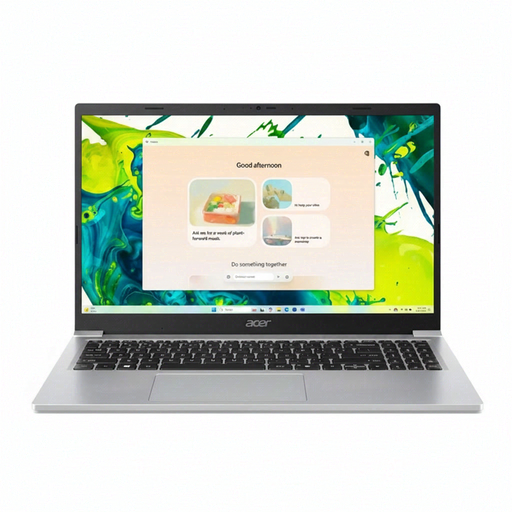
For a computer-based study setup, check that your required access tools and course applications are compatible with this model.
15.6-inch Full HD display; Intel N150; 8GB DDR4 RAM; 128GB SSD; Windows 11 Home.
 No image available
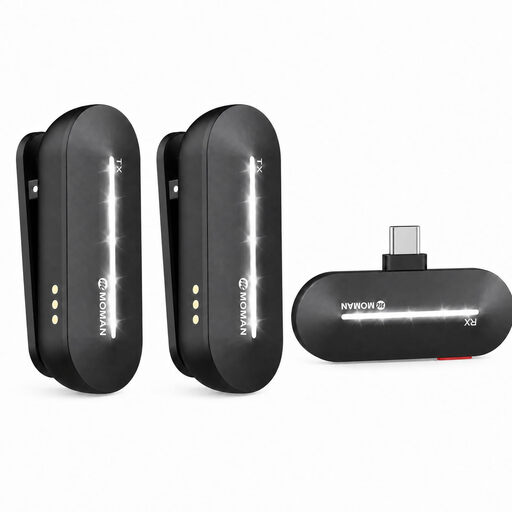
For audio capture with a compatible USB-C device; confirm institutional permission before recording teaching.
Two transmitters and one receiver; stated range 150m.
 No image available
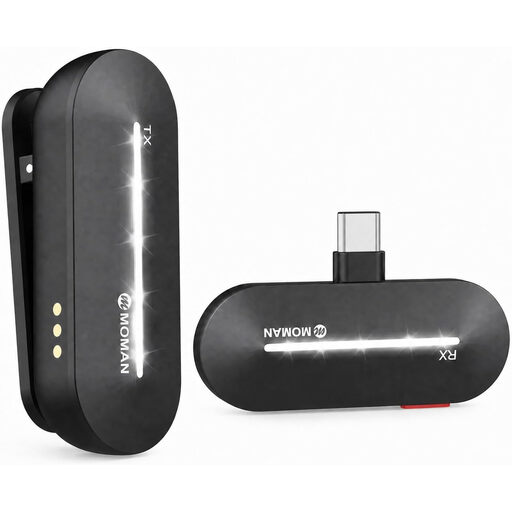
For a solo audio-capture setup with a compatible USB-C device; confirm institutional permission before recording teaching.
One transmitter and one receiver; stated range 150m.
No such conclusion follows from the consultation. The Department for Education’s GOV.UK page, checked on 23 October 2026, said feedback was still being analysed; the consultation applied to England and closed on 18 June 2026. Follow published guidance and the applicable nation’s process rather than treating a proposal as a rule or an award.
If you are using the England route, current GOV.UK guidance says not to buy equipment before assessment because it will not be reimbursed. If your funding authority is in another UK nation, follow that authority’s assessment, award and ordering instructions instead.
Test the tool on a real assignment file and in the application you use for coursework. Google Docs Editors Help specifies that voice typing depends on a supported browser and working microphone, and that administrator settings may restrict it; Texthelp notes that its Chrome toolbar does not work on every web page.
Check your own institution’s rules and agreed adjustments before recording. The University of East London’s published policy distinguishes authorised disability-related recording from other recording and restricts sharing, but that policy does not establish the rules at other institutions.
Yes, ask how the proposed tool will be set up and learned through your applicable support route. England’s GOV.UK guidance describes arranging assistive-technology training after assessment, while Scottish guidance includes software and training among possible support; confirm the process that applies to you.