What should you check?
Choose one essential activity to test first, then check whether the proposed setup works with the software and input method that activity requires.
| Priority | What to check | Your needs |
|---|
| Essential tasks |
Try the actual forms, documents or communication services you rely on. Check whether you can complete the whole task, including navigation and text entry. |
I need to use important services or communicate at home, not merely open an accessibility feature. |
| Existing features |
Try the screen reader, magnification, display or dictation settings on your current device. Check the operating-system version and required apps. |
Before buying specialist equipment, I want to know whether a device I already use handles the task. |
| Reading and navigation |
Compare enlarged visual content with spoken screen feedback and its navigation controls. Test the websites and documents you need. |
Enlarged text might work for me, or I may need spoken access to content and controls. |
| Voice input |
Try dictation or voice control in the required application. Check language availability, background noise, privacy and a workable alternative input method. |
Typing or using a pointer is difficult, but speaking may be practical for some of my tasks. |
| Adapted hardware |
Check the keyboard, mouse or microphone against the device, operating system, connections, positioning and applications. Try the intended task with it. |
I need an input arrangement that works for the activity I do regularly, rather than a different peripheral for its own sake. |
| Setup and support |
Check how to configure the chosen features and learn their controls. For work or study equipment, establish the applicable support route before ordering. |
I need a setup I can learn and use in my routine, with any relevant work or study arrangements considered beforehand. |
Useful brand and support references
These organisations describe accessibility features or offer guidance; their inclusion does not establish that a particular device will suit your tasks.
Microsoft
A starting point for checking accessibility on a Windows computer.
- Microsoft Support describes Windows screen-reading, magnification and speech-recognition resources; Narrator is built into Windows 11.
- Try the relevant feature with your Windows version, essential applications and preferred controls.
Apple
A reference for people considering accessibility features on an Apple device.
- Apple describes Voice Control as a way to navigate a device by voice.
- Check the precise device and required apps before relying on voice control for an essential task.
Google
A reference for people considering a Chromebook for home tasks.
- Google Chromebook Help documents dictation for typing and communication.
- Confirm that your required software, files and peripherals work with ChromeOS.
AbilityNet
A UK information route for configuring technology around an individual requirement, rather than a computer brand.
- AbilityNet provides factsheets, including step-by-step guidance for setting up computers and software.
- Use that guidance alongside a trial of your own applications and peripherals.
RNIB
An information route for blind and partially sighted people considering computer access.
- RNIB explains built-in computer accessibility features and screen magnification for home use.
- Test whether the chosen reading and navigation method works with your daily services.
Windows laptop options on Joybuy
These Windows laptops are options if you are choosing a computer on which to try built-in accessibility features. Neither replaces a trial of the reading, writing or navigation tasks that matter to you.
 No image available
HP OmniBook Ultra Flip 14-fh0006na 2-in-1
Windows 11 Home gives you a device on which to try built-in Windows accessibility tools, including Narrator. The listed configuration has 16GB RAM and a 1TB SSD. Check your essential apps, language and preferred input method on this model before choosing it for an accessibility task.
View on Joybuy
 No image available
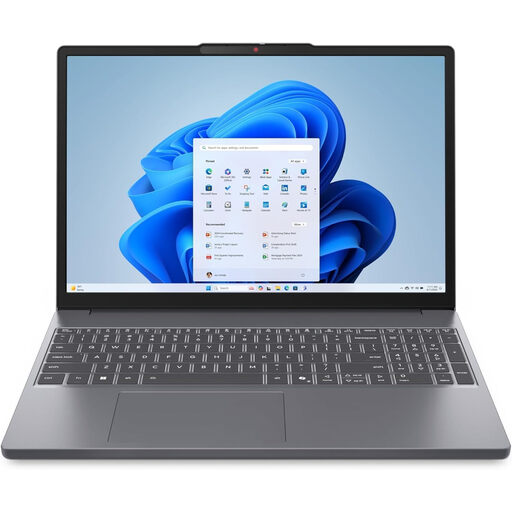
Lenovo IdeaPad Slim 3 83K7009MUK 15.3-inch WUXGA
This Windows 11 Home laptop is another option for trying built-in accessibility tools during home administration, learning or work. Its listed configuration includes an AMD Ryzen 5 7535HS, 24GB DDR5 RAM and a 512GB PCIe SSD. Check that its display, keyboard and required apps work with your preferred way of reading and entering information.
View on Joybuy
Common questions
Should I check my current device before buying specialist equipment?
Yes. GOV.UK notes that phones, computers and tablets often have built-in accessibility features. Try an essential task, such as reading email or completing a form, before deciding whether you need specialist software or hardware.
Should I try a screen reader or magnification?
Try magnification if enlarged on-screen content remains usable; try a screen reader if you need spoken access to content and controls. Test the method in the documents, websites and applications you use at home.
What should I check before choosing an adapted keyboard, mouse or microphone?
Check its connection and positioning against your device, operating system and essential applications, then try the activity you need to complete. Establish what setup or training you would need to use it regularly.
Could Access to Work help with specialist computer equipment?
GOV.UK says Access to Work could provide a grant for specialist equipment or assistive software. Its eligibility guidance covers people living and working, or about to start or return to work, in England, Scotland or Wales; Northern Ireland has a different system. Check your circumstances and workplace arrangements before ordering.
When should I buy equipment if I am applying for Disabled Students’ Allowance?
Wait until after your assessment: GOV.UK says equipment bought beforehand will not be reimbursed under Disabled Students’ Allowance. Confirm the student-support scheme that applies where you study before relying on it for a purchase.


