Students working with digital material
If reading course material, producing text, taking notes or organising tasks is difficult, identify which activity needs support before choosing between spoken output, dictation, alternative input or recording.


Choose around the activity that is difficult: reading on-screen material, entering text, controlling a computer or keeping track of information call for different tools. Try a relevant feature on your current device before adding specialist hardware or software, and test any option with the applications you need. For workplace equipment, discuss adjustments with your employer and check whether Access to Work could support additional eligible needs in England, Scotland or Wales.
If reading course material, producing text, taking notes or organising tasks is difficult, identify which activity needs support before choosing between spoken output, dictation, alternative input or recording.
Workers who need a different way to use a computer should test it with their actual work systems and discuss possible equipment adjustments with their employer before buying for themselves.
If conventional input is difficult, compare device settings, alternative hardware and voice input against the particular action you need to perform.
Start with a real study or work task, then check whether the proposed tool works with your device, applications and arrangements for using it.
| Priority | What to check | Your needs |
|---|---|---|
| Reading and navigation | Try built-in spoken output or a screen reader with the documents and applications you use. If you use a braille display, check that workflow too. | I need to access and navigate digital content, not simply make text larger. |
| Writing and control | Check whether you need dictation, computer commands or both. Test the chosen feature in your writing and workplace or education software. | Entering text is difficult, or I want to operate the computer with less keyboard and mouse use. |
| Alternative input | Compare keyboard and mouse layouts against the action that is difficult. Check connection method, available ports and power arrangements. | A standard keyboard or mouse does not suit the way I need to reach, type or point. |
| Capturing information | For an organiser or recorder, check how you will find and use saved information. Confirm recording, confidentiality and storage rules before recording people. | I need to revisit spoken information or keep track of tasks; a recorder would not replace a reading or computer-navigation tool. |
| Compatibility and practice | Check the operating system and version, required apps, account permissions and connected equipment. Allow time to try the controls with a normal task. | I want a tool I can use in my actual study or work setup, rather than one that only works in a demonstration. |
| Workplace support | Discuss the work barrier and possible adjustments with your employer. For eligible additional support in England, Scotland or Wales, check the Access to Work process. | Before I fund workplace equipment myself, I want to understand whether an employer adjustment or individual support is the appropriate route. |
| Study support | For higher-education support through Disabled Students’ Allowance in England, check the needs-assessment process before buying equipment for that route. | I want any study equipment to fit the support identified for my course, rather than assume a purchase will be covered. |
A screen reader helps with access to on-screen content, while dictation addresses text entry and a recorder captures information. One purchase need not address all three.
Write down the task, the outcome you need and the applications involved. Try a relevant existing feature with that task before comparing separate products.
Accessibility controls vary between operating systems, and a peripheral also needs a suitable connection. A feature available on a computer may still need testing in a particular work or learning application.
Check the system version, app, account permissions and USB or Bluetooth requirements in your own setup.
GOV.UK describes an employer duty to make reasonable adjustments for workers with disabilities who would otherwise be substantially disadvantaged. Department for Work and Pensions guidance places Access to Work support above and beyond an employer’s reasonable adjustments.
Discuss the work barrier and possible adjustment with your employer. If further individual support is needed, check Access to Work eligibility and its assessment process before committing to equipment.
An alternative keyboard or mouse still needs a suitable connection and setup; a screen-reader or voice-control workflow also takes practice.
Check ports, pairing and power, then try the controls with your usual documents and software.
Windows accessibility features are relevant when a study or work task involves entering text or controlling a PC by voice.
Mac users can consider VoiceOver when the task is accessing and navigating on-screen content.
Chromebook accessibility settings are a starting point for users whose required work or learning tools run on ChromeOS.
NVDA is a dedicated option to consider for a Windows screen-reading workflow.
These recorders relate to capturing spoken information for study or desk-based work. Check recording permissions and how you will retrieve files; a recorder does not take the place of a screen reader, dictation tool or alternative input device.
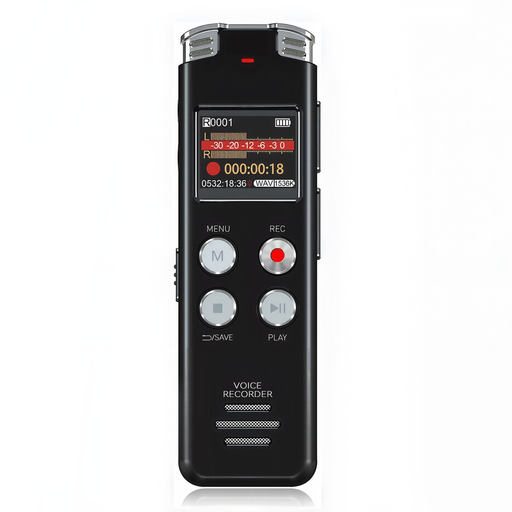 No image available
Consider this recorder if you need to capture spoken information and revisit it later. The product name specifies 128GB and an LCD screen; check that its file workflow suits your study or work setup, and confirm permission before recording.
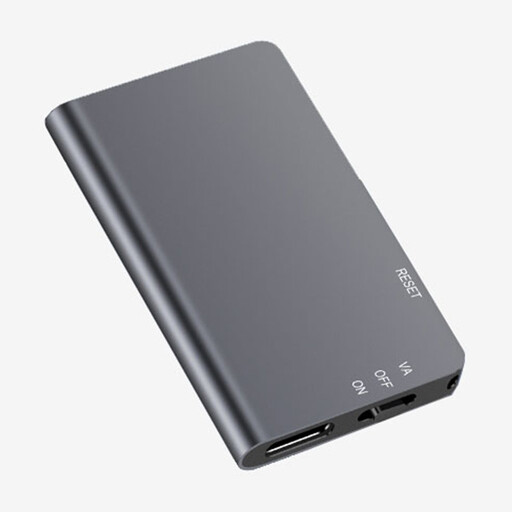 No image available
For capturing spoken notes, this model’s name specifies 64GB and one-touch recording. Confirm whether that storage is built in or supplied on a detachable card, and check recording rules for the setting where you would use it.
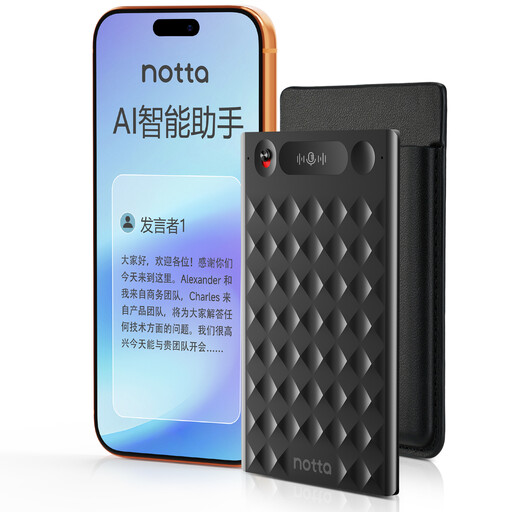 No image available
This option is relevant if you want to explore a recording workflow that also lists transcription and summary features. Its name specifies 32GB and an included case; check app compatibility, service requirements, handling of recordings and feature suitability before relying on it for notes.
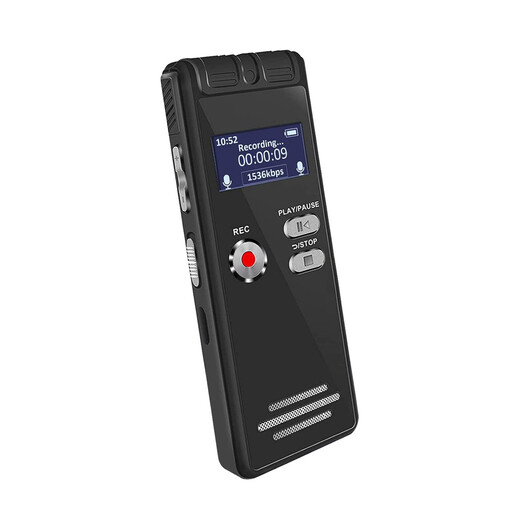 No image available
For capturing spoken information, the product name identifies 64GB and an LCD screen. Confirm whether the storage is internal or on a detachable card, which devices can receive its files and whether recording is permitted in your setting.
Yes, if a feature on your current device addresses the task: try it with the applications and documents you actually use. UK government guidance notes that phones, computers and tablets often include accessibility features; consider separate hardware or software when the built-in option does not meet your workflow.
A screen reader is relevant when you need spoken access to and navigation of on-screen content; speech recognition is relevant when you need to enter text by voice. If you also need voice commands, check that specific control feature separately and test it in your required applications.
Potentially. GOV.UK states that employers must make reasonable adjustments for workers with disabilities who would otherwise be substantially disadvantaged, and gives a special keyboard as an equipment example. Discuss your particular work barrier and a suitable adjustment with your employer.
Access to Work may help eligible people in England, Scotland and Wales with workplace aids or adapted equipment, according to Department for Work and Pensions guidance. Support is decided for the individual and is separate from reasonable adjustments an employer must make; check the scheme before assuming a particular product will be covered.
Check the education provider’s or employer’s rules on permission, confidentiality, storage and sharing before recording. Also make sure you can retrieve and use the files in your normal study or work workflow.