People who find screens difficult to read
Compare enlargement and spoken navigation with the documents, websites and services you need to use; built-in tools may be enough for some tasks, while others may call for specialist software.


Start by testing the accessibility features on a device you already use against the specific task that is difficult; choose a new mainstream device only if its operating system and essential apps support that task. If built-in tools do not provide usable reading or control, consider specialist software or adapted input, checking device, app, accessory and support requirements before buying. For complex access needs, an individual assessment can help identify a suitable setup.
Compare enlargement and spoken navigation with the documents, websites and services you need to use; built-in tools may be enough for some tasks, while others may call for specialist software.
Look for an input method you can operate and position comfortably, and check that its switches, settings and connection work with the device you use.
Check that essential apps and any employer or education setup work with the access method. If support or an assessment may apply, find out what to do before committing to equipment.
| Concern | What to check when buying | Who this matters to |
|---|---|---|
| Reading and navigating on-screen information | Test magnification and screen reading in your actual apps. Check the operating system and any specialist software requirements; Microsoft, Apple and Google document different built-in tools, while Freedom Scientific publishes JAWS system recommendations. | If I need to read documents or navigate services on screen, I want to test those exact tasks before choosing software; around 25% of consumers prioritise reading and navigation. |
| Control without standard input | Try built-in input settings, then check switch connections, positioning and the complete setup. Google describes Chromebook Switch Access with USB or Bluetooth switches; Pretorian lists mounting and switch options for its Ultra Joystick. | When typing, pointing or touch is the main barrier, I need a control I can operate on my device; around 25% of consumers put alternative input first. |
| Voice-led writing or control | Try dictation and whole-device voice control separately in the required apps and language. Microsoft says Windows voice access needs an internet connection for initial setup and language-file downloads. | If speaking is easier than typing or manual navigation, I want to check both functions in my usual setting; around 19% of consumers prioritise voice input. |
| Work or study app compatibility | List essential apps, operating-system versions, processor architecture and connected equipment. Microsoft explains that Windows-on-Arm app emulation does not support drivers; check any driver-dependent peripheral separately. | When a course or work task depends on specific software, I need the whole workflow to work with the access method; around 19% of consumers prioritise required-app compatibility. |
| Assessment and support | Identify the relevant work, study or daily-living route before relying on funding or reimbursement. GOV.UK’s Disabled Students’ Allowance guidance for England says to wait for assessment before buying equipment if reimbursement is expected. | If I need an assessed setup and cannot assume costs will be covered, I want to understand the applicable process first; around 12% of consumers put support and cost first. |
A feature list or software requirement does not establish that a particular employer or college application will work with it. On Windows on Arm, application emulation does not cover drivers, according to Microsoft.
Test the task you need to complete and check the operating system, processor, app and peripheral together.
If the full workflow fails, you may need a different app, peripheral or computer.
Controls differ in how they are positioned and operated. Pretorian says its J-Pad is designed for iPad Switch Control and requires particular motor and cognitive abilities; that does not establish suitability for every user.
Check operation, positioning, switch action and the host device as one setup before choosing.
A suitable mount or different switches may also be needed, depending on the setup.
Support routes have different responsibilities and conditions. GOV.UK’s Disabled Students’ Allowance guidance for England warns that equipment bought before assessment will not be reimbursed under that process.
Confirm which scheme applies and follow its assessment and purchase instructions before ordering.
An unapproved purchase may remain your expense.
HMRC guidance distinguishes a qualifying assistive-technology system from a general-purpose computer purchase; the product description alone does not establish that the supply meets the conditions.
Check the actual configuration, use conditions and supplier’s treatment before budgeting for relief.
VAT may still be payable if the actual supply does not meet the relief conditions.
Windows accessibility tools offer a starting point for people testing magnification, Narrator, dictation or voice access on a compatible PC.
Mac and iPad offer built-in options to evaluate for screen reading, enlargement and alternative control.
Chromebook’s built-in accessibility tools are a route to consider when required tasks can be done on ChromeOS.
JAWS is a specialist Windows screen reader to evaluate when a built-in reader does not meet an essential task.
Specialist input products such as Ultra Joystick and the iPad-focused J-Pad are options to investigate when standard pointing or switching is inadequate.
These choices cover mainstream laptops for trying built-in accessibility features, plus standard mice for people who have chosen mouse-based pointing.
 No image available
Consider this Mac if you want to try built-in screen reading or enlargement on a laptop; Apple documents VoiceOver and Zoom for Mac.
The product description identifies macOS Tahoe, a 13.6-inch display and a weight of 1.23 kg.
It has an M5 chip with a 10-core CPU and 10-core GPU, 16GB memory and a 1TB SSD.
 No image available
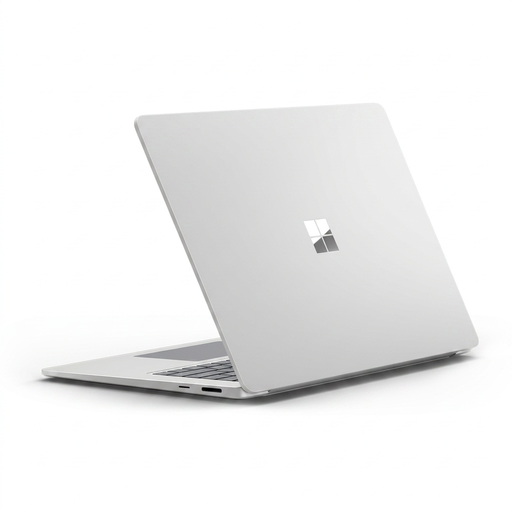
Consider this Windows laptop if you want to trial built-in accessibility tools; Microsoft documents features including Magnifier.
The listing identifies Windows 11, a Snapdragon X Elite processor and a 15-inch touchscreen.
For driver-dependent assistive peripherals, Microsoft explains that Windows-on-Arm application emulation does not support drivers; check the specific peripheral requirements.
 No image available
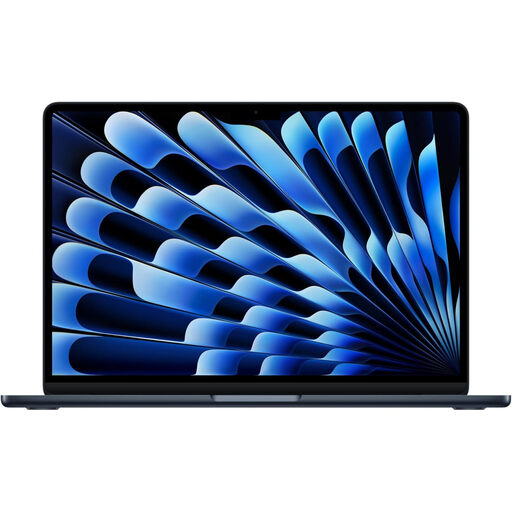
Consider this Mac if you want to test built-in screen reading or enlargement on a laptop; Apple documents VoiceOver and Zoom for Mac.
The product title identifies a 15-inch display, an M5 chip with a 10-core CPU and 10-core GPU, 16GB memory and a 512GB SSD.
 No image available
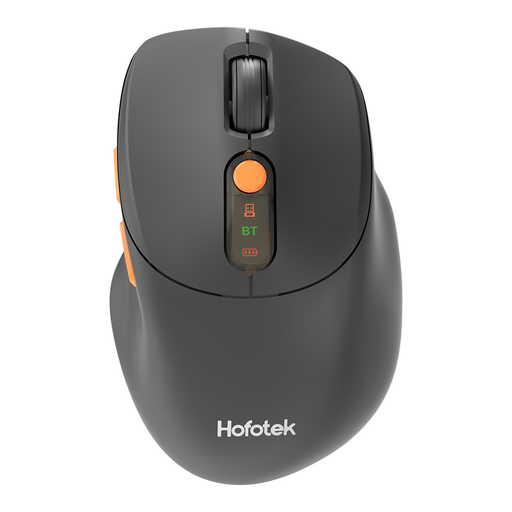
Consider this mouse if mouse-based pointing is a suitable input for you; check its controls and movement settings against your needs.
The listing specifies 2.4 GHz and Bluetooth connections, multi-device switching and multiple DPI settings.
It lists compatibility with Windows, macOS and Android and requires 1xAA Battery.
 No image available
Consider this mouse if mouse-based pointing is the input you have chosen; check that its shape, buttons and settings suit the task.
The listing specifies wired, 2.4 GHz and Bluetooth connection modes, six buttons and adjustable DPI.
It lists a PAW3311 sensor, a 24000 DPI setting and compatibility with PC and Mac.
Not automatically. Test built-in reading or enlargement in the documents and apps you use; if an essential task remains inaccessible, compare specialist software with that task and its published system requirements.
Google says Chromebook Switch Access can use an external device connected by Bluetooth or USB, or keys on the built-in keyboard. Check that the particular switch, connection and scanning setup work together before buying.
Microsoft says Windows 11 voice access can work offline after setup, but initial setup and downloading language files require an internet connection. Microsoft states availability from Windows 11 version 22H2.
Check the rules of the scheme that applies before ordering. GOV.UK’s England-focused Disabled Students’ Allowance guidance says equipment bought before assessment will not be reimbursed under that process; work-support arrangements have different responsibilities, and Northern Ireland has a separate Access to Work programme.
NHS guidance describes asking your local council’s social services for a needs assessment for help with everyday tasks and equipment. This does not mean a general-purpose computer or a particular digital product will be supplied, so ask the relevant local service about your task and eligibility.