Reading or writing access
You want to hear course text, produce text by voice or organise written work, and need to distinguish those tasks when comparing tools such as Read&Write, Dragon Professional and Inspiration.


Choose assistive technology around the study task you need to make accessible: reading text, entering or organising writing, using a screen, operating a computer or reviewing spoken teaching call for different tools. Try built-in or university-provided options where suitable, and follow the DSA process that applies to your funding before ordering; check institutional rules before recording teaching or using AI-enabled features for assessed work.
You want to hear course text, produce text by voice or organise written work, and need to distinguish those tasks when comparing tools such as Read&Write, Dragon Professional and Inspiration.
You need to navigate course software, enlarge screen content or use a different physical input method. RNIB notes that screen-reading proficiency takes practice, so test tools with the applications and materials you use.
You want to revisit spoken teaching and need to check whether recording is permitted for the particular session. The University of Cambridge distinguishes lectures from small-group teaching in its recording guidance.
Start with the study task that is difficult, then check whether a tool works with your course materials, applications and device. Before buying, also check any relevant assessment, recording or funding requirements.
| Concern | What to check | Who this matters to |
|---|---|---|
| Reading course materials | Test actual files and websites; distinguish text read aloud from full screen navigation. | If listening while following course text is the main need, test that task separately from navigating controls. Consumers who put reading access first make up around 17%. |
| Producing written work | Try dictation in coursework applications; check platform requirements and assessment rules for AI features. | When typing or editing is the barrier, I would check whether dictation works in the applications I use. Consumers whose main concern is writing input account for around 17%. |
| Planning assignments | Check whether moving from visual maps to written outlines suits your workflow, and whether your institution provides a suitable tool. | If arranging ideas is the difficult part, a map-to-outline workflow may be relevant. Consumers who prioritise planning and organisation make up around 17%. |
| Keyboard or mouse input | Check hand fit, handedness, connection and whether you can use the controls needed for your study tasks. | For a student seeking a different way to operate a computer, physical fit and usable controls matter. Consumers who put alternative physical input first account for around 17%. |
| Reviewing spoken teaching | Confirm permission and file-handling rules for the specific lecture, seminar or supervision before choosing recording equipment. | If revisiting spoken material is the priority, I would check whether recording is allowed for each relevant session. Consumers who chiefly need to review teaching make up around 16%. |
| Screen navigation or magnification | Try built-in and specialist options with your course software and documents; allow for practice with screen-reading tools. | When I need to navigate controls or enlarge screen content, I would test those tasks separately from listening to selected text. Consumers who prioritise screen access make up around 16%. |
Funding and ordering steps differ across the UK. GOV.UK and Student Finance Wales give explicit warnings about buying before the required assessment or entitlement stage; Student Finance NI provides ordering instructions with its decision.
Before committing money, follow the assessment, decision and ordering instructions for the funding route that applies to you.
If you buy too early, you may have to pay for the equipment yourself: GOV.UK says equipment bought before assessment will not be reimbursed in England, and Student Finance Wales gives a pre-entitlement-letter warning in its 2026/27 notes.
Assessment rules can distinguish between functions such as transcription, summarising and generated writing. The University of Sheffield says AI-enabled tools used for assessment are subject to the individual module or assessment brief.
Check the feature you plan to use against your assessment instructions, including any acknowledgement requirement.
Recording arrangements may differ between lectures and smaller teaching sessions. University of Cambridge guidance advises checking arrangements for small-group teaching.
Ask your institution about permission and file-handling rules for the specific session before relying on a recorder.
A recorder may not be usable for sessions where recording is not permitted.
Text-to-speech, magnification and screen reading address different tasks. A tool that reads selected text aloud does not necessarily provide keyboard-led navigation through an interface.
Test reading, navigation and writing separately in your course applications, and consider whether training is needed.
RNIB notes that becoming proficient with screen-reading software takes time and practice.
Read&Write is a relevant option when listening to and following course text is the main task.
Dragon Professional 16 is a Windows-oriented option for dictation and transcription.
Inspiration 12 is relevant if visual mapping and outlining are central to planning assignments.
Lift is a mouse option for students considering a different physical input shape.
The UX570 series is a recording and playback option for study sessions where recording is permitted.
JAWS and ZoomText represent separate screen-reading and magnification approaches.
These options focus on physical computer input and recording spoken study material for later review. Check session permissions before recording; the permitted workflow depends on your institution.
 No image available
Consider it when an alternative keyboard layout is relevant to your study input needs.
Split-layout wireless keyboard; padded wrist rest.
 No image available
Consider it when a mouse is your preferred physical input and you want to check an alternative shape for your setup.
Wireless mouse; black; detachable wrist rest.
 No image available
Consider a recorder for spoken material you are permitted to capture and review.
32GB; supplied with a case.
Check session recording rules and assessment requirements before relying on any AI-enabled features.
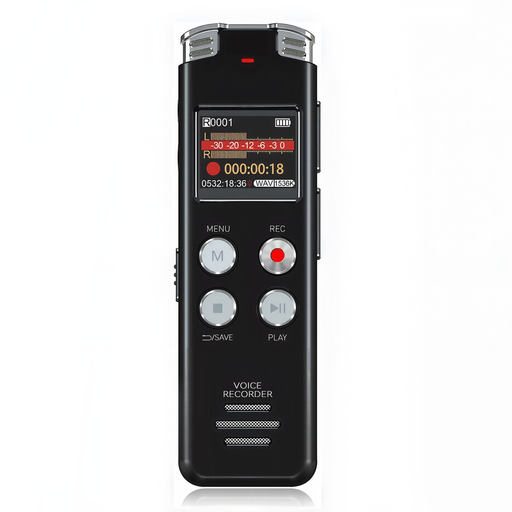 No image available
Consider it when capturing spoken study material for later review is the priority.
128GB; LCD screen; model L357; gray.
Check permission and file-handling rules for the specific teaching session before recording.
 No image available
Consider it when you need a recorder for spoken material that you can review later.
64GB; one-touch recording; model L810; gray.
Confirm that recording is permitted for the particular session before use.
Check the process for the funding route that applies to your circumstances. GOV.UK describes an assessment and subsequent report and entitlement letter for England; SAAS requires first-time applicants in Scotland to provide a Needs Assessment Report; Student Finance Wales’s 2026/27 notes describe assessment and a funding decision; Student Finance NI’s 2026/27 process provides equipment-ordering instructions with its decision. These processes do not establish your personal eligibility.
Do not assume that an early purchase will be reimbursed. GOV.UK says equipment bought before assessment will not be reimbursed in England, and Student Finance Wales’s 2026/27 notes warn against buying before the entitlement letter. Student Finance NI provides ordering instructions with its decision letter. If your funding is through SAAS, ask your disability adviser and SAAS which approval and purchasing steps apply to your award.
No: funding does not give blanket permission to use an AI feature in assessed work. The University of Sheffield says the individual module or assessment brief governs the use of AI-enabled tools for assessment. Check the specific feature and assignment instructions, including any declaration requirement.
Do not assume that every session can be recorded. University of Cambridge guidance distinguishes lectures from small-group teaching; check your own institution’s permission, storage and sharing rules for the specific session before choosing equipment.
Not necessarily; RNIB notes that built-in screen readers and magnification are available on some platforms. Test them with the course applications and materials you use, and consider whether a specialist option provides the access you need. RNIB also notes that becoming proficient with screen-reading software takes practice.