Choose assistive technology for the study task you need to access, whether that is reading course files, writing, using a computer or following online teaching. Try built-in and university-provided options against your actual course materials before choosing separate equipment; if you may seek Disabled Students’ Allowance (DSA), check the assessment and supply process for your UK nation before paying yourself.
Who may benefit
The useful starting point is a study activity that is difficult to complete with your current setup, not a product category on its own.
Students accessing reading and digital materials
If reading onscreen text, navigating course systems or using digital documents is difficult, compare speech, magnification and braille routes against your operating system and the files your course uses.
Students using alternative writing or computer input
If typing, mouse use or capturing spoken ideas is the barrier, trial the relevant input method with your usual device and study tasks. Check device permissions and assessment rules before relying on a software tool.
Students considering DSA-supported equipment
If you may seek Disabled Students’ Allowance, ask your university disability service and the provider for your UK nation about assessment and supply arrangements before buying specialist equipment yourself. The process differs across the UK.
What to check before choosing
Identify the task first, then test a possible tool with your device, course materials and university systems. Check the support route before committing to specialist equipment.
| Priority | What to check | Your needs |
|---|
| Reading access |
Try text-to-speech or a screen reader with typical course files and the learning platform. Check the operating system, browser and document accessibility; NV Access describes NVDA as a Windows screen reader. |
I need to read or navigate course material in a format I can use, including the PDFs and websites my modules require. |
| Writing and dictation |
Compare built-in voice typing or dictation with university-provided tools. Test the microphone and check software permissions and rules for assessed work. |
When typing slows down my coursework, I want to test whether speaking a draft fits my writing workflow. |
| Audio input |
Match the headset or microphone connection to your device. Test it in the intended calling or speech-input application, and confirm permission before recording teaching or other people. |
For online teaching or spoken input, I need audio equipment that works with the device and application I actually use. |
| Keyboard and desk setup |
Try a different keyboard layout or pointing method for your usual tasks. If adding a laptop stand, check access to the built-in keyboard, ports and webcam. |
A different typing or desk arrangement may help me complete sustained computer work, but I need to try the physical setup rather than rely on its label. |
| Braille and specialist input |
Check the exact display or input device with your computer, operating system and screen reader. HumanWare publishes separate Brailliant BI 40X setup material for iOS and Mac, illustrating why the pairing matters. |
If I use refreshable braille or specialist input, I need the whole device-and-software combination to work for my course tasks. |
| University support |
Ask about available software, accessible course materials, setup help and agreed adjustments alongside any hardware choice. |
I need support that works in practice, not just a device. In Disabled Students UK’s 2025 Annual Disabled Student Survey, 63% of over 1,000 disabled student respondents from over 100 universities said they had gone without some adjustments because repeatedly chasing them took too much time and energy. |
| DSA process |
Check the assessment and equipment-supply steps with the provider for your UK nation. GOV.UK says a needs assessment is required before DSA support in England; arrangements elsewhere differ. |
If I may seek DSA support, I want to know the appropriate route before paying for specialist equipment myself. |
Buying mistakes to avoid
-
Buying specialist equipment before checking DSA arrangements
An independently chosen item may not match the support or supply route determined through assessment. GOV.UK states that a needs assessment is required before DSA support in England; other UK nations have their own arrangements.
If you may apply for DSA, ask the relevant provider and your university disability service about the sequence before paying. Discuss interim access needs with the university.
-
Choosing by diagnosis or brand rather than study task
A screen reader, dictation tool and alternative keyboard address different activities. A product may work on its own yet fail to make a particular course document or platform accessible.
Choose one task to test first, such as navigating the learning platform, reading a typical PDF or drafting an essay, and try the tool with that material.
-
Assuming every device and system will work together
NV Access describes NVDA as a Windows screen reader, while Texthelp lists specific macOS versions for Read&Write for Mac. Specialist displays can also require platform-specific setup.
Check your operating-system version, required apps, connection method and installation permissions. Test the combination used for your coursework before relying on it.
-
Treating ergonomic hardware as a guaranteed solution
A changed keyboard layout or desk arrangement may require an adjustment to how you type and position your other equipment; a comfort claim cannot establish individual suitability.
Try your usual study tasks with the proposed layout and check the applicable return terms or assessment-led trial arrangements before choosing.
Relevant brands and platforms
These references can help you identify a route to investigate; their inclusion does not mean a particular product will suit your course setup.
Microsoft
A starting point for checking built-in Windows accessibility and productivity features before choosing separate software.
- The University of Cambridge identifies built-in accessibility options on Windows and Mac computers.
- Test the available features with your device configuration, course files and assessment requirements.
NV Access
Provides NVDA for students considering screen-reader access on Microsoft Windows.
- NV Access describes NVDA as a way to access and interact with Windows.
- Its Windows focus makes the operating system a deciding check for a macOS-only study setup.
Texthelp
A reference for students considering Read&Write reading and writing tools through an appropriate licence.
- Texthelp lists macOS 14 Sonoma, macOS 15 Sequoia and macOS 26 Tahoe in its Read&Write for Mac requirements.
- Check the exact edition, licence and institutional sign-in alongside device compatibility.
HumanWare
A reference for students investigating a specialist refreshable braille display.
- HumanWare provides platform-specific Brailliant BI 40X setup material, including guidance for iOS and Mac.
- Check the exact display, screen reader and study device together rather than assuming every pairing works alike.
Logitech
An example to investigate when a different physical keyboard layout is relevant to study-related input.
- Logitech describes the ERGO K860 Business as a split-layout keyboard.
- Logitech says optional Logi Options+ customisation requires its app on Windows or macOS; check the layout and software requirements for your setup.
Joybuy options for study access
These options cover an alternative keyboard layout and audio devices with microphones. Choose between them by the study task you need to test; they are not substitutes for screen-reading software or a braille display.
 No image available
HP 960 split-layout wireless keyboard with padded wrist rest
Consider this if you want to try a different keyboard layout for study-related typing. Check whether the split layout suits your typing method, and confirm device and software compatibility if you plan to use programmable-key customisation.
View on Joybuy
 No image available
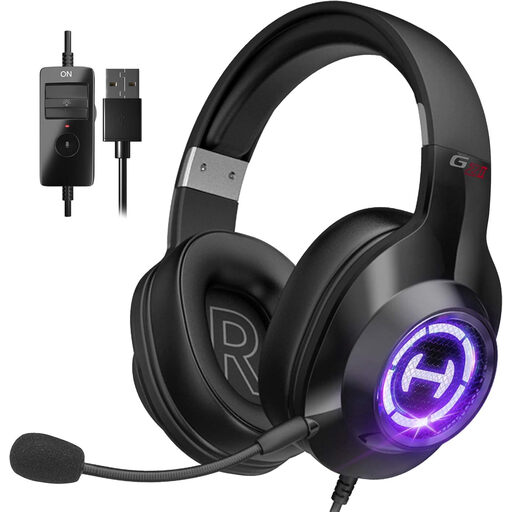
Edifier G2II USB wired gaming headset with microphone, black
The USB wired headset and microphone make this an option to check for study calls or spoken input. Test its connection and microphone with your device and intended software; its gaming-focused description does not establish transcription or lecture-recording performance.
View on Joybuy
 No image available
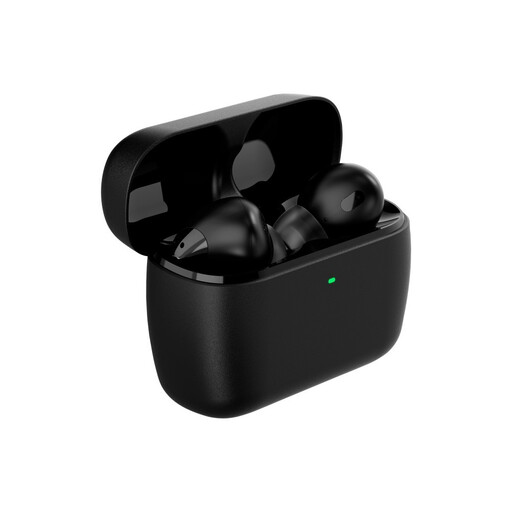
HyperX Cloud MIX Buds 2 gaming earbuds with microphone
These microphone-equipped earbuds are an option to check for calls on a compatible study device. Confirm that the stated USB-C wireless dongle and microphone work with your device and university software; do not assume suitability for speech-to-text or lecture recording.
View on Joybuy
Questions about assistive study technology
Should I buy specialist equipment before applying for DSA?
Check the DSA process for your UK nation before paying yourself. GOV.UK says a needs assessment is required before DSA support in England; ask the relevant provider how assessment and equipment supply work for you, and speak to your university about any immediate access needs.
Does DSA work the same way throughout the UK?
No. England, Wales, Scotland and Northern Ireland have different DSA arrangements. Student Awards Agency Scotland describes an application separate from the main funding application, while Student Finance Northern Ireland cautions that arrangements elsewhere may differ. Check the current steps with the provider for the nation where you apply.
How can I check whether an assistive tool will work for my course?
Try it with your actual operating system, learning platform and representative course files. Check the browser, connection method and software-installation permissions too, then ask your university disability or digital-learning team about a practical trial if one is available.
Can I rely on a recorder or speech-to-text tool for assessed work?
Confirm the rules for the particular activity before relying on the tool. Ask the relevant module or assessment team about recording teaching and using speech-to-text in assessed work, including any restrictions on specific software features.


