If a participant needs to hear and speak during a TV-connected lesson without wearing a headset, start by testing a wired USB speakerphone near their seat as the meeting audio device, rather than adding a standalone microphone beside loud TV speakers. If the lesson must play through the TV, keep its volume moderate and test for echo; a clip-on microphone can bring the input closer to the speaker but cannot remove the TV-to-microphone feedback path by itself.
Who is this setup for?
Participants listening through TV speakers
If lessons play through a large TV and a participant occasionally asks questions without a headset, the choice depends on how the microphone and TV speakers behave together at the normal volume. Zoom identifies loud TV or soundbar output as a possible source of echo.
Participants seated away from the screen
A microphone at the computer may be inconvenient when the participant sits farther back or moves during a lesson. A clip-on microphone brings the input with them, but TV-speaker echo still needs a separate check.
Households that prefer a wired connection
When the TV-connected computer’s Bluetooth capability is uncertain, a compatible USB device avoids making Bluetooth part of the setup. Microsoft Support explains how to select a connected microphone in Windows Sound settings.
What matters when choosing audio equipment?
Decide where lesson audio will play before choosing a microphone: a speakerphone can handle both sides of the call, while a separate microphone leaves the TV-speaker arrangement to manage. Then check seating distance and the computer’s actual connections.
| Concern |
What to check |
Who this matters to |
| Echo with TV speakers |
Use one meeting-audio device nearby and test at a moderate TV volume. Keep the microphone away from the TV speakers. |
If I listen through the TV, I want to ask a question without sending the lesson audio back into the call. Roughly 31% of consumers put preventing echo first. |
| Voice pickup from the usual seat |
Test from the participant’s chair; if they move around, check whether a clip-on receiver connects to the computer. |
When I sit back from the screen or move during a lesson, my voice needs to reach the microphone without my moving towards the TV. Clear pickup is the first concern for roughly 31% of consumers. |
| Connection to the computer |
Identify the available USB ports. Check for working Bluetooth only if the chosen connection requires it. |
If I am unsure whether the small computer has Bluetooth, I want a connection I can set up and select before class. Roughly 23% of consumers prioritise avoiding that uncertainty. |
| A minimal, comfortable setup |
If a webcam is needed anyway, test its microphone from the usual chair before adding another device. |
I would rather avoid wearing a headset or setting up extra equipment for occasional questions, provided the call still works from my seat. Keeping equipment to a minimum comes first for roughly 15% of consumers. |
Mistakes to avoid
-
Expecting a new microphone to cure TV-speaker echo
A closer microphone may pick up speech more readily, but it can still pick up sound from the TV. Zoom identifies loud speakers and multiple nearby devices using meeting audio as possible echo causes.
Before buying another device, lower the TV volume, leave only one nearby device connected to meeting audio and test the microphone’s position. If a speakerphone will provide both input and playback, test it as the meeting audio device.
-
Assuming every wireless microphone connects to the computer
Bluetooth pairing requires Bluetooth support on the Windows computer. A microphone with a USB-C receiver instead needs a suitable port or compatible adapter; the connection method matters more than the word “wireless”.
Check the computer’s ports and the exact receiver version. For RØDE Wireless Micro, RØDE describes connecting its receiver to a computer through USB-C and selecting it as the microphone input.
Depending on the receiver and computer ports, an adapter or docking connection may also be needed.
-
Treating audio-processing features as an echo-free guarantee
Full-duplex audio and echo cancellation are distinct specifications; neither establishes how a device will behave beside a loud TV in a particular room.
Use those specifications to narrow the choices, then make a call from the normal seat with the intended TV volume and device placement.
-
Leaving the old microphone selected
Connecting a new device does not establish which microphone the lesson application is using.
Choose and test the intended input in Windows Sound settings, then check the microphone and speaker selections in the meeting application before the lesson.
Relevant brands and product lines
Dell
The Dell Pro Desktop Speakerphone SP3022 is a wired reference for a Windows-based, TV-connected computer.
- Dell lists USB-A and USB-C connections, echo cancellation, full-duplex audio and Windows 10/11 support for the SP3022.
- Those SP3022 specifications do not establish whether its cable and placement will suit a particular room.
Jabra
The Speak 750 is a portable speakerphone reference where both USB and Bluetooth connections are of interest.
- Jabra lists acoustic echo cancellation, full-duplex audio and a 360-degree microphone for the Speak 750.
- Check the exact package and computer connection before relying on an adapter or a particular wireless arrangement.
AnkerWork
The PowerConf A3301 is a speakerphone reference for a lesson space where USB-C or Bluetooth placement may be useful.
- AnkerWork lists a USB-C computer connection, Bluetooth and a six-microphone array for the A3301.
- Its listed features do not guarantee echo-free use beside a TV; test the planned room arrangement.
Logitech
The Brio 100 represents a webcam-microphone option when video is needed and the participant sits near the display.
- Logitech lists a built-in microphone and compatibility with Zoom, Teams and Google Meet for the Brio 100.
- A built-in microphone specification does not establish pickup from a distant seat or resistance to TV-speaker echo.
RØDE
Wireless Micro is a clip-on route when the participant needs the microphone to move with them.
- RØDE explains how to connect a Wireless Micro receiver to a computer through USB-C and select it as the microphone input.
- The product is primarily designed for mobile devices. Check the receiver version, computer port and TV-speaker feedback separately.
Joybuy products for this setup
These products cover two ways to handle a TV-connected lesson: a wired speakerphone for two-way audio, and a webcam with microphones and speakers when video is also needed. Test either choice in the room where lessons take place.
 No image available
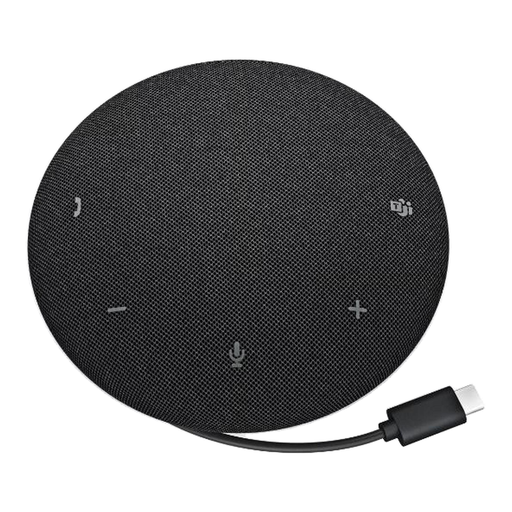
DELL Pro Wired Speakerphone SP325
A wired speakerphone to consider when a participant wants to speak and listen without a headset. Check that its cable reaches the intended position and that the computer has a suitable connection; test for echo with the room’s planned audio arrangement.
View on Joybuy
 No image available
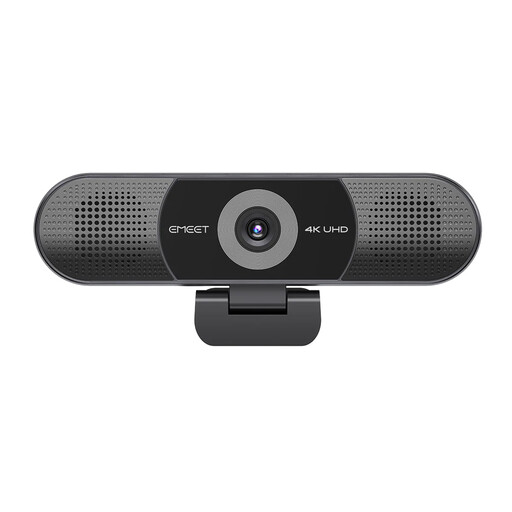
EMEET All-in-One 4K Webcam with Sony Sensor, 4-Mic Array and Dual AI Speakers
Consider this webcam if the lesson also needs video and the participant can test its microphones from the usual seat. Its name specifies a fixed-focus lens, a 98° adjustable field of view and plug-and-play USB connectivity. Check the framing and test for echo at the planned TV volume.
View on Joybuy
Common questions
How can I reduce echo while using TV speakers for a lesson?
Start with one nearby device connected to meeting audio, lower the TV volume and test the microphone away from the TV speakers. Zoom identifies loud TV or soundbar output and multiple nearby audio devices as possible echo causes, so make the test call using the seating and volume you will use for lessons.
Does a TV-connected computer need Bluetooth for a microphone?
No: a compatible USB microphone or wired USB speakerphone does not require a Bluetooth connection. Microsoft Support says a Windows computer needs Bluetooth to pair a Bluetooth device, so check for working Bluetooth or a compatible adapter only if that is the connection you intend to use.
How should I test a new microphone before a lesson?
Select the intended microphone under Input in Windows Sound settings and make a test recording, then check the meeting application’s audio choices. A real call at the planned TV volume is also needed to reveal room echo that a microphone recording alone may not show.
Can a webcam microphone handle questions during a TV lesson?
It may suit occasional questions when the participant sits near the webcam, but test it from the actual chair before relying on it. Logitech lists a built-in microphone for the Brio 100; that specification alone does not establish pickup at a distant seat or control of echo from TV speakers.


