What should you check before choosing?
Decide how you need to access files day to day, then check whether you could recover them after a deletion, account problem or device failure.
| Priority | What to check | Your needs |
|---|
| Access across devices |
Check which devices can upload and open files, whether access needs an internet connection, and how a new device signs in. |
I want photos and documents available on my phone and computer, including when I am away from my local drive or NAS. |
| Independent recovery |
Check whether the destination is separate from the synced library, how to restore a file or full library, and how long earlier versions remain available. Microsoft Support states 30-day retention for OneDrive file version history on its cited support page. |
A mistaken edit or deletion must not leave me dependent on the current synced copy. For important files, I would test a restore from a separate backup. |
| Storage capacity |
Measure the current library and allow for growth. Check what uses a cloud allowance: Google One Help says the standard Google Account allowance of up to 15 GB is shared across Gmail, Drive and Photos. |
My photos and videos may keep growing, so I need to know whether other files and email use the same space. |
| Sharing controls |
Review private, invited and public permissions for each service, including existing links and folders. The Information Commissioner’s Office describes these as distinct cloud-sharing settings. |
I may share selected family photos without opening sensitive documents to everyone using the storage arrangement. |
| Account access |
Set up recovery options before losing the primary device and check who can access shared files. Apple Support describes a recovery-contact option; Google Account Help recommends adding recovery information. |
If my phone is lost or replaced, I still need a way into the account holding my cloud files. |
| Local setup |
For a drive, check capacity, connector and a repeatable backup routine. For NAS, check user accounts, maintenance and a second backup destination; Synology documents scheduled backups to local, remote and cloud destinations. |
I can manage a central household library if I also have time to maintain it and back it up. Otherwise, a removable drive may be a simpler local copy. |
External drives for a local copy
These Joybuy drives are options for keeping a separate local copy of photos and documents. Choose capacity and connection to suit your devices, and plan another recovery copy if the drive could remain connected or be affected by an incident at home.
 No image available
Samsung MU-PG4T0B 4 TB USB-C SSD
Use this as a local destination for a separate photo and document copy. Check that 4 TB accommodates your library and that your intended device supports its USB Type-C, USB 3.2 Gen 2x2 connection; keep another recoverable copy apart from the drive.
Joybuy
 No image available
Samsung MU-PE1T0S 1 TB USB-C SSD
This portable local-copy option has a stated capacity of 1 TB and a USB Type-C, USB 3.2 Gen 2 connection. Compare its capacity with your files, check the port on each intended device and test how you will restore a backup.
Joybuy
 No image available
Samsung MU-PG2T0B 2 TB USB-C SSD
For a separate local copy, check whether 2 TB covers your present library and expected growth. Its stated connection is USB Type-C, USB 3.2 Gen 2x2; confirm support on the device you will use for backups.
Joybuy
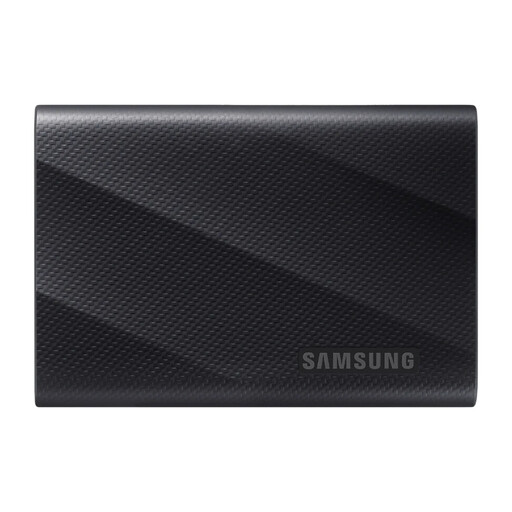 No image available
Samsung MU-PG1T0B 1 TB USB-C SSD
This is a 1 TB local storage option for a separate file copy. Check library size and compatibility with its USB Type-C, USB 3.2 Gen 2x2 connection, then establish a backup routine that does not leave this as the only recoverable copy.
Joybuy
 No image available
Western Digital My Passport 2 TB portable hard drive
Consider this 2 TB hard drive as a destination for a local photo and document copy. Check that its capacity fits your library, confirm connection and software compatibility with your computer, and test the restore process before relying on it.
Joybuy
Common questions
Is a photo library that syncs across devices an independent backup?
Not by itself: synchronisation keeps a library current across devices, so an unwanted change can appear elsewhere too. Keep a separate copy of irreplaceable files and check the service’s recovery window; Microsoft Support states 30-day retention for OneDrive file version history on its cited support page.
What should I check before replacing my phone?
Confirm that recent photos have uploaded, that you can open them on another device and that your account-recovery information is current. Google says backed-up photos are available on signed-in devices, while Apple and Google document account-recovery options.
Can family members share cloud storage without seeing each other’s files?
Yes, where the service separates shared capacity from file permissions: Google says Google One family members cannot access one another’s files without permission. Still check each album, file or folder before sharing; the Information Commissioner’s Office describes private, public and invited cloud-sharing settings.
Should an external backup drive stay connected?
A connected drive can be convenient for regular backups, but it is less separated from a problem affecting the computer. The National Cyber Security Centre reports ransomware incidents involving connected USB and network backup storage; for irreplaceable files, consider disconnecting a completed removable-drive backup and keep another recoverable copy.


