Choose a portable SSD if you regularly move large files, or an external hard disk drive (HDD) if a substantial local archive matters more than transfer speed. Cloud storage suits access across devices, provided its storage, subscription and sharing settings meet your needs. For irreplaceable files, consider both local and cloud copies: maintain each copy, disconnect the local drive between backups and protect the cloud account with two-step verification.
Who needs which kind of backup?
People protecting irreplaceable memories
If losing family photos or personal documents would be particularly difficult, focus on separate, recoverable copies rather than extra space alone. The National Cyber Security Centre advises considering both online storage and a separate storage device.
People using files across devices
If you need current photos and documents on a phone, tablet and computer, cloud access may help when you have an internet connection. Check sharing permissions before giving family or trusted contacts access, as Which? advises.
People keeping large local libraries
If your photo, video or document collection mainly needs space on a physical drive, consider an HDD and a backup routine you will maintain. Which? describes the capacity and speed trade-off between external HDDs and SSDs; a single drive should not be the only copy of important files.
What matters when choosing?
Which? distinguishes external drives by capacity and transfer needs, while the National Cyber Security Centre advises keeping recoverable copies separate from the original files.
Portable SSD
Consider it: When you frequently transfer large files and want compact local storage.
Bear in mind: Check the computer connection before relying on a drive’s rated speed, and keep another copy of critical files.
External HDD
Consider it: When your main task is keeping a substantial local photo and file archive.
Bear in mind: An HDD is a physical copy that needs a backup routine and does not provide remote access by itself.
Cloud storage
Consider it: When access across devices and configured automatic backup are priorities.
Bear in mind: Access depends on your account and an internet connection; review the subscription and sharing settings.
Local and cloud copies
Consider it: When losing important files would make a second, independent recovery route valuable.
Bear in mind: Both copies need maintaining, and a local backup drive should be disconnected between updates.
| Concern | What to check | Who this matters to |
|---|
| Recoverable copies |
Plan a separate copy that can be restored; disconnect a local backup between updates and enable two-step verification for cloud access. |
If my photos cannot be replaced, I need a way to recover them even if my computer or one backup location is affected. Around 33% of consumers put independent recovery first. |
| Cross-device access |
Check device compatibility, automatic-backup setup and who can open shared files. |
I want current documents on my phone and computer without making private folders broadly accessible. For around 27% of consumers, access and controlled sharing are the primary need. |
| Local capacity |
Compare the capacity variant, connector and operating-system requirements; plan a second copy for important files. |
A growing photo and video library needs enough room on a drive I can keep locally, even if transfers take longer. Around 20% of consumers prioritise local capacity. |
| Portable transfers |
Match the drive’s interface and cable to your device’s port, and read speed ratings as conditional maximums. |
I regularly move large batches of files and would use a compact drive often enough for transfer speed to matter. Portable transfers come first for around 20% of consumers. |
Backup mistakes to avoid
-
Treating one drive or cloud account as the whole backup plan
The National Cyber Security Centre warns that connected backups can be affected when the original computer is compromised. A copy in just one other location may leave no independent recovery route.
Keep a separate copy, disconnect a local backup when it is not being updated, and enable two-step verification for the cloud account where available.
-
Choosing an SSD by its headline speed alone
Which? distinguishes SSD and HDD transfer needs, but a model’s rated speed does not describe what every computer and connection will achieve.
Check the exact interface, supplied cable and host port, then consider how often you actually move large files.
-
Adding cloud storage without planning for a downgrade
Files above a reduced storage allowance may need attention before a downgrade. Apple advises downloading or removing content that exceeds a lower iCloud+ allowance.
Check the allowance, renewal and cancellation terms, and decide how you would keep a local copy of files that exceed a smaller plan.
-
Leaving broad sharing links active
Which? cautions that an anyone-with-the-link setting can expose personal or sensitive files to whoever obtains the link.
Review shared folders, remove links you no longer need and use named-person access where available.
Relevant brands to consider
Samsung
The portable T7 SSD line is relevant if compact local storage and frequent file transfers are your priorities.
- A Joybuy listing for a T7 variant states USB 3.2 Gen 2 and rated sequential speeds of up to 1,050 MB/s read and 1,000 MB/s write.
- Those are model-specific maximum ratings, not a promise of speed on every computer; check the exact variant, port and cable.
Western Digital
The My Passport, Works with USB-C HDD line offers a local-archive route; Western Digital lists variants up to 6 TB.
- Its listed capacity variants let you choose a drive for the size of your file collection.
- Confirm the exact model, connection and device setup. One physical drive is not an independent second backup.
Seagate
The Backup Plus portable HDD line is relevant to people considering scheduled local backups.
- Seagate describes scheduling backups by the hour, day, week or month for this line.
- Check the current model’s availability and compatibility before planning a backup routine around it.
Local storage choices on Joybuy
These portable SSDs and HDDs are options for keeping local copies of photos and files. If you also use cloud storage, choose and maintain it separately as part of your backup plan.
 No image available
Samsung Portable SSD T7 2 TB, Grey
Consider this local SSD if you regularly move large batches of photos or files. The title identifies a 2 TB USB Type-C, USB 3.2 Gen 2 variant; check your device’s port and cable before relying on rated transfer speeds.
View on Joybuy
 No image available
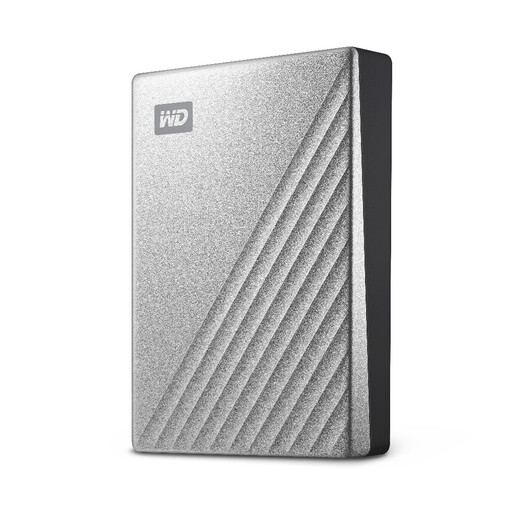
Western Digital My Passport Ultra 4 TB, Silver
Consider this portable HDD for a growing local photo and document library. It is the 4 TB variant; if you use macOS, confirm that its file-system setup suits your computer before buying.
View on Joybuy
 No image available
Western Digital My Passport Ultra 5 TB, Blue
Consider this portable HDD if your local archive calls for a 5 TB drive. Check the intended computer and file-system setup, particularly if you plan to use it with macOS.
View on Joybuy
 No image available
SanDisk Portable SSD 2 TB
Consider this 2 TB portable SSD if you want a local copy that you can carry between devices. Confirm the exact connection and compatibility with your devices before choosing it.
View on Joybuy
 No image available
Western Digital Elements Portable 4 TB, Black
Consider this 4 TB USB 3.0 portable HDD for a local file archive. Check compatibility and any reformatting needed for the computer you intend to use, especially with a Mac.
View on Joybuy
Common questions
Is cloud storage alone enough for irreplaceable photos?
Do not assume one cloud account is your only recovery copy. The National Cyber Security Centre advises considering both online storage and a separate storage device; disconnect a local backup when you are not updating it.
What should I check before taking out a larger cloud-storage plan?
Check what uses the allowance, the renewal terms and what happens to files if you downgrade while over a smaller allowance. Apple advises downloading or removing content above the new iCloud+ allowance before a downgrade; check the terms of the service you intend to use.
How can I share cloud-stored files more privately?
Give access to named people where the service allows it, review existing permissions and avoid broad sharing links for sensitive files. Which? warns about anyone-with-the-link access, and the National Cyber Security Centre advises enabling two-step verification for cloud accounts.
Will an external backup drive work with my computer?
Check the exact drive variant against your computer’s port, cable and operating-system requirements before buying. A connection that fits physically does not settle whether the drive’s file-system setup or backup software suits your intended workflow.


