Households with iPhone, Android and computer photo libraries
Useful when camera photos, documents and downloads are spread across phones and computers, and you need both automatic phone uploads and a recoverable computer copy.


For photos and important files held across more than one device, use more than one recovery route: a cloud photo or file service for access across devices, plus a separate computer backup or local drive copy. Check that backups have completed, that storage and account recovery are adequate, and that you can restore files before relying on the arrangement.
Useful when camera photos, documents and downloads are spread across phones and computers, and you need both automatic phone uploads and a recoverable computer copy.
Suitable for Mac or Windows users who would find it difficult to recreate local photos, documents and files after a laptop failure, loss or theft.
For people who want a personally controlled local copy of a large photo collection while keeping another recovery route away from the same device.
Start by separating convenient file access from recoverable backup. Then check which devices and folders are protected, where the extra copy is kept and how restoration will work.
| Priority | What to check | Your needs |
|---|---|---|
| Automatic capture | Check whether phone photos upload automatically, whether a computer backup client is required, and which conditions must be met for scheduled backups. | I want new photos and changed documents copied without relying on manual exports after every update. |
| Recovery path | Confirm what can be restored, the device needed for restoration, retention conditions and whether you can test a file restore. | I need to retrieve important files after deletion, corruption, device loss or a failed computer. |
| Sync versus backup | Check whether edits and deletions are mirrored between the device and service, and whether another independent copy exists. | I do not want one accidental deletion in a synchronised folder to remove my only usable copy. |
| Capacity and quality | Compare current library size with account storage, future growth and the selected photo-quality setting. Check upload conditions for mobile devices. | I want enough room for a growing photo library without unexpectedly reducing the resolution I intend to keep. |
| Account access and separate copies | Set up recovery contacts or backup codes where available, and keep recovery information apart from the main phone. Store local copies separately from the computer. | If I lose a phone or cannot sign in, I still need a way to reach my backed-up photos and files. |
Microsoft states that changes and deletions in a OneDrive folder are reflected on the OneDrive website and vice versa. Recovery features also have retention conditions.
Keep a separate recoverable copy of files that cannot be recreated, and test a restore before depending on the arrangement.
Google Photos needs a suitable connection, while Apple states that iCloud Backup runs daily only when an iPhone is connected to power, locked and on Wi-Fi. Available storage can also affect completion.
Review the last successful backup periodically, confirm available storage and check that a recent photo is visible from another signed-in device.
A local drive can be affected by the same theft, fire, loss or destructive software event as the computer. The National Cyber Security Centre notes that local and cloud backups are not ransomware-resistant by default.
Use an external drive as one copy, disconnect it after backup where practical, store it separately and add an off-site or cloud recovery route for irreplaceable files.
Online backup services can exclude NAS or shared drives, require directly attached storage or set reconnection and restoration conditions.
Before paying, check supported devices, drive connection type, retention rules, restoration method, account recovery and current plan terms. Make sure a test restore is possible.
Relevant for cross-platform photo-library backup through Google Photos when automatic photo upload and access from signed-in Android, iPhone or iPad devices are the priority.
Relevant for iPhone and iPad users who need automated device backup and support when replacing or recovering an Apple device.
Relevant for automatic backup of user-created files from a Mac or Windows computer, including eligible directly attached external drives.
Relevant for Windows and Microsoft-account users who want files and selected standard folders synchronised across devices through OneDrive.
Relevant for buyers comparing portable and desktop external hard drives for capacity-focused local copies of photos and files.
These Joybuy options cover the local external-drive part of a combined photo and file backup arrangement. They do not replace a separate cloud or off-site recovery copy.
 No image available
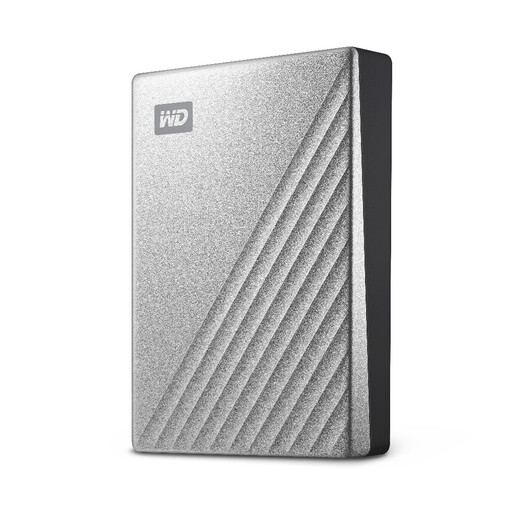
A portable local copy option for a large household photo and document library.
Stated 5TB capacity, USB-C connection with USB-A adapter, AES-256 hardware encryption and scheduled local backup support. macOS use is stated to require reformatting, so check the intended file system and restore process before relying on it. Keep another separately stored or off-site copy for irreplaceable files.
 No image available
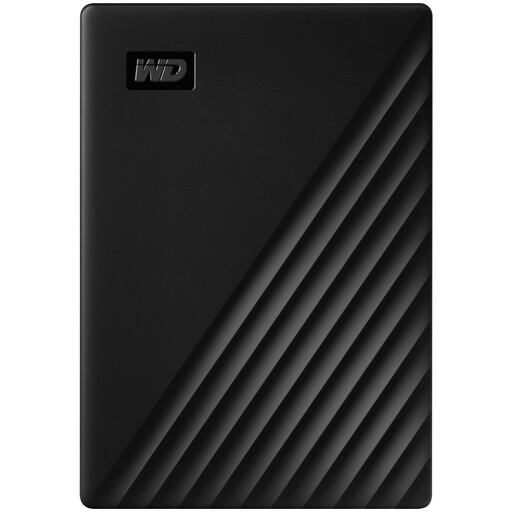
Designed for a sizeable local photo and document copy with a routine computer-backup setup.
Stated 4TB capacity, USB-C connection, USB-A adapter and scheduled hourly, daily or monthly backup through WD Backup software. It is formatted for Windows and uses a downloadable NTFS driver for macOS; confirm that scheduled backups and restores cover the folders you need.
 No image available
A local archive option for extensive files where scheduled computer backups are part of the intended routine.
Stated 4TB capacity, USB 3.2 Gen 1 connection, AES-256 hardware encryption and scheduled backup using Acronis True Image for Western Digital. The drive is pre-formatted for Windows; check macOS driver, read/write requirements and the backup workflow before use.
 No image available
A portable local-copy option for files moved between compatible Macs, PCs and Android devices.
Stated 1TB capacity, USB 3.2 Gen 2, AES-256 password setup through software, IP65 dust and water resistance, and up-to-3-metre drop resistance. Automatic backup scheduling and restoration workflow are not stated; confirm the software and copying method needed for your devices. IP65 is not a submersion rating.
 No image available
A higher-capacity portable option for moving a large local library between compatible computers and Android devices.
Stated 4TB capacity, USB 3.2 Gen 2, AES-256 hardware encryption, password-management software, Windows, macOS and Android compatibility, plus USB-C-to-C and USB-C-to-A cables. Check the backup software, history and restoration method before relying on it. This model is stated not to be waterproof or dustproof.
Not necessarily. Microsoft states that adding, changing or deleting a file in a OneDrive folder changes it on the OneDrive website and vice versa. Use a separate backup route when you need protection from synchronised deletion, account loss or a problem affecting the primary service.
Yes, when iCloud Backup is enabled and the iPhone is connected to power, locked and connected to Wi-Fi; Apple states that it then backs up daily. Check available iCloud storage and the listed last-backup details rather than assuming recent photos are already protected.
Google states that turning on backup can automatically save photos and videos to a Google Account and make them accessible on signed-in devices. Check the selected account, available storage, upload conditions and backup-quality setting.
Confirm that the exact drive type and connection method are eligible. Backblaze states that eligible external drives must be directly connected and read/write accessible, excludes NAS and shared volumes, and says normally disconnected drives must be reattached at least once every 30 days.
Set up recovery before a loss occurs. Google says backup codes can be used when normal two-step verification is unavailable, while Apple says a recovery contact can provide a recovery code to help reset an Apple Account password. Keep recovery information separate from the main phone.