What matters when choosing a backup?
Start with the copy you would need after a loss: a portable or desktop drive provides a local destination, while cloud storage provides an offsite route. For files you cannot replace, consider how to keep those copies separate; then choose the capacity and transfer workflow that fit your library.
| Concern |
What to check |
Who this matters to |
| Recoverability |
Check that the required folders are copied, that you can restore them and that at least one copy is separate from the computer. Microsoft documents versioned backups to an external drive or network location through Windows File History. |
If losing family photos or documents would be hard to put right, I need a copy that remains accessible after a problem affects my computer. Around 31% of consumers would put recoverability first. |
| Capacity and history |
Allow room for new files and retained versions, not just today's folder sizes. For Time Machine, Apple recommends a disk with at least twice the Mac's storage capacity. |
With a growing photo library, I want routine backups to keep running without immediately filling the destination; roughly 25% of consumers would make capacity their primary concern. |
| Transfers and portability |
Match the drive connection and cable to your computer, and check any speed or physical-protection claims for the exact model. Manufacturer maximum speeds are conditional on compatible equipment. |
When I regularly move large photo or video files and carry a local copy, waiting for transfers and handling the drive matter most. Around 25% of consumers would prioritise this need. |
| Cloud access and allowance |
Check which folders and devices are included, how the account is protected and how its storage allowance is shared. Microsoft Support lists 5 GB for a personal Microsoft account; Google One Help lists up to 15 GB shared across Drive, Gmail and Photos for a standard Google Account. |
If I use files on several devices, I need access to the right folders without losing track of the shared allowance. That would be the main concern for roughly 19% of consumers. |
Relevant brands to consider
These brands illustrate different local and cloud backup routes; a brand name alone does not tell you whether a particular setup will preserve the files and versions you need.
Seagate
Seagate's Expansion range includes portable and desktop HDD routes for local file storage.
- Seagate describes the Expansion portable drive as powered through its USB cable.
- Its Expansion desktop drive uses a separate power supply, so it is better suited to a fixed location than to carrying between devices.
Samsung
Samsung's T7 line is relevant when a portable SSD fits a frequent-transfer workflow.
- Samsung lists read speeds of up to 1,050 MB/s and write speeds of up to 1,000 MB/s for the cited T7 model.
- Samsung says performance varies with the host configuration. If using password protection, configure it and retain the credentials needed to open the drive.
Crucial
Crucial's X9 Pro is a portable SSD route for moving photo and file copies between compatible devices.
- Crucial lists read and write speeds of up to 1,050 MB/s and an IP55 water-and-dust-resistance rating for the cited X9 Pro.
- Check the host connection and formatting before using the drive across devices; reformatting can erase existing data.
Microsoft
Microsoft provides Windows File History for local versioned copies and OneDrive for selected cloud-stored files.
- Microsoft Support documents File History backups to an external drive or network location.
- Check which folders each Windows or OneDrive arrangement protects and how its storage allowance applies to your account.
Google
Google's account storage brings together Drive, Gmail and Photos under a shared allowance.
- Google One Help lists up to 15 GB of storage for a standard Google Account, shared across those services.
- Files and messages in other services draw on the same allowance, so check account-wide usage as a photo library grows.
Joybuy external-drive choices
These portable HDD and SSD options are local destinations for photo and file copies. Choose capacity against the folders and backup history you need; for a more independent recovery arrangement, plan where an additional separate copy will live.
 No image available
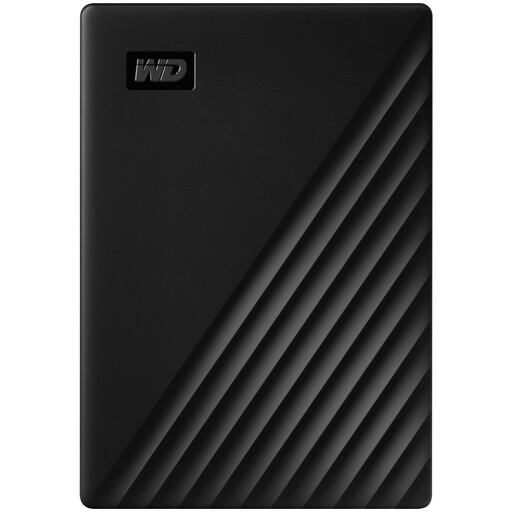
Western Digital My Passport 4TB Portable Hard Drive, Black
A portable HDD to consider for local copies of a substantial photo or document library.
Capacity: 4TB. Check that it leaves room for growth and any backup history, and confirm the restore workflow you intend to use.
View on Joybuy
 No image available
Samsung T7 Shield 1 TB Portable SSD, Blue
A portable SSD to consider if you frequently transfer large files and take a local copy between places.
Capacity: 1 TB. Compare it with your full backup set and check that your computer connection and chosen backup software suit the job.
View on Joybuy
 No image available
Samsung T7 2 TB Portable SSD, Grey
A portable SSD for a local photo or file copy when frequent transfers and a 2 TB capacity fit your needs.
The product name specifies USB 3.2 Gen 2. Check your computer's connection, available space for retained backups and the restore process before relying on it.
View on Joybuy
 No image available
SanDisk Portable SSD 2TB
A 2TB portable SSD to consider for a local copy that you need to carry between locations.
Confirm the connector and cable against your devices, and check how your chosen backup software schedules and restores files.
View on Joybuy
 No image available
Western Digital My Passport Ultra for Mac 5TB, Silver
A portable HDD to consider for a larger local Mac photo or file backup.
Capacity: 5TB. For Time Machine, compare that capacity with Apple's recommendation of at least twice the Mac's storage capacity; check compatibility before using the drive with another operating system.
View on Joybuy
Frequently asked questions
Is an external drive automatically a backup?
No. Moving the only copy of a file onto a drive gives it another location, but not another recoverable copy. Keep the files you need in a backup arrangement you can restore; Microsoft's Windows File History, for example, can make recurring versioned copies to an external drive or network location.
How large should a Time Machine drive be?
Apple recommends a backup device with at least twice the Mac's storage capacity and says it should ideally be used only for Time Machine. That is guidance for Mac Time Machine, rather than a sizing rule for every Windows or cloud backup.
Can I back up Windows files to a portable drive?
Yes. Microsoft says File History can back up files to an external drive or network location. Select the folders you need, reconnect a portable drive for backup jobs and try restoring a file before depending on the arrangement.
Should I encrypt a portable backup drive?
Consider encryption if the drive contains personal information and might be lost or stolen. The Information Commissioner's Office describes encryption as a way to protect stored personal information from unauthorised access; if you enable password protection, keep the credentials needed to restore your files.
Will cloud storage protect files deleted by mistake?
Do not assume that access to a synchronised cloud folder gives you the earlier copy you need. Check the service's deletion and restore options, the folders it covers and how you would recover account access; keep a separate backup for files you cannot replace.


