Choose a backup route by considering what could happen to both the computer and its backup, not just how much space you need today. An external HDD suits a large archive kept mainly at home; a portable SSD suits a copy you carry regularly; and an enclosure is an option if you already have a compatible spare drive. For files you could not replace, keep an additional copy elsewhere, such as on another drive in a separate location or through a cloud-backup service, and check how you would restore it.
Who needs which backup?
Households protecting irreplaceable memories
If family photos and essential documents are stored on one computer, plan for a recoverable copy even if that computer and a nearby drive are lost together. CISA advises keeping an important-file copy off-site.
Households with growing archives
For a growing collection of photos, videos and documents, check capacity against both the files you have and the backups you intend to retain. Microsoft Support says Windows File History can make regular backups to an external drive or network location.
Households using Windows and Mac
Decide separately whether a drive is for exchanging files or for a Mac’s Time Machine backups. Apple Support identifies ExFAT as a Windows-compatible file format but says Time Machine cannot back up to a Windows-formatted disk.
What matters when choosing?
For household photos and documents, settle where recoverable copies will live before choosing drive capacity, connections and backup software.
External HDD
Consider it when: A large local archive will stay mainly in one place.
Bear in mind: One nearby drive cannot protect against an incident affecting both it and the computer.
Portable SSD
Consider it when: You regularly carry a local copy and want a compact drive.
Bear in mind: Stated maximum speeds depend on the model, computer port and connection.
Drive enclosure
Consider it when: You already own a usable spare drive.
Bear in mind: The enclosure must match that drive’s format and protocol; it does not contain storage by itself.
Cloud backup alongside local storage
Consider it when: You need a copy away from the computer and local drive.
Bear in mind: Restoring files depends on the service’s methods and your internet connection.
| Concern | What to check | Who this matters to |
|---|
| Copies in separate locations |
Check which files each backup covers and whether you can restore them. CISA recommends keeping an important-file copy off-site. |
If my computer and nearby drive are damaged in the same incident, I need another recoverable copy elsewhere; around 36% of consumers put this protection first. |
| Capacity for continuing backups |
Measure the folders you need to protect and allow for future files and any versions retained by your backup method. |
When my photo archive keeps growing, I need room for new files without abandoning older backups. Enough continuing capacity comes first for around 29% of consumers. |
| Windows and Mac compatibility |
Check each device’s file format and backup tool; distinguish shared-file storage from a Time Machine destination. |
If I exchange files between Windows and Mac but also use Time Machine, I need a setup that accommodates both roles; around 21% of consumers prioritise compatibility. |
| Carrying and connecting a drive |
Check the drive’s capacity, connector and the computer’s port against the exact model you are considering. |
When I take a backup between locations, I need a drive I can carry and connect to my devices; portability is the leading concern for around 14% of consumers. |
Backup mistakes to avoid
-
Treating one USB drive as the entire plan
The computer and a nearby drive can be affected by the same incident. CISA’s backup guidance recommends a copy stored off-site.
Keep another copy in a different location and try restoring a few files so you know how the process works.
-
Reformatting a drive that still holds files
A shared-file format does not automatically make a drive suitable for Time Machine. Apple Support warns that erasing a disk permanently removes its files.
Copy existing files to another location and check they open before changing the format. Decide whether shared files and Time Machine need separate volumes or drives.
-
Choosing an SSD by its maximum speed alone
A stated transfer figure may require a particular port, cable and protocol. Samsung says its T7 Shield’s maximum figures require a USB 3.2 Gen 2-compatible host and cable, with UASP enabled.
Check the computer’s port and the cable you will use against the conditions for the exact SSD model.
-
Assuming every cloud restore is immediate
Restoring a large archive can depend on the provider’s download options and your connection. Backblaze Help says its downloadable ZIP restores are limited to 500 GB per request.
Check the provider’s current restore methods and limits before relying on cloud backup for time-critical recovery; keep a local copy if you need another restore route.
Relevant brands for reference
Seagate
Its Backup Plus Portable HDD line is relevant to households seeking a ready-made local drive for a substantial archive.
- Seagate lists 4 TB and 5 TB variants and says its Toolkit software supports scheduled daily, weekly or monthly backups for this line.
- Seagate says reformatting may be required for Time Machine. Check the intended Mac setup separately from Windows and Mac file sharing.
Samsung
Its T7 Shield line is relevant to buyers considering a compact portable SSD.
- Samsung lists 1 TB, 2 TB and 4 TB T7 Shield variants, with stated maximum transfer speeds that require a compatible host, cable and UASP.
- Samsung’s IP65 and drop-test statements should not be treated as protection against losing a backup; Samsung excludes liquid, dust and drop damage from warranty coverage.
ORICO
Its DDM2-C3-G2 enclosure is relevant if you want to reuse a compatible spare M.2 NVMe SSD.
- ORICO specifies support for M.2 NVMe SSDs in 2230–2280 sizes and a Type-C interface for this enclosure.
- The enclosure is not storage by itself. Confirm the spare SSD’s protocol, physical size and capacity before choosing it.
Joybuy local-storage options
These portable HDDs and SSDs are options for keeping a local copy of household files. Choose capacity and connections for your computer, then plan separately for any copy you need in another location.
 No image available
Western Digital My Passport Ultra for Mac 5TB, silver
Consider this portable HDD for a Mac-centred local archive when you need 5TB of stated capacity. If you also use Windows, check the required file-sharing setup; confirm your chosen backup software covers the folders you need.
View on Joybuy
 No image available
Samsung Portable SSD T7 4 TB, grey
Consider this portable SSD if you want a 4 TB local copy that you can move between devices. Its stated interface is USB 3.2 Gen 2; check your computer’s connection and the file format and backup software you intend to use.
View on Joybuy
 No image available
Samsung T7 Shield Portable SSD 1 TB, blue
Consider this 1 TB portable SSD for a selected set of files you need to carry. It is listed with USB 3.2 Gen 2; check that 1 TB accommodates the files and backup versions you plan to retain, and confirm your computer’s backup setup.
View on Joybuy
 No image available
Western Digital Elements Portable 4TB, black
Consider this portable HDD for a sizeable local photo-and-document archive. It is listed with a USB 3.0 connection; check the format required by your computer before use, particularly if the drive already holds files.
View on Joybuy
 No image available
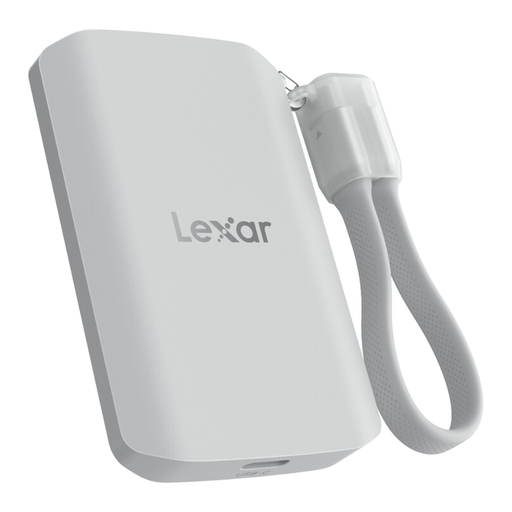
Lexar ES5 Portable SSD 1TB
Consider this portable SSD for a smaller local copy when 1TB meets your retention needs. Its stated interface is USB 3.2 Gen 2x2; check computer-port compatibility and confirm that your intended software backs up the computer folders you need.
View on Joybuy
Common questions
Can Windows back up photos and documents to an external drive automatically?
Yes. Microsoft Support says File History makes regular backups to an external drive or network location and covers standard libraries such as Documents and Pictures. Check that any important folders outside those libraries are included in your setup.
Can I use one drive for Windows files and Mac Time Machine backups?
You may need separate volumes or drives for those roles. Apple Support says Time Machine cannot back up to a Windows-formatted disk, even though a Windows-compatible format can be useful for exchanging files. Copy existing files elsewhere before any reformatting, which can erase them.
Is one external drive enough to protect my files?
No single nearby drive covers an incident that affects both it and the computer. CISA recommends three copies of important files, using two media types and keeping one copy off-site; check that you can restore files from the copies you keep.
What should I check before using cloud backup for a large archive?
Check which files are covered, how long deleted files are retained and how you would restore a large collection. Backblaze Help says its downloadable ZIP restores are limited to 500 GB per request, so review the current restore options for the service you choose and consider how long a download would take on your connection.


