If irreplaceable photos are your main concern, keep copies in separate places, such as on removable media and in the cloud, following National Cyber Security Centre guidance; a synced photo library alone may not protect against a deletion that spreads across devices. An HDD suits occasional, capacity-led local backups, an SSD suits a portable copy or frequent large-file transfers, and cloud storage suits access across supported devices. Check capacity, connections and ongoing plan terms, then test that you can restore representative files.
Who needs a household backup plan?
Irreplaceable-photo keepers
If family photos would be difficult to replace, keep a copy that remains recoverable if a device, drive or account becomes unavailable. The National Cyber Security Centre recommends considering both cloud storage and removable media for irreplaceable photos and videos.
Large-library organisers
If you have a large photo or video collection, check that the destination has room for the files you want to protect and for future backups. Choose capacity for your archive rather than relying on a drive’s headline speed alone.
Across-device file users
If you use photos and documents on several devices, check which devices your chosen service supports, what remains available offline and how deleted files can be restored. Apple Support and Microsoft Support describe service-specific behaviour for iCloud Photos and OneDrive.
What matters when choosing a backup setup?
External HDD
Consider it when: you need a local copy of a large archive and do not move it frequently.
Trade-off: a drive kept at home is not an off-site copy; disconnect removable storage when it is not being used for a backup.
External SSD
Consider it when: you regularly carry a local copy or transfer large photo and video folders.
Trade-off: check the exact capacity and connection, and remember that an SSD is still only one local copy.
Cloud storage
Consider it when: you want files available across devices supported by the service.
Trade-off: uploads and restores depend on the service and your connection; check storage limits, recurring terms and how syncing handles deletions.
Local and cloud copies
Consider it when: you want a locally accessible copy as well as one kept away from a loss affecting your home or computer.
Trade-off: you need to maintain both destinations and check that new files reach them.
| Concern |
What to check when buying |
Who this matters to |
| Recovery after loss or deletion |
Check that important files are included, how deleted items are handled and whether you can restore sample files. |
If my family archive is hard to replace, I want another copy I can restore after device loss or accidental deletion. Around 33% of consumers put recovery first. |
| Capacity for a growing library |
Measure the files to protect and check the exact drive capacity or cloud allowance, including room for later backups. |
With a growing photo library, I need enough room for today’s files and later backups without choosing on headline speed alone. Around 27% of consumers prioritise capacity. |
| Access across devices |
Confirm the service supports your devices and check whether files are available offline when needed. |
If I switch between a phone and computer, I need files available on the devices I use and clarity about what will open offline. Around 20% of consumers put cross-device access first. |
| Ongoing cost and control |
Review cloud renewal, downgrade and storage-limit terms; for a drive, consider the capacity and upkeep you will need. |
If I want predictable ongoing spending and control of my copies, I compare a local drive with recurring cloud storage and check the terms before changing plans. Around 20% of consumers prioritise ongoing cost and control. |
Backup mistakes that can leave files at risk
-
Treating photo sync as a separate backup
Apple Support says that deleting a photo in iCloud Photos removes it across devices using the service, so syncing alone may not preserve an independent copy.
Keep a separate copy of important photos and practise restoring one before relying on your setup.
-
Choosing capacity without checking what must fit
A drive or cloud plan that cannot hold the files you intend to protect will not cover the whole collection. Apple says that when iCloud storage runs out, new photo uploads and device backups stop.
Measure your files and check the exact drive or plan. Apple’s recommendation that a Time Machine disk have at least twice a Mac’s storage capacity applies to that Mac backup method, not every household backup.
If your collection outgrows its destination, you may need a larger drive or additional paid storage.
-
Assuming every USB-C port can power the same drive
For the cited bus-powered Seagate One Touch desktop model, Seagate’s manual specifies a USB-C host port supplying at least 15 W.
Check that power requirement for this model before buying; do not apply it to every external HDD.
If your port does not meet the requirement, you may need a suitable connection or powered hub.
-
Leaving the only removable backup connected
The National Cyber Security Centre warns that malware can affect connected backup drives as well as the original files.
Disconnect removable storage when a backup is complete and consider keeping another copy in a separate location.
Brands to consider for backup storage and cloud services
Western Digital
A reference point for household external HDDs, with My Passport and My Book models to compare against your storage and connection needs.
- Check the exact model’s capacity and whether its form factor suits where you plan to keep the drive.
- A local drive alone does not provide a copy stored away from your home.
Seagate
A local-storage option that includes the One Touch desktop HDD line.
- The Seagate manual specifies that the cited bus-powered One Touch desktop model needs a USB-C host port supplying at least 15 W.
- That power requirement is model-specific; check the connection and power needs of the exact drive.
Samsung
The Portable SSD T7 Shield is a portable solid-state storage option for people who carry files between locations.
- Compare the capacity of the exact variant with the folders you intend to carry and back up.
- A portable SSD remains a local copy; plan another destination if you need a copy kept elsewhere.
Apple
iCloud Photos syncs photos across supported Apple devices, while Time Machine is a separate Mac backup method.
- Apple Support explains how to use iCloud Photos and back up a Mac with Time Machine.
- Apple says iCloud Photos deletions propagate across devices, and new uploads stop when iCloud storage is full; check your available space and keep a separate copy when needed.
Microsoft
OneDrive is a cloud option for accessing synced documents across supported devices.
- Microsoft Support says deleted files in personal accounts can be restored within 30 days.
- Check which files are available offline and do not treat a sync folder as an independent copy without checking how it handles deletion and recovery.
Google
Google One storage is shared across Google Drive, Gmail and Google Photos.
- Google One Help explains how subscribed storage applies across those services.
- Google says an over-quota account cannot back up new Google Photos items; check the current plan allowance and terms before changing a subscription.
Joybuy products for local photo and document backups
These Joybuy choices are external drives for keeping a local copy of household photos and documents. They do not provide an off-site copy; the National Cyber Security Centre advises keeping irreplaceable data in cloud storage as well as on removable media.
 No image available
Samsung Portable SSD T7, 2 TB, USB Type-C 3.2 Gen 2, Grey
A portable local option for carrying a copy of photos and documents. The product description specifies 2 TB storage and optional AES 256-bit hardware encryption.
View on Joybuy
 No image available
Samsung MU-PG4T0B, 4 TB, USB Type-C 3.2 Gen 2x2, Black
A local SSD option for a larger photo library or moving large folders between devices. The description specifies 4 TB, AES 256-bit hardware encryption and a rated transfer rate of up to 2,000 MB/s; check that your computer supports the stated connection before relying on that rate.
View on Joybuy
 No image available
Samsung MU-PE1T0S, 1TB, USB Type-C 3.2 Gen 2, Black
A portable local option for a smaller file collection. The description specifies 1TB and rated read and write speeds of up to 1,050 MB/s and 1,000 MB/s respectively; it also describes IP65 protection and drop resistance up to 3 metres. IP65 protection is for temporary water exposure, and the drive should not be submerged.
View on Joybuy
 No image available
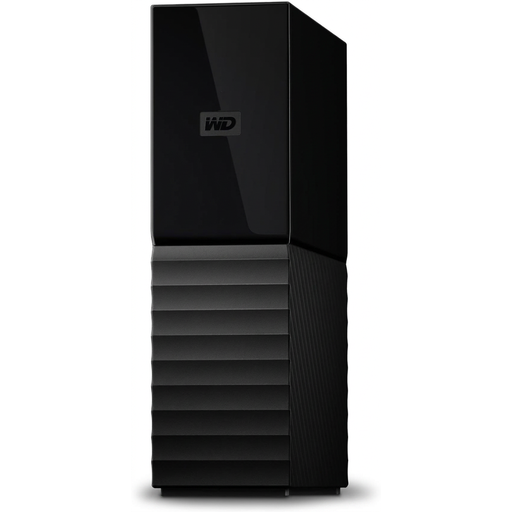
Western Digital My Book, 22TB, Desktop External Hard Drive
A desktop local-drive option for a high-capacity archive. The product information specifies 22TB, USB 3.0, password protection, hardware encryption and PC and Mac compatibility.
View on Joybuy
 No image available
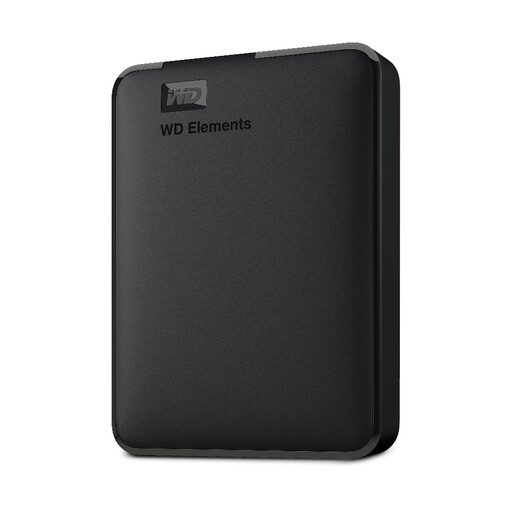
WD Elements Portable External Hard Drive, 2TB, USB 3.0, Black
A portable local HDD option for photos, videos and important files. The product description specifies 2TB storage and says it is formatted for PC and Mac.
View on Joybuy
Questions about backing up photos and documents
If my photos appear in iCloud on several devices, do I still need another copy?
Yes, if you need protection against a mistaken deletion spreading between those devices: Apple Support says iCloud Photos deletes a photo everywhere you use the service when you delete it on one device. Keep a separately recoverable copy of irreplaceable photos.
How should I check a new backup before relying on it?
Check that recent photos and documents are present, then restore and open representative files. The National Cyber Security Centre advises checking backup contents; Mac users can also check Time Machine’s latest-backup status and restore procedure.
Will a cloud subscription still back up new photos after its paid storage ends?
Not necessarily. Google says an over-quota account cannot back up new Google Photos items, and Apple says new iCloud Photos uploads stop when iCloud storage runs out. Check the remaining allowance and current terms for your service before downgrading.
Does a Mac backup drive need to be twice the size of the Mac?
Apple recommends a Time Machine disk with at least twice the Mac’s storage capacity. That recommendation applies to Time Machine, not to every household backup or a drive used only for selected documents.


