What matters when choosing a backup setup?
Start with the loss you need to recover from. A hard drive or SSD can hold a local copy, a dedicated cloud-backup service can copy files off-site, and cloud sync helps with access across devices; combining local and off-site copies avoids making any one location the whole plan.
| Concern |
What to check |
Who this matters to |
| Independent recovery |
Confirm which files are copied and where a separate copy is kept. For a removable drive, plan to disconnect it when not in use. |
If my computer and its attached drive are both affected, I need another copy of my photos or work files that I can restore. Around 33% of consumers would put independent recovery first. |
| Local capacity |
Measure the folders and devices to be protected, allow room for growth and check that the backup routine covers them. |
My photo and video library needs to fit on a local archive without leaving folders out. Local capacity would be the primary concern for around 25% of consumers. |
| Portable transfers |
Match the connector and USB capability to your devices; assess speed and ruggedness for the exact drive and connection. |
When I carry large work or media folders between locations, copying them and keeping the drive safe in transit matter most. Around 25% of consumers would prioritise portable transfers. |
| Cloud access and recovery |
Check which folders are backed up or synchronised, version and deletion retention, storage allowance and the full-restore method. |
I want files available away from my main device, but I also need to know whether I could recover an earlier or deleted version. Cloud access and recovery would come first for around 17% of consumers. |
Brands relevant to these backup routes
These brands illustrate different storage and backup approaches. Compare the terms and capabilities of the particular drive or service you intend to use, rather than treating a brand name as a complete backup plan.
Samsung
The T7 Shield line is relevant when a compact local SSD suits frequent file transfers, but it still needs another copy for independent recovery.
- Samsung UK rates the T7 Shield for sequential reads and writes of up to 1,050 and 1,000 MB/s respectively, subject to compatible host and cable conditions.
- Samsung describes IP65 and 3-metre drop testing for this line, while stating that liquid, dust and drop damage are not covered under its warranty.
Western Digital
My Passport drives are relevant to portable local storage, with password-protection features depending on the supported model.
- Western Digital says WD Security supports password protection with 256-bit AES hardware encryption on listed drives.
- Western Digital says a forgotten password cannot be recovered through technical support, so keep recovery details safely accessible.
Apple
iCloud is relevant to households using Apple devices for photos, files and device backups across their devices.
- Apple describes access to photos and files across devices and iPhone or iPad backups under the service's conditions.
- Check which items are synchronised, which are backed up and how each can be restored; keep another copy of irreplaceable files.
Google
Google account storage is relevant to people using Google Photos and Drive for access to files across devices.
- Google says up to 15 GB of account storage is shared across Drive, Gmail and Photos.
- Check how much of that shared allowance remains and what recovery options apply to the files you store.
Backblaze
Backblaze is relevant to Mac and PC users looking for automatic off-site computer backup rather than primarily a file-sync workspace.
- Backblaze describes automatic computer backup and an optional private encryption key.
- Backblaze Help limits ZIP restores to 500 GB per request; check how you would restore a larger collection before relying on the service.
Local backup drives and SSDs on Joybuy
These hard drives and portable SSDs offer local destinations for copies of photos or work files. Choose capacity and portability to suit the files you will protect, then arrange a separate off-site copy; buying a drive alone does not establish a backup routine.
 No image available
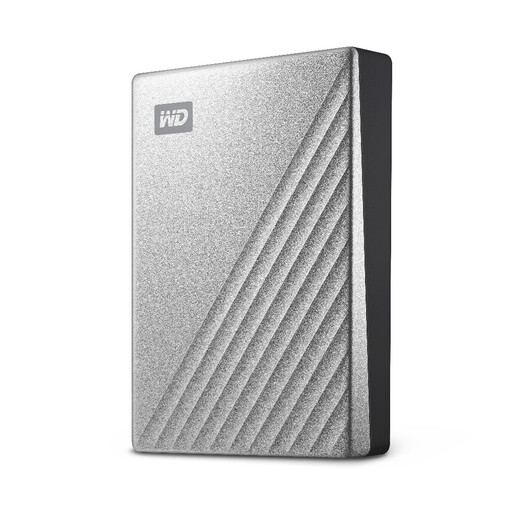
Western Digital My Passport Ultra 4TB Silver portable hard drive
Consider this portable hard drive if a 4TB local destination fits the photo and work folders you intend to copy.
Check the connection and backup software against your devices, and test a restore. Keep an additional copy away from the drive.
View on Joybuy
 No image available
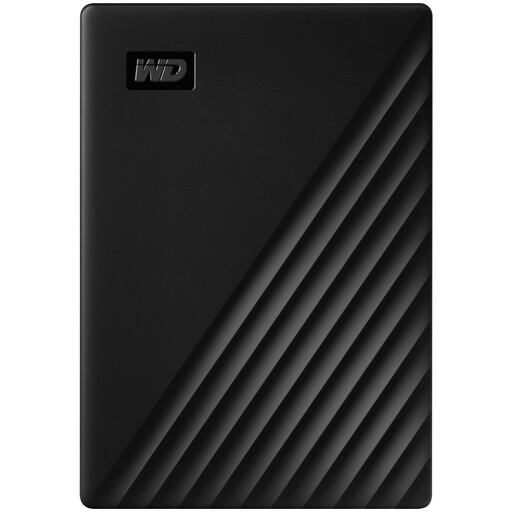
Western Digital My Passport 4TB Black portable hard drive
This 4TB portable hard drive is a local-storage option when your selected files need that capacity.
Confirm how your computer will make and restore copies, disconnect the drive when it is not in use and retain an off-site copy.
View on Joybuy
 No image available
Western Digital My Passport 2TB Black portable hard drive
Consider this 2TB portable hard drive if your photo and document folders fit with room for growth.
Check your backup and restore procedure before relying on the copy. If you use password protection, keep the credentials recoverable and maintain another copy elsewhere.
View on Joybuy
 No image available
Samsung T7 Shield MU-PE1T0S 1TB Black portable SSD
This 1TB USB Type-C SSD is a local-copy option for files you carry or transfer frequently.
Samsung UK rates the T7 Shield for reads and writes of up to 1,050 and 1,000 MB/s with the required USB 3.2 Gen 2 host, cable and UASP support. Check that 1TB holds the files you intend to protect and keep an independent copy elsewhere.
View on Joybuy
 No image available
SanDisk Portable SSD 2TB
This 2TB portable SSD may suit a larger collection of files that you need to carry as a local copy.
Check its connector against your devices and arrange how copies will be made and restored. Keep another copy away from the portable drive.
View on Joybuy
Questions about backing up files
Is cloud sync the same as a backup?
Cloud sync can form part of a backup plan, but access to synchronised files does not by itself establish an independent recoverable copy. Check which folders are copied, how deletions and earlier versions are handled, and whether you can restore what you need. Microsoft documents 30-day version history for personal OneDrive files; do not assume that every service or file has indefinite recovery.
How much storage do I need for photos and work files?
Add up the folders and devices you intend to protect, then allow room for new files and any versions your chosen backup method retains. Check shared cloud allowances as well as drive capacity: Google says its account storage is shared across Drive, Gmail and Photos.
Should I encrypt a portable backup drive?
Consider encryption when a drive carries personal or work-related information that could be exposed if the drive is lost. The Information Commissioner's Office describes encryption as protection for stored personal information, while Western Digital warns that a forgotten password on supported protected drives cannot be recovered through technical support. Keep recovery details secure and accessible.
How can I check that a backup will restore my files?
Restore a representative photo, document and folder to a different location, then confirm that each opens. For cloud backup, also check account access and how you would retrieve a large collection. Backblaze Help says its ZIP restore requests are limited to 500 GB each, illustrating why the full-restore method matters before an emergency.


