Families replacing a phone
Check that the photo and video collection is accessible somewhere separate before trading in or resetting the old phone. A cloud backup and a separate local copy are worth considering for photos that cannot be replaced.


Choose cloud backup if you want access from a replacement device and can keep the old one online until the upload finishes; choose external storage if you need a separate local copy or cannot rely on that connection. Direct transfer can help during a supported replacement setup, but it should not be your only plan before the old device is erased. Confirm that the photos and other files you want are present and can be opened or restored before handing the device on, in line with UK National Cyber Security Centre guidance.
The files worth keeping and the device you are replacing determine what the backup must cover.
Check that the photo and video collection is accessible somewhere separate before trading in or resetting the old phone. A cloud backup and a separate local copy are worth considering for photos that cannot be replaced.
Check photo folders and documents on the Windows PC or Mac, including local folders you may not have selected for cloud syncing. The replacement computer needs a way to access or restore those files.
An external storage device lets you make a local copy without waiting for a large cloud upload. Check that the old device can connect to it and that the copied files open.
Consider it: when you want access from a replacement device and can leave the old device connected until the backup finishes.
Trade-off: the account needs enough available storage, and the service may not include every file or type of device data.
Consider it: when you want a separate local copy or cannot depend on completing a cloud upload.
Trade-off: you must connect the storage when needed and keep it safe and accessible for restoration.
Consider it: during a supported replacement setup while both devices are available.
Trade-off: Google Android Help lists content that may not copy during Android setup, including downloads and media in hidden folders; check the result before erasing the old device.
| Priority | What to check | Your needs |
|---|---|---|
| Usable copy | Confirm the latest backup or copy has finished. Check the destination, then open representative photos and documents or use the service’s supported restore process. | I need to know my files will still be accessible after the old device is reset or unavailable. The UK National Cyber Security Centre advises keeping a backup of personal data you want to retain before handing on a device. |
| File coverage | Check which photo libraries, folders and data categories are selected. For an Android setup transfer, Google Android Help lists downloads and hidden-folder media among items that may not copy. | Photos are the priority, but I also want to keep the documents, contacts and account-related information I will need on the replacement device. |
| Capacity and quality | Compare the size of the files you intend to keep with available storage. For Google Photos, Google Photos Help says Storage saver resizes photos larger than 16 MP to 16 MP and videos above 1080p to 1080p. | If I want full-resolution originals for future editing or printing, I should check the upload-quality setting as well as the remaining space. |
| Device fit | Check the old and replacement devices, ports and any adapter needed. For an SD card, confirm device support and whether the intended storage configuration allows the files to move between devices. | My backup has to work with the devices I actually use, not just have enough space on paper. |
| Connectivity | Allow a cloud upload to finish before a reset, or choose a compatible local destination. Apple Support describes Time Machine backups to external storage; Microsoft Support describes File History backups to an external drive or network location. | If my connection is unreliable, I would rather confirm a local copy than depend on an upload that is still in progress. |
A selected folder or switched-on backup setting does not show that the intended files reached a separate destination. An unfinished copy can leave gaps after the old device is erased.
Check completion, inspect the destination and open representative files or carry out a supported restore check before resetting. The UK National Cyber Security Centre advises confirming a backup of the personal data you want to keep before handing on a device.
Google Android Help lists downloads, hidden-folder media and some app or account data among content that may not copy during Android setup.
Make a short list of the photos, documents, contacts and account information you need, then check each category on the replacement device or in a separate backup before wiping the old one.
Google Photos Help says Storage saver resizes photos larger than 16 MP to 16 MP and videos above 1080p to 1080p. That matters if you intend to retain the original resolution.
Check the upload-quality setting and available account storage before uploading the collection. Keep an original-quality copy where preserving the original files matters to you.
Whether a card will serve as a movable photo copy depends on the device and how the storage is configured. Google Android Help describes portable SD storage as a way to transfer files between devices.
Confirm support on both devices, choose the storage configuration needed for moving files and check the copied photos on the destination before relying on the card.
Start with the backup and restore tools available for your device, then check what they include before choosing storage.
Apple Support describes both iCloud and computer backups for iPhone and iPad, and Time Machine backups to external storage for Mac.
Google Android Help describes backing up phone data to a Google Account and restoring backed-up information to the original phone or some other Android phones.
Microsoft Support describes File History backups to an external drive or network location and OneDrive backup for selected folders.
These removable-storage options suit making a local copy of photos and other selected files. Compare capacity with your actual library and check device compatibility; the storage device alone cannot confirm that a backup has finished or can be restored.
 No image available
A portable SSD to consider for a separate local copy when moving files from an old device.
Its stated capacity is 2 TB, with USB Type-C 3.2 Gen 2 (3.1 Gen 2). Compare that capacity with the files you intend to retain and check the connection on your device.
 No image available
This portable storage option can hold a separate local copy of selected photos and documents.
It is labelled 1 TB and USB Type-C 3.2 Gen 2 (3.1 Gen 2). Check the size of your collection and whether the intended device can connect before choosing it.
 No image available
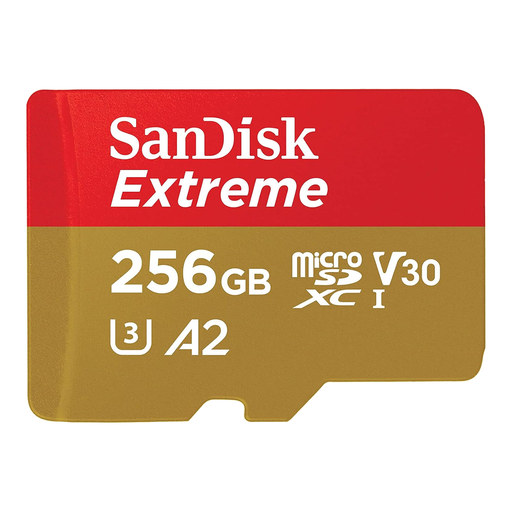
An option for a selected photo collection where the device supports microSDXC storage and the intended way of moving files.
The card is labelled 256 GB and includes an SD adapter. Confirm support, storage configuration and capacity against the files you want to keep.
 No image available
This external hard drive is a local-copy option when backing up files before replacing a computer.
Its stated capacity is 5 TB. Compare it with your library size, and check the intended computer’s connection and file-system requirements before use.
 No image available
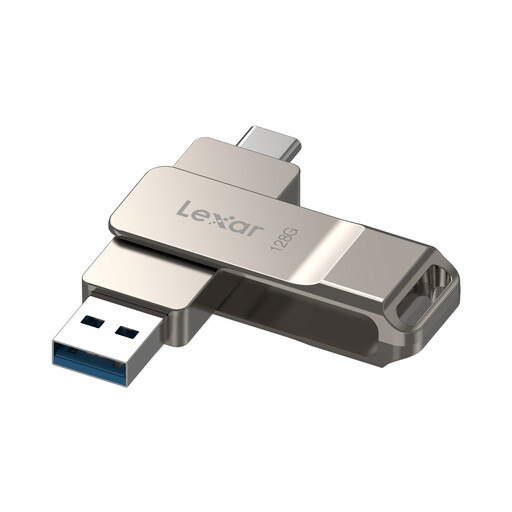
A removable option for copying a selected set of photos and documents between compatible devices.
It is labelled 128 GB, USB 3.2 Gen 1, with USB-C and USB-A connectors. Check the selected files’ size and the receiving device’s support; for Android use, confirm USB OTG compatibility.
Not on that indication alone. Confirm the latest backup has completed, check that it contains the photos and other data you want, and open or restore representative files first. The UK National Cyber Security Centre advises keeping a backup copy of personal data you want to retain before erasing a device you are handing on.
No: transfer helps move content during a supported replacement setup, while a backup is a separate copy you can use if the original becomes unavailable. Google Android Help lists downloads, hidden-folder media and some app or account data among items that may not copy during Android setup. Check the transferred content and retain a separate backup before wiping the old device.
No. Check whether both devices support the card and the intended storage configuration. Google Android Help describes portable SD storage as a way to move files between devices; confirm that your photos are on the card and can be opened on the receiving device before relying on it.
Compare the size of the collection you plan to upload with the space available in the account, then confirm the upload finishes. If using Google Photos, check the quality setting too: Google Photos Help says Storage saver resizes photos larger than 16 MP and videos above 1080p, so it is not the setting to assume will retain those files at their original resolution.
First confirm that the personal data you want to keep has a usable backup and that you can access what you need from another device. Then follow the manufacturer’s instructions for erasing the old device. The UK National Cyber Security Centre advises making a backup of wanted data before the erasure involved in selling, donating or trading in a device.