For a household with Apple, Android and Windows devices, use the automatic backup available for each device and keep a separate copy of irreplaceable photos and documents. An external drive suits a local copy you can disconnect; a NAS suits centrally managed storage across devices, but needs its own separate backup destination. Whichever route you choose, check which files it includes and restore a small sample before relying on it.
Who needs which backup plan?
Start with the devices and files you would need to recover, rather than assuming one backup method will cover the whole household.
Mixed Apple, Android and Windows households
Device backups and restoration steps differ between Apple, Google and Microsoft services. Keep ordinary copies of important photos and documents alongside device-specific backups if those files need to be accessible across different systems.
Families protecting personal photos and documents
A separate copy matters when the original device is lost, damaged or replaced, or a file is deleted. The UK National Cyber Security Centre describes a backup as a copy kept in a separate safe location.
Households managing files on several devices
If photos and documents are spread across phones and computers, decide whether each device needs its own automatic backup, whether a removable drive covers selected files, or whether someone can manage a shared NAS and its separate backup.
What should you check before choosing?
Map the files to their current locations, then check how each proposed copy is updated, kept separate and restored.
| Priority |
What to check |
Your needs |
| Recovery |
Identify the restore method and destination. Recover a sample photo and document; check that both open and are recent enough. |
If a device is lost or replaced, I need the files themselves back—not just an indication that a backup ran. |
| Automatic updates |
Check when the device backs up and whether the destination is available then. Microsoft says File History makes regular copies to an external drive or network location. |
I want recent phone photos and computer files copied without having to remember every transfer. |
| File coverage |
List the photos, videos and documents to protect. Check included folders, synchronisation settings and whether earlier file versions are retained. |
My files may be in several folders or services; I need to know which ones the backup will actually recover. |
| Device compatibility |
Check the intended replacement device and its restore procedure. Confirm the drive connection and file format if a copy must move between systems. |
With Apple, Android and Windows devices at home, I cannot assume one device backup will restore onto every other device. |
| Separate protection |
Keep a copy apart from the original device. Disconnect removable storage between uses, or back up a NAS to another destination; the National Cyber Security Centre reports incidents affecting connected USB and network storage. |
I do not want one incident involving a computer and its connected storage to reach every copy of our photos. |
| Storage capacity |
Measure the files selected for backup. Allow for new files and any versions you intend to retain, then compare that requirement with the available storage. |
A drive or cloud allocation needs room for the files I have now and the copies I plan to keep. |
Backup mistakes to avoid
-
Treating a connected drive or NAS as the only backup
The National Cyber Security Centre reports ransomware incidents involving connected USB and network storage. Synology also advises backing up a NAS to another destination.
Keep a separately protected copy. Disconnect removable media after copying or restoring files, and plan another destination for NAS data.
-
Assuming synchronised files are included in a device backup
Apple distinguishes iCloud synchronisation from iCloud Backup. The distinction matters when deciding which copy you could use after deleting or replacing a device.
Check the sync and backup settings for each account, and keep a separately managed copy of irreplaceable photos and documents.
-
Choosing storage before checking file locations
Photos, videos and documents may be spread across devices and folders. Measuring only one folder can leave other files outside the planned backup.
List the files and locations you need to recover, measure them, and confirm that the chosen backup covers each location.
-
Never trying a restore
A completed copy does not show whether the files you need will open or whether you can access them from a replacement device.
Restore a small selection of files periodically, then check their contents, dates and the account or equipment needed to retrieve them.
Services and brands to know
These services illustrate different backup routes; their inclusion does not mean a particular device or service is listed among the products below.
Apple
Apple Support describes iCloud and computer backups for iPhone and iPad, making the distinction between synchronised data and device backups relevant to restoration.
- An iPhone or iPad can be backed up using iCloud or a computer, according to Apple Support.
- Check which data is synchronised, which is in the device backup and how the intended replacement device will receive it.
Google
Google documents Android device backup and restoration through its account services.
- Google describes automatic backup for supported Android device data.
- Google says backed-up device data other than photos or videos may be erased after 57 days of device inactivity. Check the restore steps for the intended Android phone.
Microsoft
Microsoft File History is relevant to Windows households backing up selected files to an external drive or network location.
- Microsoft says File History monitors files and folders and makes regular copies to its chosen destination.
- Check that the folders containing important files are covered. Microsoft advises verifying copied files when moving them to a new PC.
Synology
Synology presents its NAS software as a destination for computer backups; capabilities should be checked for the exact NAS model and devices.
- Synology says its Drive Client can back up Windows, macOS and Linux computer files.
- Synology recommends backing up the NAS to a different destination rather than relying on its local copies alone.
QNAP
QNAP presents its NAS range as a central destination for household computer and mobile backups.
- QNAP describes phone photo and computer backup routes; confirm the required apps and capabilities for the exact model.
- A NAS needs setup, ongoing management and another destination for files that must survive a problem with the NAS itself.
Removable storage options on Joybuy
These external drives and USB storage devices are options for keeping a separate local copy of selected household files. Choose capacity against the files you intend to protect, and check connections, backup software and restore steps for your own devices.
 No image available
Western Digital My Passport 2TB portable hard drive, black
A removable location for a local copy of photos and documents. Measure the files you plan to keep against its 2TB capacity, and check the connection, selected backup folders and restore procedure on your computer.
View on Joybuy
 No image available
Western Digital My Passport Ultra for Mac 5TB hard drive, silver
A Mac-focused removable option for a local file copy. Compare its 5TB capacity with your library and planned versions; if a Windows computer will also use it, confirm the required setup before choosing it.
View on Joybuy
 No image available
Samsung T7 Shield 1 TB USB 3.2 Gen.2 portable SSD, blue
A portable SSD to consider for a separate copy of selected files. Check whether 1 TB covers those files, whether your devices can use its connection and file format, and how you will make and restore the copies.
View on Joybuy
 No image available
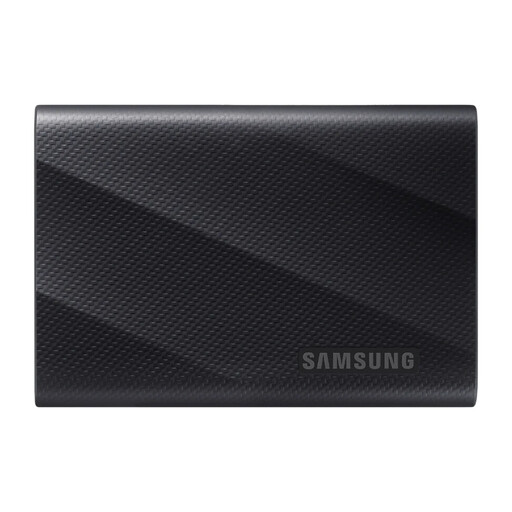
Samsung MU-PG1T0B 1 TB USB Type-C USB 3.2 Gen 2x2, black
Another removable option for copying photos, videos and documents. Its title specifies 1 TB and USB Type-C; check capacity, device and file-format compatibility, and the backup and restore workflow you intend to use.
View on Joybuy
 No image available
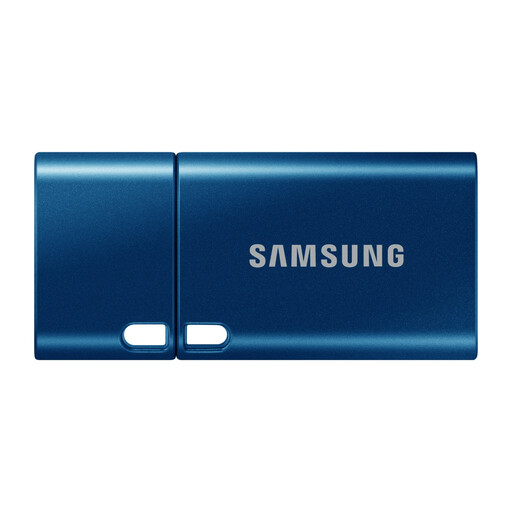
Samsung MUF-512DA 512 GB USB Type-C flash drive, blue
A removable choice for a selected set of photos or documents rather than an assumed whole-device backup. Check the 512 GB capacity against those files and confirm that each intended device has a compatible USB Type-C connection.
View on Joybuy
Questions about backing up household files
Is cloud synchronisation the same as a device backup?
No. Apple Support distinguishes data synchronised through iCloud from an iCloud device backup. Check both settings and keep a separately managed copy of important files before assuming you can recover them after deletion or device replacement.
How can I test whether my files will restore?
Use your chosen service or drive to restore a representative photo, video and document to another folder or device where possible. Open each file and check that the restored version is recent enough for your needs.
Will one device backup restore every Apple, Android and Windows device?
Do not assume it will. Apple and Google describe restoration within their respective device services, with conditions that depend on the replacement device. Check its migration procedure and keep ordinary copies of photos and documents if you need access across different systems.
Does a NAS remove the need for another backup?
No. A NAS can be a shared backup destination, but Synology advises backing up the NAS itself to a different destination. Decide how you would recover household files if the NAS or its location became unavailable.


