Students with coursework and projects
Choose a routine that copies the folders you are still working in, then practise retrieving a file. A large drive is of limited help if the latest coursework was never copied to it.


Choose cloud backup when you need regularly updated copies away from your computer, an external hard drive for a substantial local archive, or a portable SSD when you frequently move large files between compatible devices. For irreplaceable photos or important work, consider both a cloud copy and a separate local copy that is normally disconnected. Whichever route you choose, check which folders are covered and test that you can restore a file.
Choose a routine that copies the folders you are still working in, then practise retrieving a file. A large drive is of limited help if the latest coursework was never copied to it.
Check how much space the collection uses and whether copies will be kept in separate locations. For irreplaceable files, the National Cyber Security Centre advises considering both cloud and removable-media copies.
Identify the work folders and any customer or staff information that need protection. Check cloud account access, file-version retention and recovery before relying on a backup for those records.
Start with where a recoverable copy will live, then check how it gets updated and what you can retrieve. An external drive, a cloud service and a combination address different parts of that decision.
Consider it when: You need a substantial local copy of photos, videos or work files, particularly if your internet connection makes uploading them difficult.
Trade-off: A drive kept with the computer can be affected by the same incident; connect it for backups and store it separately when practical.
Consider it when: You regularly transfer large active projects between compatible devices and want a portable local copy.
Trade-off: Advertised transfer speeds depend on the connection, and a portable SSD remains a local copy rather than an off-site one.
Consider it when: You want an off-site copy that can update automatically without connecting a removable drive.
Trade-off: Recovery depends on your connection and continued account access; folder coverage and retention vary by service.
Consider it when: Losing a single device, location or account would put irreplaceable photos or important work at risk.
Trade-off: You need to maintain and check two copies, keeping the removable one normally disconnected and the cloud account secure.
| Priority | What to check | Your needs |
|---|---|---|
| File coverage | List important folders, devices and external-drive files. Check which are selected for backup and when copies update. | I need my current coursework or work files recoverable, not just the folders a service selects by default. |
| Separate copies | Check where each copy is stored. Disconnect removable media after backing up when practical; the National Cyber Security Centre warns that attached media can be exposed to malware. | If my computer and backup drive are together, I want another copy kept elsewhere for the files I cannot replace. |
| Recovery and versions | Restore a non-critical file as a test. Check how long changed or deleted versions remain available; Backblaze says its default version history is 30 days. | I may need an earlier version of a project or a photo deleted some time ago, not merely the latest copy. |
| Account privacy | Review access and sharing settings, use a unique strong password and enable two-factor authentication. Check how a private encryption key would affect recovery before choosing one. | My work records or personal photos need appropriate access controls, and I must still be able to get into the backup account. |
| Capacity and connection | Measure the files to protect and allow room for growth. Check any shared cloud allowance, and match an SSD’s stated speed to the device and cable you will use. | For a growing photo archive, I need enough space; for frequent project transfers, I also care whether my equipment can use the drive’s connection. |
Attached removable media can be exposed to malware, while a drive stored with the computer may be lost in the same incident.
Disconnect the drive after backing up when practical, and keep another important copy separately or off-site.
Folder-backup features can protect selected locations without covering every project folder or attached drive. Deleted or changed versions may also have a retention limit.
Confirm the selected folders and devices, review version history, then restore a non-critical file to check the process.
Maximum transfer speeds depend on compatible equipment. Resistance claims do not make a drive an off-site copy.
Check the host connection and cable against the drive’s requirements, and keep a second copy elsewhere for important files.
These examples illustrate different backup arrangements; each feature and condition applies to the product line or service described, not to every product carrying the brand.
Its My Passport portable hard-drive line is a reference point for sizeable local archives.
The T7 Shield is a portable SSD example for people who frequently transfer large files.
Personal Backup is a computer-backup service for an automatically updated off-site copy.
IDrive describes scheduled backup across multiple computers and mobile devices in one account.
OneDrive folder backup is relevant to Windows users protecting selected standard folders.
These hard drives and portable SSDs are options for keeping a local copy of work files or photos. Choose a cloud service separately if you also need an off-site copy.
 No image available
A local copy to consider when you move project files between devices. The product name specifies USB 3.2 Gen 2; check your device’s connection, choose the folders to copy and test a restore. Keep another copy elsewhere for files you cannot replace.
 No image available
A portable hard drive to consider for a sizeable local archive on a Mac. Check its format and connection before using it with another computer, and confirm that your chosen folders can be restored. Keep a separate copy of important files.
 No image available
A portable local destination for files you transfer regularly. Its name specifies USB 3.2 Gen 2; check the connection on each intended device, set up the file-copying routine and test recovery rather than treating storage alone as a completed backup.
 No image available
A 2TB local-drive option for coursework, documents or photos. Check its format against your computer, configure the folders you intend to protect and restore a file as a test. Store the drive separately from the computer when practical.
 No image available
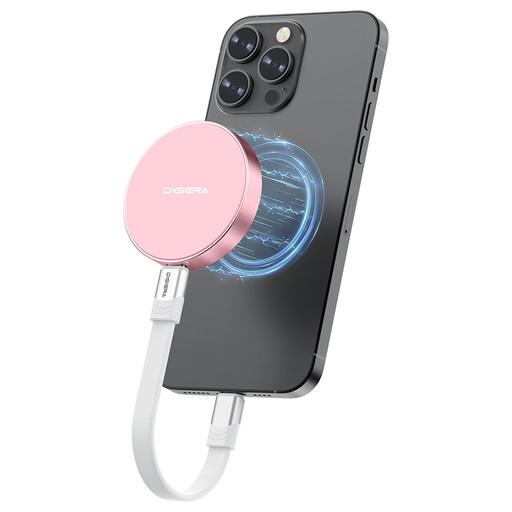
A portable local copy to consider if its magnetic form and USB connection suit your devices. The product name specifies USB 3.2 Gen 2x2 and speeds up to 2000MB/s; check host compatibility rather than assuming that rate on every device. Confirm the exact iPhone model and recording requirements if those are part of your intended use.
Consider both if you can maintain two copies. The National Cyber Security Centre advises considering cloud and removable-media copies for irreplaceable photos and videos; keep the drive disconnected when not in use and protect the cloud account.
Measure the folders and devices you need to recover, then allow space for growth and any retained versions. Check whether a cloud allowance is shared with other files: Google says its account storage of up to 15GB is shared across Drive, Gmail and Photos, while Microsoft says consumer accounts include 5GB of OneDrive storage.
Check the selected folders, devices and external drives, then restore a non-critical file. Also review how long earlier versions remain available: Backblaze says its default version history is 30 days, while Microsoft’s OneDrive folder backup applies to selected folders rather than proving that every computer location is covered.
Use a unique strong password and two-factor authentication for the cloud account. Store a removable drive securely, use its password feature if available and disconnect it after backup when practical; the National Cyber Security Centre warns that malware can spread to attached media.
Test after setting up the backup and again after important changes to your folders, devices or account. Restoring a non-critical file checks that you can find and access a copy before you need it urgently.