If the old drive may hold the only usable copy of files or restore points, keep it while setting up and testing a new backup rather than deleting it just to free space. A portable HDD can add local capacity, a desktop HDD suits a backup kept at one desk, and an external SSD is an option when carrying the drive or transferring files frequently matters; check the computer, backup software, format and available space before choosing. A separate cloud copy can add another backup location, but check that files or earlier versions can be restored.
Who this is for
People keeping an older backup
If a failed PC has been replaced, you may be unsure whether an almost-full drive still holds files or restore points worth keeping. A question on MoneySavingExpert Forum illustrates this kind of capacity and deletion dilemma.
Households with a growing file library
If you want to retain earlier versions as well as back up current files, consider the space needed for both the existing backup and the ongoing schedule.
People moving a backup between computers
If you carry a drive between locations or use it with different computers, check its connection, file system and compatibility with the backup and restore software on each device.
What to check before choosing
Portable external HDD
Choose when: You need local backup space that can move between compatible computers.
Trade-off: Check the drive’s format for the computer and backup application; Toshiba says Canvio Basics is supplied NTFS-formatted and requires reformatting for the listed macOS versions.
External SSD
Choose when: You regularly carry the drive or transfer large files and have a suitable connection.
Trade-off: Advertised maximum speeds can depend on the host and cable; Samsung specifies connection conditions for the T7 Shield’s stated maximum speeds.
Desktop external drive
Choose when: You mainly back up at one desk and want a larger local destination.
Trade-off: Check the exact model’s capacity, power arrangement and available space where it will sit.
Enclosure for an existing drive
Choose when: You already have a readable internal drive and want to reuse it or copy accessible files.
Trade-off: Match the drive’s interface and dimensions to the enclosure; an enclosure will not make a failed drive usable.
Cloud plus local backup
Choose when: You want a copy separate from a drive kept with the replacement computer.
Trade-off: Check how the service preserves versions and whether files can be restored; a cloud copy is not automatically protected from destructive changes.
For consumers choosing storage after a home PC failure or replacement, start by protecting anything that may exist only on the old drive, then size the new arrangement and check device compatibility.
| Concern |
What to check when buying |
Who this matters to |
| Keeping the old backup |
Identify files and versions held only on the old drive; establish the new backup and test a restore before retiring the old set. |
If I have not confirmed that the replacement backup can restore what I need, I would rather keep the old copy for now. Around 36% of consumers put preserving a usable backup first. |
| Space for ongoing backups |
Compare the selected data, existing backup and intended history with the destination’s available capacity. For a Mac using Time Machine, Apple advises a disk with at least twice the Mac’s storage capacity when space is insufficient. |
If I want to retain earlier versions as well as back up current files, I need room for the history I plan to keep. Around 29% of consumers prioritise capacity for continuing backups. |
| Portability and connection |
Check whether the drive is USB-powered, which connection it uses and whether the computer meets any stated speed requirements. |
If I carry my backup between locations, I want a connection and power arrangement that works with the computers I use. Around 21% of consumers prioritise portability and transfer needs. |
| Format and drive reuse |
Check the backup application’s required file system and match an existing drive’s interface and dimensions to any enclosure. Reformatting can erase existing data. |
If I want to reuse a readable drive or connect the backup to a different computer, I need to confirm the format and physical fit first. Around 14% of consumers prioritise compatibility or reuse. |
Buying pitfalls
-
Treating free space as proof an old backup is expendable
An older set may contain a file or restore point that is not available from the replacement PC or its new backup.
Inventory the old set, establish the new backup and test a restore before deleting anything you may still need.
-
Reformatting a backup drive without checking what is on it
Apple warns that reformatting a Windows-formatted disk for Time Machine can permanently remove its existing data.
Copy needed files elsewhere before accepting an erase prompt, and check the backup application’s required format.
-
Choosing a drive by advertised speed alone
A stated maximum SSD speed depends on compatible host and cable conditions, and speed alone does not create another restorable copy.
Decide whether carrying the drive and frequent transfers matter more than capacity and a tested backup routine.
-
Assuming a cloud copy or connected drive cannot be changed
The UK National Cyber Security Centre advises keeping backups appropriately separated; a cloud account or permanently connected local drive is not automatically protected from destructive changes.
Check how versions can be restored and keep a suitably separated copy.
Brands relevant to external backup storage
Toshiba
Canvio Basics is a portable, USB-powered HDD line for straightforward local file storage.
- Toshiba lists 1 TB, 2 TB and 4 TB variants and says the line is supplied NTFS-formatted.
- Toshiba says reformatting is required for the listed macOS versions, so check the intended backup setup before use.
Samsung
The T7 Shield line is an external SSD option for buyers considering regular carrying or file transfers.
- Samsung states maximum sequential read/write speeds for the cited 2 TB variant under specified host and cable conditions.
- Samsung’s resistance statements are based on controlled tests, and its stated warranty excludes damage from liquid, dust and drops.
Western Digital
My Book represents a desktop HDD route for a local backup destination kept at a desk.
- A 22 TB My Book variant in the product options below is identified as a desktop external hard drive.
- Check the exact variant’s capacity, connections, power arrangement and listed features before choosing.
StarTech.com
Its drive enclosures may suit reuse of an existing internal drive that is readable and physically compatible.
- StarTech specifies that the S2510BPU33 accepts 2.5-inch SATA HDDs or SSDs up to 9.5 mm high and is USB-powered.
- Those specifications do not establish compatibility with every internal drive or make a failed drive usable.
Seagate
Seagate’s external-drive range is relevant when checking whether a recovery-service plan applies to a particular purchase.
- Seagate says eligible Rescue coverage offers one in-lab recovery attempt.
- Coverage depends on the model and purchase; check the warranty for service availability, and do not treat a recovery attempt as a replacement for backups.
Joybuy product options
These Joybuy options cover local backup storage: portable HDDs, external SSDs and a desktop HDD. A cloud backup is a separate part of the backup arrangement.
 Image unavailable
Samsung MU-PE1T0S external SSD, 1TB, USB Type-C 3.2 Gen 2, black
An external SSD option for a portable local backup, provided the replacement computer supports its connection.
Capacity: 1TB. The product name specifies USB Type-C 3.2 Gen 2.
Joybuy
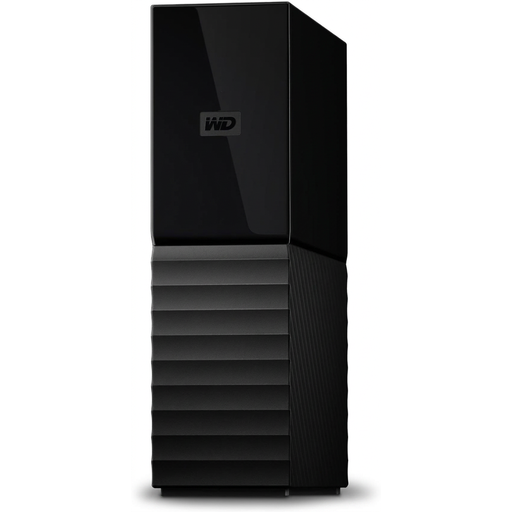 Image unavailable
Western Digital My Book desktop external hard drive, 22TB, USB 3.0
A desktop local-storage option for a backup kept at one desk; check that the intended location and backup software suit the setup.
Capacity: 22TB. The product description states password protection and hardware encryption.
Joybuy
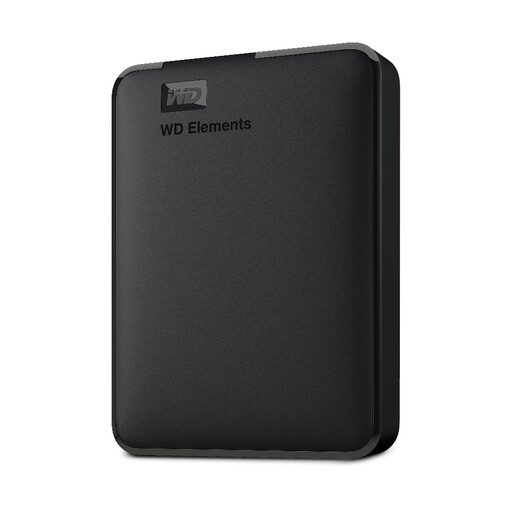 Image unavailable
WD Elements portable external hard drive, 2TB, USB 3.0
A portable HDD option for adding local storage after a PC replacement; confirm that its format works with the intended backup application.
Capacity: 2TB. The product description identifies it as formatted for PC and Mac.
Joybuy
 Image unavailable
SanDisk Portable SSD, 2TB
A portable SSD option for carrying a local backup; check that its connection suits the computers you plan to use.
Capacity: 2TB. The product description states read speeds up to 800MB/s and drop protection up to 2 metres.
Joybuy
 Image unavailable
Western Digital Elements portable drive, 4TB, black, USB 3.0
A portable HDD option for additional local backup space; check the format required by the replacement computer and backup software.
Capacity: 4TB. The description specifies USB 3.2 Gen 1 connectivity and an included USB-A cable; reformatting may be required for Mac or other operating systems.
Joybuy
FAQs
Can I delete the backup made before I replaced my PC?
Check first whether it contains files or versions you cannot restore elsewhere. Make and test the intended replacement backup before removing the old set; matching a few visible files does not test the whole restore.
Will Windows File History back up everything on my replacement PC?
Microsoft describes File History as backing up files and folders, including libraries, with an option to include other folders. Check which folders are selected and test restoring a file rather than assuming it provides every kind of system recovery.
Can I use my Windows-formatted drive for a Mac Time Machine backup?
Not without changing its format: Apple says Time Machine cannot back up to a Windows-formatted disk and may offer to erase and reformat it, permanently removing existing data. Copy anything you need elsewhere first and check whether the Mac can claim an existing backup from another computer.
What should I know before encrypting a new backup?
If you use Time Machine’s Encrypt Backup option, Apple says you will need the password to restore files later. Store it safely and check the chosen backup tool’s own encryption and recovery procedure rather than assuming a drive’s password feature works the same way.
When is buying another drive not enough?
If the only copy of needed files is on an inaccessible or physically damaged drive, a replacement drive will not retrieve them. Seagate says pronounced hard clicking can indicate physical failure; consider specialist recovery before erasing or reusing the affected drive.


