Choose a portable drive if you can disconnect and store a copy separately, or a desktop drive if backups will stay at a fixed workspace where mains power is practical. A NAS can give several household devices a shared backup destination, but its internal disk redundancy is not another backup; an existing NAS needs a separate copy too. Whichever route you choose, check that your computer, drive format and backup software work together.
Who needs which backup route?
People backing up one computer
If your documents, photos and videos mainly live on one Windows PC or Mac, an external drive can hold another copy. Microsoft Support describes regular File History backups to an external drive or network location; your preferred backup routine will determine when the drive needs to be connected.
Households with files on several devices
A shared network destination can make scheduled backups more manageable than moving one drive between computers. Check each device’s backup software against the NAS before relying on it, particularly if a Mac will use Time Machine.
NAS owners who need another copy
If important files already live on a NAS, its internal redundant disks are not a separate backup. Synology distinguishes RAID and Synology Hybrid RAID from backups and documents USB backup options for compatible systems.
What matters when choosing?
Portable external drive
Choose it when: You can connect a drive for backups, then disconnect it and keep the copy separately.
Trade-off: The routine depends on remembering to connect the drive or confirming that a scheduled job has run.
Desktop external drive
Choose it when: Your backup stays at a fixed workspace and a mains-powered drive suits that arrangement.
Trade-off: Its separate power supply makes taking the copy elsewhere less convenient.
Network-attached storage
Choose it when: Several computers need a shared network destination for their backups.
Trade-off: Network access and ongoing administration do not, by themselves, provide an isolated copy.
External drive for an existing NAS
Choose it when: Files already live on a NAS and you need another destination outside its internal disks.
Trade-off: A USB drive left attached remains connected to the NAS; moving or disconnecting it takes a deliberate routine.
| Concern | What to check | Who this matters to |
|---|
| A removable, separate copy |
Check the connection and power arrangements, then decide where the drive will be kept between backups. |
If I make occasional copies, I want to disconnect the drive so the only backup is not beside my computer and connected to it. Around 21% of consumers put a removable copy first. |
| Automatic backup for one computer |
Check which folders your backup app includes and whether the destination format suits it. |
When I rely on one PC or Mac, I need backups to run without remembering every file-copying session. For around 29% of consumers, that routine is the primary concern. |
| Backups from several devices |
Confirm that each device’s backup tool supports the chosen NAS; for a Mac, check Time Machine support. |
With files on several household computers, I need a shared destination rather than moving a drive from one machine to another. That shared-backup need comes first for around 29% of consumers. |
| Another copy of an existing NAS |
Check the NAS model’s USB backup options and decide whether the resulting copy will be disconnected or kept elsewhere. |
If my files already live on a NAS, I need a copy beyond its internal disks in case the NAS or its contents are lost. Around 21% of consumers prioritise that second destination. |
Backup mistakes to avoid
-
Counting RAID as your backup
Synology says classic RAID and Synology Hybrid RAID are not backup solutions. Keeping a NAS running through some disk failures does not create another copy if files are deleted or the NAS itself is lost.
Set up a separate destination for important NAS files, such as a detachable drive or storage in another location.
-
Choosing a drive before checking the backup app
Apple says Time Machine cannot back up directly to a Windows-formatted disk. A drive that can hold files may still need a different format for the backup method you intend to use.
Check your operating system, backup app, connection and required disk format before putting files on the new drive. Reformatting can erase files already on it.
-
Leaving your only backup connected
The National Cyber Security Centre warns that ransomware incidents have affected connected USB and network backup drives. A convenient always-connected destination may therefore share risks with the main device.
If your routine permits it, disconnect a removable drive after the backup and store it separately. If backups must run while connected, consider a further isolated copy.
-
Assuming a completed job means files can be restored
A backup routine is useful only if it includes the files you need and you can retrieve them. Synology provides integrity checks for compatible Hyper Backup workflows.
Restore a small sample after setup and repeat the check periodically; review backup-task results as well as the files recovered.
Relevant brands and product lines
Toshiba
Canvio Flex is a portable-drive line to consider when a copy needs to move between compatible devices.
- Toshiba says Canvio Flex comes with USB-C and USB-A cables and offers 1 TB, 2 TB and 4 TB variants.
- Check the exact device and backup app: cross-device file access does not establish that a system-backup workflow will work.
Seagate
One Touch addresses portable scheduled backups, while Expansion desktop drives suit a fixed, mains-powered setup.
- Seagate describes daily, weekly or monthly backup scheduling for the One Touch HDD.
- Seagate notes that One Touch may need reformatting for Time Machine and a USB-C computer needs an adapter. For an Expansion desktop variant, confirm the UK plug and exact bundle.
Synology
Synology is relevant when a household needs shared NAS storage or an existing compatible NAS needs a USB backup.
- Synology documents scheduling, multiple versions and integrity checks for compatible Hyper Backup workflows.
- Features depend on the hardware and DSM version. Synology also states that RAID and Synology Hybrid RAID are not backups; an attached USB drive may need to be disconnected for greater separation.
Portable drives on Joybuy
These portable drives are options for making a removable copy of personal files. They differ in stated capacity and connection details; choose one only after checking how it will work with your device and backup routine.
 No image available
Western Digital My Passport portable hard drive, 2 TB, black
Consider this removable drive for a copy of files from one computer that you can store separately.
It is a 2 TB portable hard drive. If you plan to use scheduled backups or Time Machine, check the supported software, folders and disk format for your computer.
View on Joybuy
 No image available
Western Digital My Passport Ultra for Mac portable hard drive, 5 TB, silver
This removable drive may suit a Mac user who wants to keep a separate copy of a larger file collection.
It is a 5 TB portable hard drive. Confirm the required format for your Mac backup app before use; reformatting can erase existing files. Check the applicable UK warranty terms for this variant.
View on Joybuy
 No image available
Samsung Portable SSD T7, 4 TB, grey
Consider this portable SSD if you want a removable destination for a copy of personal files.
The title specifies 4 TB and USB Type-C 3.2 Gen 2. Check compatibility with your device and backup software, particularly if you intend to schedule backups.
View on Joybuy
 No image available
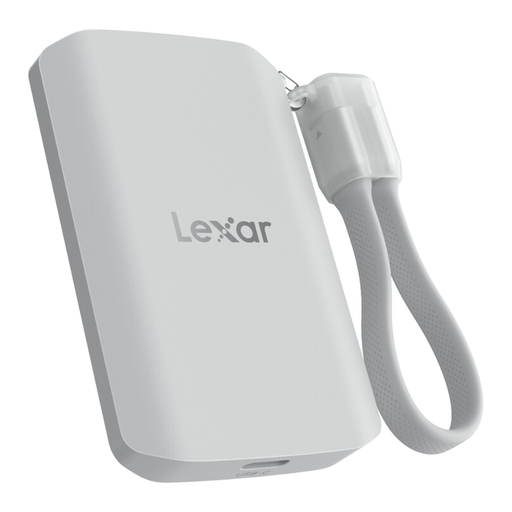
Lexar ES5 portable SSD, 1 TB
This portable SSD is worth checking if your main task is keeping a separate copy of media from a compatible device.
The title specifies 1 TB and USB 3.2 Gen 2x2. Check the exact phone, attachment conditions, disk format and Lexar app workflow before relying on media backup; this is not a complete phone or computer system backup, and iCloud backup is not supported.
View on Joybuy
 No image available
Western Digital Elements portable hard drive, 4 TB, black
Consider this removable drive if you plan to make manual copies of files from a computer.
The title specifies 4 TB and USB 3.0. For a Mac or a scheduled-backup routine, check the required disk format and software compatibility before use.
View on Joybuy
Frequently asked questions
Does RAID in a NAS count as a backup?
No: Synology states that classic RAID and Synology Hybrid RAID are not backup solutions. They can help a NAS remain available through some drive failures, but important files still need a copy at a separate destination.
Can Time Machine use a Windows-formatted external drive?
Not directly as a Time Machine destination: Apple says it cannot back up to a Windows-formatted disk. Check the required format before using the drive, and move any files you need to keep before erasing or reformatting it.
Can a NAS receive Time Machine backups?
Yes, if that NAS supports Time Machine over SMB or AFP. Apple recommends SMB when both are available; confirm support for the exact NAS model rather than assuming any network drive will appear as a destination.
How can I make another copy of a Synology NAS?
On a compatible Synology NAS and DSM version, Hyper Backup can send a backup to an attached USB drive. Choose a multiple-version archive if you need older versions and have the appropriate restore tools; a single-version copy is easier to browse but overwrites earlier backup data.
Should an external backup drive stay connected?
Disconnecting it between backup sessions provides greater separation if your routine allows it. The NI Cyber Security Centre advises disconnecting an external drive when a backup is not running, while the National Cyber Security Centre warns that ransomware can affect connected USB and network backup drives.


