What matters when choosing?
External HDD
Choose when: You need a large, removable local archive and can accept slower transfers than an SSD.
Bear in mind: A drive kept beside or connected to the computer is not a separate off-site route.
External SSD
Choose when: You regularly move large files and value a compact portable drive.
Bear in mind: Quoted maximum speeds depend on a compatible device and connection; speed does not make a single copy sufficient.
Cloud storage
Choose when: Off-site updating and access away from the original device matter more than keeping a physical drive.
Bear in mind: Recovery depends on your account, internet connection and available storage.
Local drive and cloud
Choose when: You want a local recovery copy and a separate off-site route for irreplaceable files.
Bear in mind: Both copies need maintaining and testing; the National Cyber Security Centre cautions that neither route is resistant to ransomware by default.
Once you have chosen a route, work through the checks that match your primary reason for backing up personal files.
| Concern |
What to check |
Who this matters to |
| Recoverable, separate copies |
Where each copy is kept; whether you can restore a recent file. Disconnect a removable drive between backup sessions. |
If losing the computer could also mean losing my photos, I need a copy I can recover separately. Around 27% of consumers put recoverability and separation first. |
| Local capacity |
The size of your current files, space for future copies and whether the drive works with your intended device. |
A growing photo and video library makes room for the whole archive my main concern; for around 27% of consumers, local capacity comes first. |
| Portable transfers |
The device port and cable required for the drive; whether a quoted speed is a maximum rather than a typical transfer rate. |
When I move large files often, waiting for transfers affects how readily I keep copies up to date. Portability and transfer speed come first for around 20% of consumers. |
| Off-site updating |
Which folders are included, how storage is shared and whether you can access and restore files through the account. |
I want files copied away from the computer without having to connect a drive each time. Around 26% of consumers prioritise automatic off-site access. |
Joybuy drives for local backups
These external SSDs and one portable HDD are choices for keeping a local copy of personal files. Pick the capacity and connection for your devices, then decide whether that copy also needs a separate cloud or removable-media counterpart.
 No image available
Samsung Portable SSD T7, 4 TB, grey
Consider this SSD if your local file collection calls for 4 TB and you want a portable drive. Its title specifies a USB Type-C 3.2 Gen 2 connection; check the port and backup workflow on the device you will use.
View on Joybuy
 No image available
Samsung Portable SSD T7, 2 TB, blue
This portable SSD is a 2 TB local-copy option if that capacity covers the files you plan to protect. Its title specifies USB Type-C 3.2 Gen 2; confirm the connection and intended backup setup on your device.
View on Joybuy
 No image available
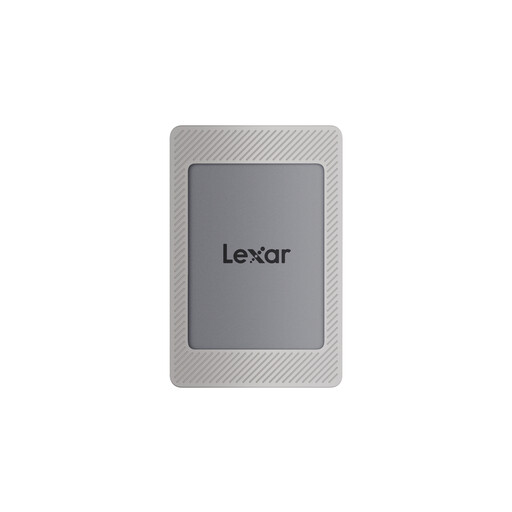
Lexar ES4 Portable SSD with Magnetic Set, 2 TB
Consider this 2 TB SSD if you need a portable copy and its stated device connections fit your setup. The title lists USB 3.2 Gen 2, reads up to 1,050 MB/s and writes up to 1,000 MB/s; these are maximum ratings. It names iPhone 15/16, PC and Mac among compatible devices, so check the requirements of your particular backup workflow.
View on Joybuy
 No image available
Western Digital Elements portable HDD, 4 TB, black
This 4 TB HDD is a local-archive option when capacity is your priority. Its title specifies USB 3.0; check the connection and the drive format required by your computer before using it for backup, particularly with Mac Time Machine.
View on Joybuy
 No image available
SanDisk Portable SSD, 2 TB
Consider this 2 TB portable SSD for a local copy if its connection and format suit your device. Check that it works with your intended backup software before relying on it to protect files.
View on Joybuy
Questions about backing up files
Can an external drive be my only backup?
An external drive gives you a local backup route, but a single drive leaves you dependent on that copy being available and recoverable. For irreplaceable photos and videos, the National Cyber Security Centre advises keeping cloud and removable-media copies and disconnecting removable media when it is not in use.
What should I check for Windows File History?
Check that the drive connects to your computer and that File History includes the folders you want to protect. Microsoft Support says File History can use an external drive or network location; folders outside its usual libraries can be added to a library. Restore a file to check the result.
Can I use a Windows-formatted drive for Mac Time Machine?
Not without addressing the disk format: Apple Support says Time Machine cannot back up to a Windows-formatted disk. Check the format needed for your Mac and Windows tasks before changing a drive that holds files, because reformatting permanently removes its existing data.
Should I encrypt a removable backup drive?
Encryption is worth considering if the drive could be lost or stolen, provided you can keep its password or recovery information safe. Apple Support says Time Machine can encrypt a backup disk and may ask for its password after reconnection or restart.
How do I know whether cloud backups will keep updating?
Check that the intended folders are included, the account remains accessible and there is enough available storage. Google One Help says Google Account storage is shared across Google Drive, Gmail and Google Photos; reaching its limit can stop new uploads and photo or video backups. Download or restore a recent file to check your own setup.


