What to prioritise
Choose a removable drive when you want a local copy you can disconnect and store separately; a NAS can suit households that need a shared destination for several devices, but it needs configuration and another backup destination. Cloud storage can add an off-site copy, but check how synchronisation handles deletions and whether you can restore an earlier version.
The UK National Cyber Security Centre advises keeping a backup in a separate safe location. Use the checks below to match storage to your library, devices and recovery needs.
| Concern |
What to check when buying |
Who this matters to |
| Capacity for the whole library |
Measure the files you intend to copy and allow for additions and retained versions. Apple’s guidance of at least twice the Mac’s storage capacity applies to a Time Machine disk. |
I want one copy to hold my photos, documents and videos without running out of room as the library grows. Consumers who put whole-library capacity first account for around 33%. |
| An independently recoverable copy |
Check where the copy is stored, whether it stays connected, whether earlier versions are retained and how to restore a sample file. |
If the computer or main copy is lost, I need another copy that has not simply repeated the same change or deletion. Consumers who prioritise independent recovery account for around 27%. |
| Portable transfer and compatibility |
Check each device’s port, the supplied cable, the intended backup application and the drive format before formatting it. |
I carry files between devices or locations and need the drive to work with the equipment and copying method I use. Consumers who put portable transfer and compatibility first account for around 20%. |
| A routine across devices |
List the devices and folders to include, then check that the software supports the destination and provides a way to confirm copies and restores. |
I need an updateable routine for files from several household devices, rather than a one-off copy that becomes out of date. Consumers who prioritise a manageable multi-device routine account for around 20%. |
Joybuy product choices
These Joybuy choices cover portable SSDs and external hard drives for making local copies of household photos and documents. Check capacity and device compatibility against your own library and copying routine.
 Image unavailable
Samsung Portable SSD T7 2 TB
Consider it for a portable local copy or moving files between compatible devices.
2 TB capacity; USB Type-C 3.2 Gen 2 (3.1 Gen 2). The listing identifies USB-C to C and USB-C to A cables.
View on Joybuy
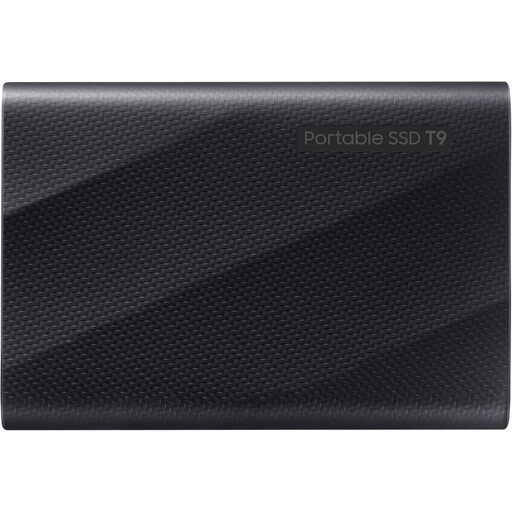 Image unavailable
Samsung MU-PG4T0B 4 TB
Consider it for a local copy of a larger library, provided its capacity and connection suit your devices.
4 TB capacity; USB Type-C and USB 3.2 Gen 2x2. The listing identifies USB-C to C and USB-C to A cables and Windows and macOS compatibility.
View on Joybuy
 Image unavailable
Samsung MU-PE1T0S 1 TB
Consider it for a portable local copy if 1 TB is enough for the files you plan to store.
USB Type-C 3.2 Gen 2 (3.1 Gen 2); the listing identifies compatibility with Macs, PCs and Android devices. The description cautions that IP65 protection does not mean the drive can be submerged.
View on Joybuy
 Image unavailable
SanDisk Portable SSD 2 TB
Consider it for a portable local copy of photos and important files, or for carrying a copy between locations.
2 TB capacity; the description states read speeds up to 800 MB/s and a weight of 0.04 kg.
View on Joybuy
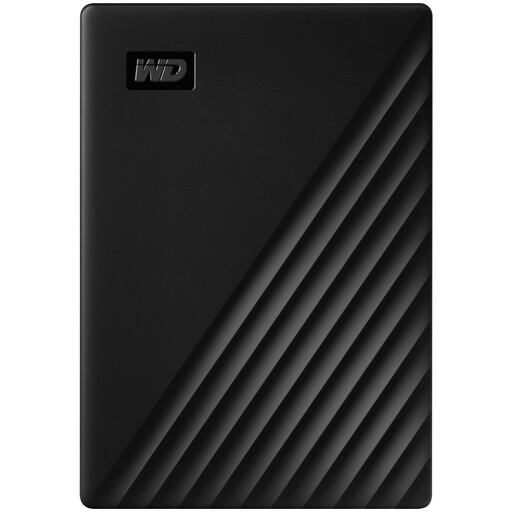 Image unavailable
Western Digital My Passport 4 TB Portable Hard Drive
Consider it for a portable local copy of a sizeable library, if 4 TB fits the files you intend to store.
USB 3.2 Gen 1; the description lists 256-bit AES hardware encryption and scheduled backups. It is powered over USB, and the description says it is not waterproof and cannot withstand direct liquid exposure.
View on Joybuy
Frequently asked questions
How large should a backup drive be?
Start with the size of everything you intend to copy, then allow for additions and any versions you want to retain. For a Mac Time Machine disk specifically, Apple says capacity should ideally be at least twice the Mac’s storage capacity; do not apply that figure automatically to a file-only copy or cloud plan.
Can I use the same drive for Windows files and a Mac Time Machine backup?
Check the intended use before formatting, because reformatting a drive removes its existing contents. Apple prefers APFS or APFS Encrypted for Time Machine; Seagate describes exFAT as usable between Mac and Windows but not as a Time Machine or File History destination.
How can I tell whether new photos are actually being backed up?
Check which devices and folders are included, confirm the task has run, and test a sample restore. Microsoft says File History covers libraries and can include folders added to a library; Synology documents scheduled tasks and integrity checks for supported Hyper Backup setups.
What ongoing requirements should I check before choosing a NAS or cloud storage?
For a NAS, check whether compatible drives and a separate backup destination are part of your plan. For cloud storage, check the allowance against your files, account access, how changes and deletions are handled, and whether the service has an ongoing subscription.


