Choose a backup arrangement around the files you must restore, how quickly you need them and whether you can rely on your internet connection. A disconnected drive provides a local recovery copy, cloud backup provides an off-site route when connectivity is dependable, and using both avoids relying on one route; whichever you choose, control access and test that restoration works.
Who needs which backup approach?
Owners protecting essential records
Sole traders and small teams need a way to recover invoices, documents, contacts or customer information after a device is lost or fails. The National Cyber Security Centre recommends identifying essential information and regularly checking that it can be restored.
Teams managing several computers
Organisations backing up multiple PCs or Macs may want a shared local destination and a centrally managed routine. Synology and QNAP document such NAS workflows, but a team must be able to administer the appliance, accounts and a separate backup copy.
Businesses working across locations
Staff working away from one office may value an off-site recovery route. Cloud backup is a more practical choice when the connection can complete backups and support restoration within the business’s required time; the National Cyber Security Centre also advises protecting online backups with two-step verification.
What matters when choosing a backup?
Start with the information and systems needed to keep operating. Then decide whether recovery requires a local copy, an off-site copy or both, and check how each copy will be kept separate from a problem affecting the original.
USB storage for limited files
Consider it when: Only a clearly defined, small set of essential files needs a removable copy.
Trade-off: A manual copying routine can miss changed files, so define what is included and disconnect the device after use.
External hard drive or SSD
Consider it when: You need a removable local copy and cannot depend on downloading essential files for recovery.
Trade-off: A drive left connected can be affected by an incident on the computer; its backup software may also depend on the exact model and operating system.
Network-attached storage
Consider it when: Several computers or shared systems need a centrally managed local backup destination.
Trade-off: NAS needs administration and a further copy elsewhere; RAID or snapshots alone do not provide an independent backup.
Cloud backup
Consider it when: Reliable connectivity makes an off-site backup and the necessary restores workable.
Trade-off: Restore time and available file versions depend on the connection and plan; protect the account with two-step verification and check who can alter backups.
Cloud and disconnected storage
Consider it when: Essential records should not depend on a single device, location or backup account.
Trade-off: Both copies need an ongoing routine: store and disconnect the removable copy, secure the cloud account and test restoration.
| Concern |
What to check |
Who this matters to |
| Separation from an incident |
Keep at least one copy disconnected when not in use; check who can change or delete online backups. |
If an infected computer could reach my backup, I need another copy that remains separate. Around 31% of consumers would put that separation first. |
| Working restores |
Set an acceptable recovery time and test the restoration of essential files or systems. |
When an outage stops invoicing or access to essential documents, I need to know the files can be restored in time. For around 25% of consumers, a working restore is the main priority. |
| Coverage across systems |
List the PCs, Macs, shared files and services to protect; confirm that the chosen backup tools support them. |
I cannot rely on a routine that covers one computer but misses a shared system. Managing coverage across devices comes first for around 25% of consumers. |
| Manageable local routine |
Measure the defined file set and its growth; check the connector and how regularly copies will be made. |
If I only need to protect a bounded set of files, or cannot count on internet access, I want a local routine I can maintain. Around 19% of consumers would prioritise that straightforward continuity. |
Backup mistakes to avoid
-
Calling a permanently connected drive an offline backup
The National Cyber Security Centre describes ransomware incidents in which connected USB or network storage was affected alongside the original data.
Disconnect removable media after a backup finishes and keep at least one recovery copy offline or digitally disconnected.
-
Choosing capacity before deciding what to restore
A copy of one laptop may not cover essential email, invoices, shared folders or information held in other services. Capacity only helps when the required information is included.
List the files and systems needed to keep operating, then measure that scope and allow for its growth and retention needs.
-
Treating NAS RAID, snapshots or sync as a separate backup
Local resilience does not necessarily protect against loss of the appliance, deletion or compromised access. Seagate explicitly cautions that RAID is not a backup solution.
Plan another destination beyond the primary NAS and check that it retains a recoverable copy rather than only synchronising current changes.
-
Assuming backup software works with every external drive
Seagate’s Toolkit compatibility information distinguishes its Windows-only Backup feature from mirror and sync features available for listed Mac and Windows drives. Feature support varies by model.
Check the exact drive, operating system and backup application before purchase, then test a backup and restore with the intended computer.
Relevant brands to consider
Seagate
Relevant to a removable local-copy approach using an external hard drive or SSD.
- Seagate documents backup, mirror and sync functions for supported drives in its Toolkit software.
- Support depends on the model and operating system: Seagate lists Toolkit Backup as Windows-only for the drives in its compatibility table. Check the exact drive and required workflow.
Synology
Relevant when several computers or business systems need a centrally managed NAS backup destination.
- Synology documents multi-environment backup and restore workflows through Active Backup for Business.
- Active Backup for Business requires compatible x64 Synology NAS hardware using Btrfs. Synology also excludes encrypted shared folders for the listed PC, Mac, physical-server and virtual-machine backup tasks; check these conditions for the intended setup.
QNAP
Relevant to organisations considering a local NAS for backups from multiple systems and a further NAS or cloud copy.
- QNAP describes backup workflows covering different data sources and destinations in its business backup documentation.
- Check the exact NAS model, required apps, network configuration and account controls. A local NAS still needs a separate recovery copy.
Joybuy options for removable local backups
These removable SSD, hard-drive and USB options suit a local-copy approach. Choose capacity for the files you have identified, confirm the connection works with your computers, and plan to disconnect the backup after use if it is meant to remain offline.
 No image available
Samsung MU-PG4T0B 4 TB portable SSD, black
Consider this for a removable local copy when your measured backup scope calls for 4 TB of storage.
USB Type-C; USB 3.2 Gen 2x2. Check computer compatibility and the backup application you intend to use. Disconnect the drive after backup if it will serve as an offline copy.
Joybuy
 No image available
Samsung MU-PG2T0B 2 TB portable SSD, black
Consider this for a defined local backup set that fits your planned 2 TB capacity and retention needs.
USB Type-C; USB 3.2 Gen 2x2. Confirm computer compatibility, arrange a repeatable copying routine and test a restore. Disconnect the drive when relying on it as an offline copy.
Joybuy
 No image available
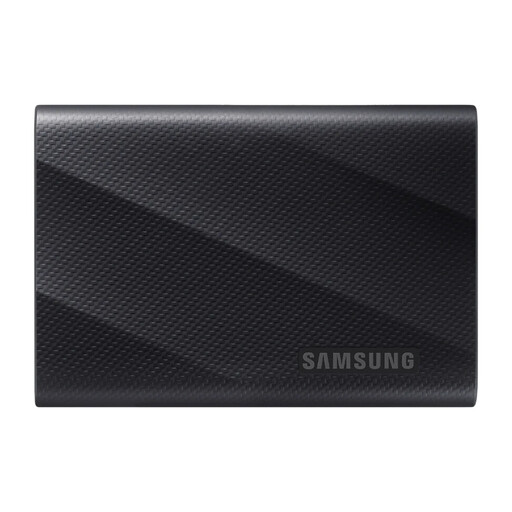
Samsung MU-PG1T0B 1 TB portable SSD, black
Consider this for a measured local backup set that leaves enough room within its 1 TB capacity for the files you need to retain.
USB Type-C; USB 3.2 Gen 2x2. Check computer compatibility and expected file growth, then test the intended restore procedure. Disconnect it after use to keep an offline copy.
Joybuy
 No image available
Western Digital My Passport 2 TB portable hard drive, black
Consider this for a removable local copy when 2 TB covers the business files and versions you intend to keep.
Check the connection and backup application against your computers; for macOS, confirm the driver requirement for your setup. Test restoration and disconnect the drive when it is not in use.
Joybuy
 No image available
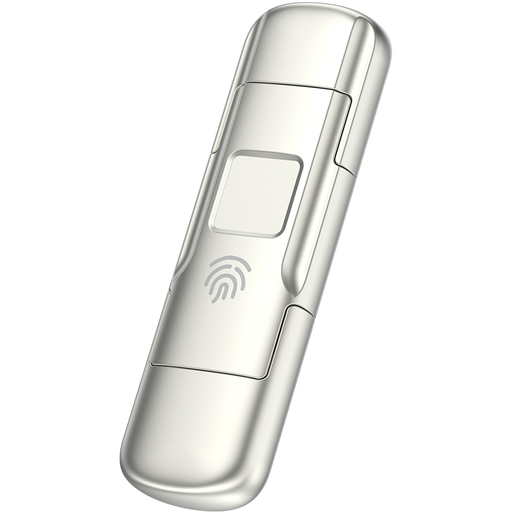
MOVESPEED YSUYC-256GSN 256 GB fingerprint USB drive, silver
Consider this only for a tightly defined set of essential files that fits within its 256 GB capacity, rather than assuming it covers every business system.
USB 3.2 Gen 1 with USB-A and Type-C connections; the product name specifies fingerprint encryption. Establish a regular copying routine, test access to the saved files and disconnect the drive after use.
Joybuy
Common questions
Is cloud storage alone enough for critical business files?
Do not assume a cloud copy is independent of every incident affecting your live files. The National Cyber Security Centre advises considering online storage alongside a separate storage device; check whether connected clients can change the cloud copy and keep at least one recovery route offline or digitally disconnected when not needed.
Should an online backup account use two-step verification?
Yes. The National Cyber Security Centre advises protecting online backups with two-step verification. Also limit which people and connected devices have credentials that can modify or delete backups.
What if the backup contains customer information?
Backed-up personal data needs appropriate security measures under UK GDPR. The Information Commissioner’s Office explains that these measures should address confidentiality, integrity and availability, including timely restoration after an incident; what is appropriate depends on the risks and circumstances. Check access controls and the chosen service’s arrangements for the data it will hold.
How often should we test a restore?
Test restores regularly, on a schedule suited to how often essential information changes and how quickly the business needs it back. The National Cyber Security Centre recommends regular backups of essential information and regular tests that restoration works, rather than relying on a completed backup notification alone.
Does RAID in a NAS replace a separate backup?
No. RAID does not protect against every hardware failure or other way a NAS and its data could be lost; Seagate explicitly cautions that RAID is not a backup solution. Arrange another recoverable copy beyond the primary NAS and test it.


