Backup priorities
Start by mapping the information the business needs to operate, then check how each copy can be restored and protected from the same incident.
| Priority |
What to check |
Your needs |
| Coverage |
Confirm whether endpoints, shared folders, email, websites and SaaS data are protected separately. Test restoration of a representative file, mailbox item and, where relevant, a whole device or site. |
I need copies of the records that keep the organisation operating, not just a convenient folder on one computer. |
| Recovery after compromise |
Check for recoverable earlier versions, delayed deletion protection and separate backup administration. Keep an important copy offline or separately located where practical. |
I want a clean version to remain available if a connected device, user account or administrator account is compromised. |
| Data protection |
Consider encryption for removable media and stored copies containing personal information. Check key recovery, administrative roles, MFA and account-recovery procedures. |
I need to protect customer information without making the only backup inaccessible when the usual device owner is unavailable. |
| Manageability |
Match automatic backup, central administration, NAS compatibility, capacity and recovery method to the number of devices and available technical support. |
I need a routine that staff can maintain, whether they work in one office or across several locations. |
Joybuy product options
Joybuy product options for NAS-based backup and encrypted portable-storage layers in a small-business backup plan.
 No image available
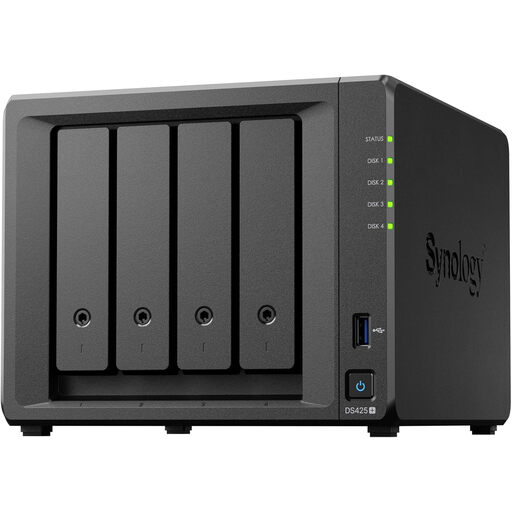
Synology DS425+ 4-bay NAS
A central storage and backup option for a small team with shared files and several users.
Stated features include automated backups, RAID, snapshots, access controls, audit logs and support for 10+ concurrent users. Confirm whether drives are included, the usable capacity, workload compatibility, offsite copies and restore procedures before relying on it.
Joybuy
 No image available
Western Digital My Passport 2TB Portable Drive
A portable local or offline layer for selected documents and files, where password recovery and safe storage are managed.
The listing states 2TB capacity, USB 3.2 Gen 1, Acronis backup software, scheduled local backups and 256-bit AES hardware encryption. Check retention, earlier-version recovery and coverage beyond local computer files.
Joybuy
 No image available
Samsung T7 Shield 1TB Portable SSD
A compact option for a controlled portable copy of important operational files.
The listing states 1TB storage, USB 3.2 Gen 2, AES-256-bit hardware encryption, password software, IP65 resistance and compatibility with Mac, PC and Android. Confirm backup automation, retention and restoration before treating it as a business backup layer.
Joybuy
 No image available
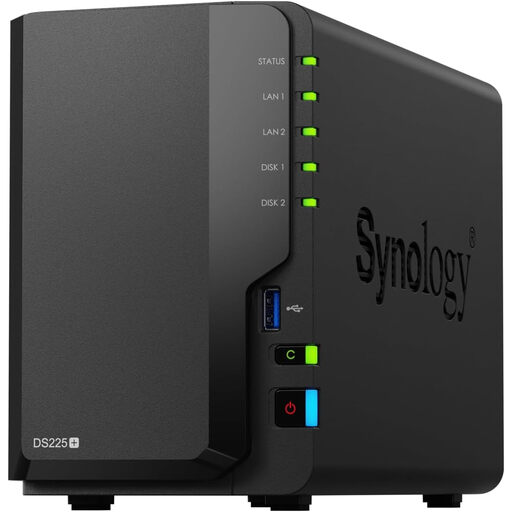
Synology DS225+ 2-bay Diskless NAS
A possible central backup destination for a technically capable small team prepared to configure and maintain a NAS.
The listing states automated backup support, snapshots, RAID, remote access and a diskless 2-bay design. Check compatible drives, required capacity, RAID layout, covered systems and a separate protected copy before purchase.
Joybuy
Frequently asked questions
Is a portable external drive enough for a small business backup?
Usually not on its own. A portable drive can provide a useful offline or local-recovery copy, but it remains one device; the National Cyber Security Centre advises keeping important backups recent and restorable, and notes that separately stored disconnected media is harder for an attacker to access. Use it as one layer alongside another protected copy.
What should a small UK organisation back up?
Start with the information needed to operate: the National Cyber Security Centre identifies websites, emails, invoicing, documents, presentations, contacts and customer information. Map where each item lives, then confirm the chosen route protects that location; a laptop backup does not automatically cover a cloud mailbox, shared SaaS workspace or line-of-business application.
Should backup media containing personal information be encrypted?
Assess encryption against the data and the risk, while ensuring authorised people can still recover the copy. The Information Commissioner's Office says encryption should be used for personal information stored on removable media and stresses the importance of sound key management for encrypted backups.
How often should restores be tested?
Test regularly, with the schedule tied to acceptable data loss and downtime. The National Cyber Security Centre advises regular daily or weekly copies of essential information and regular restore testing; include a small file-level test and a realistic operational restore, such as a mailbox, shared folder or device where relevant.
Can Microsoft 365 data sit in the same backup plan as PCs?
Yes, but only where the selected products explicitly cover the workloads in use. Microsoft states that Microsoft 365 Backup covers SharePoint, OneDrive and Exchange Online, while endpoint services may focus on user data on Macs and PCs. Confirm retention, restore granularity and whether servers or other systems need a separate route.


