Backup buying priorities
Start with the devices and files you need to protect, then decide how often copies should update and where a separate copy will be kept.
| Priority |
What to check |
Your needs |
| Separate, recoverable copy |
Confirm that the destination is separate from the phone or computer; check the restore steps and whether older file versions are available where needed. |
I want photos, videos and documents to remain available if the original device is lost, damaged, deleted or replaced. |
| Automatic capture |
Check supported devices, signed-in accounts, selected folders and whether mobile or computer backups run automatically or on a schedule. |
Our household needs a routine that does not rely on someone remembering to copy every new photo or document. |
| Capacity and growth |
Measure the current library, allow for future photos and videos, and check the exact drive capacity or cloud-storage allowance. |
I need room for today’s files and future captures, while still keeping an additional copy where required. |
| Account and file security |
Enable 2-step verification for cloud accounts; check recovery methods and whether the exact drive and software offer password protection or encryption. |
I want sensitive household documents protected if an account is accessed without permission or a removable drive is misplaced. |
Joybuy product options
Joybuy product options for a household-managed external-drive copy of photos, videos and documents.
 No image available
Western Digital My Passport 2TB Portable External Hard Drive
For scheduled local copies of household photos, videos and documents from a computer.
2TB capacity; USB 3.2 Gen 1 connection; stated Acronis backup scheduling and AES-256 password protection.
Check capacity against the full backup set and confirm the exact operating-system support for backup and password features. Keep another copy of irreplaceable files elsewhere.
Joybuy
 No image available
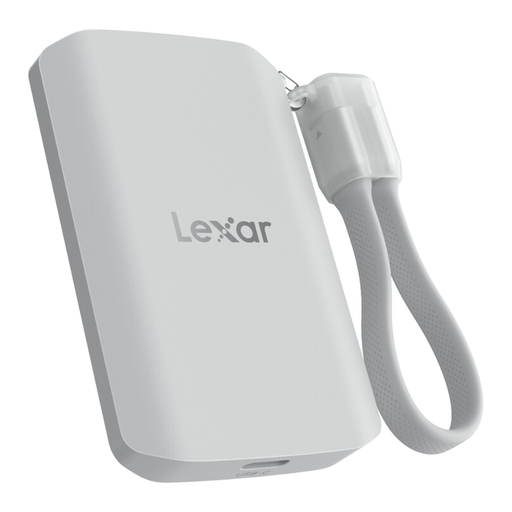
Lexar ES5 1TB Portable SSD
For portable phone-media copies and transfers where the stated Lexar App workflow suits the household’s devices.
1TB capacity; USB 3.2 Gen 2x2; stated speeds up to 2,000MB/s; IP65 rating; support stated for selected iPhone, Galaxy and laptop workflows.
The automatic workflow is stated for media through the Lexar App and excludes iCloud backup; check restoration steps, supported devices and whether 1TB is enough.
Joybuy
 No image available
Samsung MU-PE1T0S 1TB Portable SSD
For a compact additional copy that can move between stated Mac, PC and Android workflows.
1TB capacity; USB Type-C 3.2 Gen 2; stated read/write speeds up to 1,050/1,000MB/s; IP65 rating and 3m drop resistance.
No automatic backup routine is stated. Password protection uses Samsung Portable SSD software, so check support for each intended device before buying.
Joybuy
 No image available
SanDisk 2TB Portable SSD
For a portable manual copy of a sizeable photo, video and document library.
2TB capacity; stated read speeds up to 800MB/s; USB-device compatibility and 2m drop protection.
Check the supplied connector, operating-system compatibility and file system for the exact unit. No automatic backup, password protection or encryption feature is stated.
Joybuy
 No image available
Western Digital Elements 4TB Portable External Hard Drive
For a large computer-based archive of household photos, videos and documents.
4TB capacity; USB 3.2 Gen 1 interface; stated Windows 10+ plug-and-play recognition and USB-A cable.
Mac and other operating systems may require reformatting. No automatic backup, drive encryption or password protection is stated, so plan the update routine separately.
Joybuy
Frequently asked questions
How do I choose capacity for a household backup drive or cloud plan?
Measure the photos, videos and files you intend to protect across every included device, then choose a destination that can hold that backup set and the extra copies in your arrangement. Check whether device backups, photo libraries and computer folders count separately in the chosen service or workflow.
Does iCloud or Google Photos back up every file on every household device?
No. Apple describes iCloud Backup for iPhone and iPad data, while Google describes Google Photos photo and video backup alongside separate Google device backups. Check each device, enabled setting, storage allowance and file location before treating either service as the complete household backup.
Should an external backup drive stay connected all the time?
It can remain connected when the selected automatic-backup software needs that connection; Microsoft states that an external File History drive must be connected for backups to run. For an additional removable copy, decide when it will be connected, updated and returned to separate storage.
Is a home NAS enough on its own for irreplaceable photos?
Not as the only copy. A NAS can centralise household data and automate some computer backups, but it remains a physical device in the home. The National Cyber Security Centre’s definition of a backup supports keeping another copy in a separate safe location.
What account-security checks should I complete before using cloud backup?
Use a strong, separate password for important accounts and enable 2-step verification where available, especially for the email account used for password recovery. The National Cyber Security Centre says 2-step verification makes unauthorised account access harder even if a password is known.


