What matters when choosing storage?
Start with the size and retention needs of the backup, then check whether the drive works with your backup software and computer. Decide separately whether you need to carry the drive and where another backup copy will live.
| Concern |
What to check |
Who this matters to |
| Capacity and backup history |
Measure what the backup includes and allow for growth and retained versions. For Time Machine, Apple recommends a disk with at least twice the Mac’s storage capacity. |
If my existing disk is nearly full, I need enough room to keep backing up without losing older history sooner than planned. Around 31% of consumers put capacity and retention first. |
| Portability and transfer time |
Decide whether the drive will stay at a desk or travel; check the computer port and cable against any claimed SSD speed requirements. |
When I carry backups between locations or transfer large files, a drive that is practical to move matters more to me. Roughly 19% of consumers make portability and transfer time their primary concern. |
| Backup compatibility |
Check the backup application, required file system and available connection. Apple says Time Machine cannot back up to a Windows-formatted disk. |
If I am reusing storage after changing computers, I need the new drive to work with my backup tool without putting existing files at risk. Around 25% of consumers prioritise compatibility and setup. |
| A separate backup copy |
Plan which copy stays local and which will be offline or off-site; work out how the separate copy will be updated. |
If my only backup is always connected, I want another copy that one incident is less likely to affect. About 25% of consumers place backup separation first. |
External drives to compare
These Joybuy options cover portable SSDs and external HDDs for adding or replacing local computer storage. Choose a capacity against your own backup set, and check software and connection requirements before using any drive as a backup destination.
 No image available
Samsung Portable SSD T7 4 TB, grey
Consider this portable SSD if you need to carry a local backup drive. The listed variant has 4 TB capacity and a USB Type-C 3.2 Gen 2 connection; check your computer connection, backup software and required format before use.
View on Joybuy
 No image available
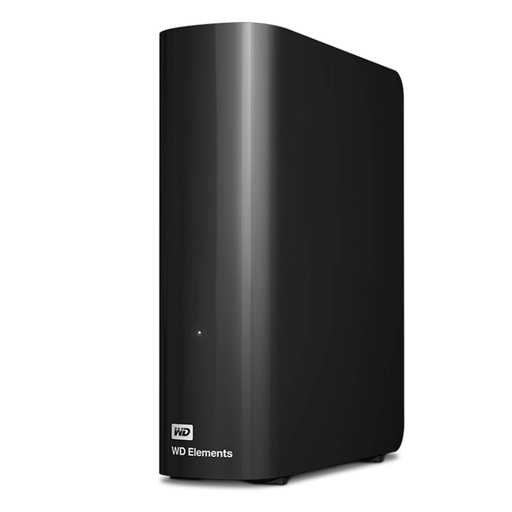
Western Digital Elements Desktop external HDD, 10TB
Consider this desktop HDD when the backup drive will stay in one place and your planned backups need its listed 10TB capacity. Check its power and connection requirements, and confirm the format your backup software needs.
View on Joybuy
 No image available
Western Digital My Passport Ultra for Mac portable HDD, 5TB, silver
Consider this portable HDD if you need to move a 5TB local storage drive between locations. Its Mac-oriented name does not establish compatibility with your particular backup application; confirm the required file system before use.
View on Joybuy
 No image available
Western Digital Elements Portable HDD, 4TB, black
Consider this portable HDD if 4TB provides sufficient room for your backup set and retained versions. The listing names a USB 3.0 connection; check the drive format and your backup tool’s requirements, particularly when using a Mac.
View on Joybuy
 No image available
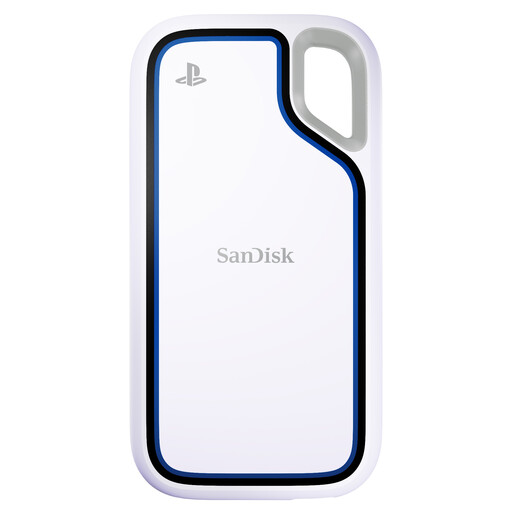
SANDISK Extreme 2TB portable SSD for PlayStation 5 and PC
Consider this 2TB portable SSD for computer storage if its capacity meets your backup needs. Its PlayStation 5 and PC positioning does not establish compatibility with your backup application, so check the required format and connection first.
View on Joybuy
Backup drive questions
How much larger should my replacement backup drive be?
Choose capacity based on what your backup tool saves, expected growth and how much older history you want to retain. For Time Machine specifically, Apple recommends a backup disk with at least twice the Mac’s storage capacity and advises dedicating it to Time Machine; that is not a universal rule for Windows backup tools.
Can one external drive work with Windows File History and Mac Time Machine?
Do not assume the same drive format will suit both backup tools. Microsoft says File History can use an external drive or network location, while Apple says Time Machine cannot back up to a Windows-formatted disk and prefers APFS or APFS Encrypted. Check the requirements before changing a drive’s format, which can erase existing files.
Does a portable SSD make backups safer than an HDD?
An SSD’s transfer speed does not create another backup copy. Its stated speed also depends on the particular drive, computer and connection; keep a separate offline or off-site copy regardless of which local drive type you choose.
Should I leave my backup drive connected all the time?
A connected drive can support convenient regular backups, but it should not be your only copy. The National Cyber Security Centre describes incidents in which ransomware affected connected USB and network backup drives, so plan for another copy that is offline or otherwise separated when not needed.


