Before reusing or erasing an old backup drive, identify how the backup was made and test that you can restore the files you need. Choose a replacement drive only after allowing for those files, retained backup versions and growth: an external HDD suits a larger local backup set, while a portable SSD suits frequent carrying and large-file transfers. An enclosure requires a compatible spare internal drive; whichever local route you choose, plan for a separate copy that is not continuously connected.
Who needs to make this choice?
PC replacers with an existing backup drive
If the old drive may hold your only copy of files from the previous computer, work out its backup format and test a restore before deleting, reformatting or reusing it. Microsoft Support documents recovery through File History; Apple Support documents restoration through Time Machine.
Home users running out of backup space
Count the files you protect, the backup versions you want to keep and expected growth. If you also need protection when the computer and its connected drive are affected together, plan a separate copy rather than relying on capacity alone.
People carrying a backup between locations
A portable drive may suit frequent moves and large-file copies. If considering an SSD for transfer speed, check the replacement computer’s port and cable against the drive’s requirements; a quoted maximum is not a speed you can assume from a USB-C connector alone.
What should you check before choosing?
Establish what can be restored from the old drive first, then size the next backup destination and decide where a separate copy will live. The drive type comes after those decisions.
| Priority | What to check | Your needs |
|---|
| Old backup recovery |
Identify ordinary files, Windows File History, Time Machine or another backup format. Find its restore function and test a file before erasing anything. |
I need files from the old computer and cannot risk deleting the only recoverable copy. Microsoft Support and Apple Support describe different restore paths for File History and Time Machine. |
| Capacity and history |
Add protected files, backup history you intend to retain and expected growth. For Time Machine, Apple Support recommends a disk with at least twice the Mac’s storage capacity; that is not a universal PC rule. |
I want enough room for new backups without immediately losing the older versions I still need. |
| Separate copy |
Decide which copy will be kept apart from the computer and when it will be disconnected. Cloud storage can provide another location, but check how its account and backup client are protected. |
If my computer and its attached drive are affected together, I still need a usable copy. The National Cyber Security Centre warns that ransomware has affected connected backup storage. |
| Local drive type |
Compare an external HDD’s stated capacity with the backup set; for a portable SSD, check its capacity and the host, cable and interface required for quoted speeds. |
For a larger home backup set, I would consider an HDD. If I carry the drive often or copy large files regularly, an SSD may better match that routine, provided its capacity is enough. |
| Enclosure fit |
Match a spare internal drive’s interface, physical size and capacity to the exact USB enclosure. StarTech.com specifies that its cited M.2 NVMe enclosure does not accept M.2 SATA drives. |
I already have a spare internal drive and want to reuse it, but I need to confirm that the enclosure actually accepts that drive. |
| Connection and access |
Check the replacement computer’s ports, the drive connector and the cable. If you encrypt a backup, keep its recovery password or key separately and available for restoration. |
I want a drive I can connect to the replacement computer and a backup I can still unlock when I need to restore it. |
What can go wrong?
-
Erasing the old backup before testing recovery
A folder may be part of File History or Time Machine rather than a set of files you can safely discard. Erasing it could remove the copy needed to restore files from the previous computer.
Identify the backup application and use its restore function to recover a non-critical test file before making destructive changes.
-
Leaving the only backup connected all the time
The National Cyber Security Centre reports incidents in which ransomware affected original files and connected backup storage.
Keep a separate copy offline or digitally disconnected when it is not being updated, and decide when you will reconnect it for backups.
-
Reading a USB-C plug as a speed guarantee
Samsung says the quoted maximum speeds for its T7 Shield 1TB require a USB 3.2 Gen 2 host and cable, with UASP enabled. A connector shape alone does not establish those conditions.
Check the replacement computer’s port specification and the cable before choosing a drive for its transfer-speed figure.
-
Encrypting a backup without planning recovery
Encryption can help restrict access to stored files, but losing the password or recovery key can also prevent you from restoring your own backup.
Store the recovery details separately and confirm that you can retrieve them before relying on the encrypted drive.
Relevant brand references
These examples illustrate product lines and specifications to check; they do not establish which particular drive will fit your backup.
Western Digital
Western Digital’s My Passport USB-C range is a reference for portable external HDD backups.
- Western Digital lists 2TB, 4TB, 5TB and 6TB variants and states that the cited 2TB model works with Windows PC, Mac and Chromebook devices using USB-C.
- Check the exact model and backup-software setup. Included software or password protection does not create a second independent copy.
Samsung
Samsung’s T7 Shield 1TB illustrates the portable SSD route for carrying files and making large transfers.
- Samsung UK specifies sequential read and write speeds of up to 1,050MB/s and 1,000MB/s for this model, subject to a compatible USB 3.2 Gen 2 host and cable with UASP enabled.
- Samsung’s IP65 and drop statements rely on controlled tests; Samsung says liquid, dust and drop damage are not covered under warranty.
Seagate
Seagate’s Backup Plus Portable line illustrates an external HDD with scheduled-backup options.
- Seagate describes capacity of up to 5TB, Windows plug-and-play use and Time Machine use after reformatting.
- Seagate’s UK page says this particular line is no longer in stock; do not assume the same features or setup apply to another model.
Joybuy drive options
These Joybuy options are portable SSDs, portable HDDs and a desktop HDD for local backups. Compare each capacity with the files and backup history you need to keep; none replaces the need to plan a separate copy.
 No image available
Samsung T7 Shield MU-PE1T0S 1TB Black
A portable SSD to consider if you carry your backup or transfer large files. The product name specifies 1TB, USB Type-C and USB 3.2 Gen 2; check that 1TB covers your retained backups and that the computer and cable meet Samsung’s conditions before relying on its quoted maximum speeds.
View on Joybuy
 No image available
Samsung Portable SSD T7 4TB Grey
A portable SSD option when your planned backup set calls for more stated capacity than a 1TB drive. Its name specifies 4TB, USB Type-C and USB 3.2 Gen 2; check the computer connection and required backup history, and do not assume water resistance.
View on Joybuy
 No image available
Western Digital My Passport 2TB Black
A portable external HDD for a local backup set that fits within its stated 2TB capacity. Check the replacement computer’s connection and the formatting required by your backup method; preserve the old backup before changing any drive’s format.
View on Joybuy
 No image available
Western Digital Elements Portable 4TB Black
A portable external HDD to consider when your local backup set needs more stated capacity than a 2TB option. Its name specifies 4TB and USB 3.0; confirm the computer connection and backup format, particularly before any reformatting for Mac use.
View on Joybuy
 No image available
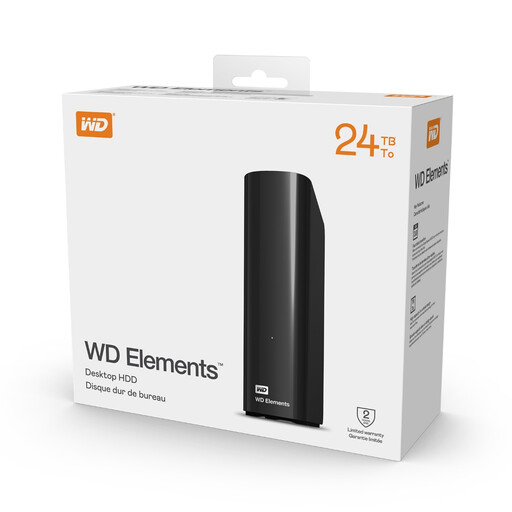
Western Digital Elements Desktop 24TB
A desktop external HDD for a stationary backup location if your calculated storage requirement warrants its stated 24TB capacity. It requires an external AC adapter, so check the available space and power as well as the backup method before choosing it.
View on Joybuy
Backup storage questions
Can I delete an old backup folder after setting up my replacement PC?
Keep it until you have identified its backup format and successfully restored the files you need. Microsoft Support describes restoring earlier file versions with File History, while Apple Support describes restoration from Time Machine; use the path that matches your backup and try a non-critical file first.
How large should a backup drive be?
Allow for the files being protected, backup history you intend to keep and expected growth. For Time Machine specifically, Apple Support recommends a backup disk with at least twice the Mac’s storage capacity; other backup methods need their own capacity assessment.
Is one external drive enough for backup?
One drive leaves you dependent on that copy if it fails, is lost or remains connected during an incident. The National Cyber Security Centre advises keeping backup data in a separate safe location and an offline or digitally disconnected copy when it is not in use.
Can I use a spare internal SSD in a USB enclosure?
Yes, if the enclosure supports that drive’s exact interface and physical size, and the drive has enough capacity for your backup. For example, StarTech.com specifies that its cited enclosure accepts particular M.2 NVMe PCIe drives but not M.2 SATA drives; an M.2 label alone is not enough to establish compatibility.


