For an online lesson in a basement, check whether the weak point is Wi-Fi coverage, a busy connection or the broadband service before replacing the router. A standalone router is worth considering when it can reach the room and several devices are active; mesh needs a usable path between nodes, while Ethernet is the more reliable choice when a cable route is practical. Ofcom notes that objects weaken Wi-Fi signals, so no router rating or mesh coverage claim guarantees a connection in a particular basement.
Who needs which approach?
Basement dead-spot learners
If the lesson device struggles mainly because floors or dense materials separate it from the router, plan where a nearer network point could go before choosing a faster-rated router. Ofcom notes that objects weaken Wi-Fi signals.
Busy-home video-call users
If lessons coincide with other household activity, check the broadband connection as well as router capacity. Wi-Fi 6 multi-device features may be relevant, but they do not remove a basement signal obstruction.
Reliability-first learners
If interruptions during a live lesson are the main concern and a cable can be run, consider Ethernet to the lesson device or a cable-fed network point. Ofcom recommends connecting a computer directly to the router by Ethernet for a faster, more reliable connection than Wi-Fi.
What matters when choosing?
Choose a network layout that addresses the weak point in the lesson room; a router upgrade, mesh and Ethernet solve different parts of the connection.
Standalone router
Consider it when: The router can be placed centrally and its signal reaches the basement, but several active devices share the connection.
Trade-off: Wi-Fi 6 capacity features cannot overcome severe signal loss through floors or walls.
Mesh Wi-Fi
Consider it when: The basement remains a weak spot and a node can be positioned where it still receives a usable connection.
Trade-off: Node placement needs testing; stated coverage does not predict performance through your basement construction.
Ethernet
Consider it when: A cable can reach the lesson device or a compatible network node and connection stability takes priority.
Trade-off: It requires a practical cable route and another network point if wireless coverage is also needed nearby.
| Concern | What to check | Who this matters to |
|---|
| Basement coverage |
Test at the lesson position; check whether a mesh node could sit between the router and basement or use a wired connection. |
When floors or dense materials weaken my lesson-room signal, I need coverage closer to the device. Around 36% of consumers put that coverage need first. |
| Lesson stability |
Check upload and download performance at lesson times and whether Ethernet can reach the device or a compatible node. |
If a live lesson keeps breaking up, I would favour a workable cable route over relying on the same weak wireless link; roughly 29% of consumers prioritise connection stability. |
| Shared-home capacity |
Check actual broadband performance during concurrent use and whether the lesson device supports the router features you need. |
When other people use the connection during my lesson, I need it to cope with simultaneous activity. About 21% of consumers make shared-home capacity their primary concern. |
| Setup compatibility |
Identify the existing provider gateway, modem or fibre ONT and confirm how the proposed equipment connects. |
If replacing the provider router could complicate setup or support, I want the connection arrangement settled before ordering; around 14% of consumers put compatibility first. |
Mistakes to avoid
-
Buying a faster-rated router before finding the weak point
A higher advertised Wi-Fi rate will not fix a broadband bottleneck or remove dense barriers between the router and basement.
Test the connection where the lesson takes place and, where practical, reposition the existing router before deciding what to buy.
-
Putting a mesh node in the dead spot
A wireless mesh node needs a usable connection to the rest of the network to serve the basement.
Plan an intermediate position and test it, or check whether the chosen system supports Ethernet backhaul if a cable route is possible.
Extending the layout may require another node or a cable between network points.
-
Assuming optional services remain included
Some mesh systems distinguish their core router functions from optional security or management services.
Check which functions remain available after any included service period and whether continued access requires a subscription.
-
Replacing the provider router without checking the connection
A replacement router may need a particular modem, fibre ONT or gateway configuration; Ofcom also notes that independently bought routers can make provider troubleshooting harder.
Identify the existing equipment and confirm the proposed setup with the provider and hardware instructions before ordering.
Changing the network layout can also take setup time or require additional compatible hardware.
Relevant brands to consider
TP-Link
Its Archer and Deco lines represent standalone-router and expandable-mesh approaches respectively.
- TP-Link lists Wi-Fi 6 and EasyMesh compatibility for the Archer AX55, and optional Ethernet backhaul for the Deco X50.
- Deco X50 coverage claims do not establish signal quality through a particular basement.
ASUS
The RT-AX58U is a standalone Wi-Fi 6 option for a layout where one router can reach the lesson room.
- ASUS lists OFDMA, MU-MIMO and an option to build an AiMesh network with compatible hardware.
- Compatible client devices are needed for the relevant Wi-Fi 6 benefits; advertised rates do not establish basement reach.
NETGEAR Orbi
The RBK763S is a tri-band Wi-Fi 6 mesh kit for buyers planning connections between several network points.
- NETGEAR describes a dedicated router-to-satellite connection for the RBK763S.
- Its included NETGEAR Armor period lasts one year; continuation requires a subscription.
eero
The eero 6+ is an app-led Wi-Fi 6 mesh option that can be expanded with compatible eero hardware.
- The UK eero 6+ listing describes app-guided setup and expansion across compatible eero generations.
- Check which security and network-management functions require a separate subscription.
Joybuy product choices
These products cover mesh kits for planning a connection towards a basement room and one standalone router to consider where central placement can reach it. Check placement and compatibility against your existing broadband equipment before choosing.
 No image available
NETGEAR Orbi 370 RBE373 Wi-Fi 7 Mesh System, 3-Pack
Consider this three-pack if network points can be positioned along a workable route towards the basement; test the signal at the lesson position.
The listed variant is dual-band BE3600 with 2.5Gbps Ethernet. Confirm that the exact variant's power supply and radio configuration suit UK use and that it connects to your existing broadband equipment.
View on Joybuy
 No image available
TP-Link Deco BE22 Wi-Fi 7 Mesh System, 3-Pack
This three-pack is an option when you can place network points between the main connection and a weak basement room; placement still needs testing.
The title specifies BE3600. Confirm the exact variant's UK power and radio suitability, as well as its connection to your existing broadband equipment.
View on Joybuy
 No image available
TP-Link Deco BE25 Wi-Fi 7 Mesh System, 3-Pack
Consider its three-unit layout if you have useful positions for network points towards the basement, then test the lesson-room connection.
Check how this kit connects to your gateway, modem or fibre ONT; its mesh designation does not establish coverage through your floors.
View on Joybuy
 No image available
TP-Link Deco BE65 BE9300 Tri-Band Wi-Fi 7 Mesh System, 3-Pack
This three-pack suits a planned mesh layout with suitable intermediate positions; confirm the basement connection after placing the units.
The title specifies tri-band BE9300. If you intend to wire network points together, confirm wired-backhaul support and port details for this exact kit, along with broadband-equipment compatibility.
View on Joybuy
 No image available
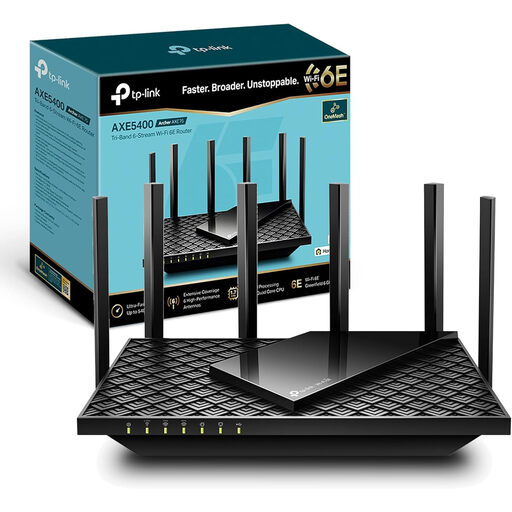
TP-Link Archer AXE75 AX5400 Tri-Band Wi-Fi 6E Router
Consider this standalone router when a central position can give the basement a usable signal and shared-home activity is a concern; a single router does not ensure basement coverage.
The title specifies tri-band Wi-Fi 6E. Confirm device compatibility for the features you intend to use and check how the router connects to your existing broadband equipment.
View on Joybuy
Questions about basement lessons
Will a higher-rated standalone router fix basement Wi-Fi?
Not necessarily: Ofcom notes that Wi-Fi weakens as it passes through objects. Test at the lesson position after repositioning the current router where practical; if the signal remains weak, consider a suitably placed mesh node or a wired route.
What connection speed should I check for a group lesson?
Check the requirements of the lesson platform and its video settings. As a reference for Zoom's high-quality group video in the web app, Zoom lists 1.0 Mbps upload and 600 kbps download; test both directions in the basement when lessons normally occur, especially if others share the connection.
Is Ethernet worth using for the lesson device?
Yes, when a cable route is practical and stability matters most. Ofcom recommends Ethernet directly between a computer and router for a faster, more reliable connection than Wi-Fi; compatible mesh hardware may also allow a wired connection between network points if wireless coverage is needed in the basement.
Can I replace my broadband provider's router?
Possibly, but confirm your gateway, modem or fibre ONT arrangement and the replacement's connection requirements first. Ofcom notes that independently bought routers can be harder to set up and may make provider troubleshooting more difficult.


