For regular A4 reading lists that are mostly black text, start with a mono laser printer and check that its paper tray and two-sided printing suit your class-set runs. Choose a multifunction model if staff also copy or scan paper materials; consider refillable colour ink when colour handouts are a recurring need, while checking the exact model’s print functions and supply requirements.
Who each option suits
Teachers printing frequent black-text class sets
If reading lists are mainly A4 text, a mono laser with automatic two-sided printing can reduce manual page turning. Check tray capacity against the number of sheets you print in a typical run; Brother UK lists a 250-sheet tray for its HL-L2445DW.
Classrooms that also copy and scan
If paper worksheets and forms regularly need copying or scanning, consider a multifunction model rather than assuming a print-only printer will cover those tasks. Brother UK lists a 50-sheet automatic document feeder on the MFC-L2860DW for handling multi-page originals.
Teachers producing colour-supported materials
If colour-coded lists or visual handouts are part of the workload, consider a colour-capable printer. Epson positions its refillable-ink ET-1810 for colour printing, but it is a print-only model, so copying and scanning would need another device.
What matters when choosing
Print-only mono laser
Choose when: Reading lists are predominantly A4 black text and the device does not need to process paper originals.
Trade-off: A print-only mono model cannot provide colour output or built-in copying and scanning.
Multifunction mono laser
Choose when: The same device must print reading lists and regularly copy or scan paper materials.
Trade-off: Check which extra functions staff will use; an automatic document feeder matters most when originals have several pages.
Refillable colour ink
Choose when: Colour-coded lists or visual handouts are a recurring part of classroom printing.
Trade-off: Confirm the particular model’s two-sided printing and copy or scan functions; refillable ink alone does not establish either.
| Concern |
What to check |
Who this matters to |
| Black-text class sets |
Check A4 print speed, whether two-sided printing is automatic, and how many sheets the tray holds. |
I print several copies of text-heavy lists and want fewer pauses to turn pages or reload paper; around 42% of consumers put black-text turnaround first. |
| Copying and scanning |
Confirm both functions are included and whether an automatic document feeder is needed for multi-page originals. |
Paper worksheets need copying or scanning as well as reading lists being printed, so around 25% of consumers make that combined workflow their primary concern. |
| Colour and refills |
Check colour capability, compatible supplies and the conditions behind stated ink yields. |
Colour-coded lists or visual handouts are important enough to shape my printer choice; around 25% of consumers put colour and refill needs first. |
| Shared access |
Check connections against school IT requirements and agree how jobs containing personal information will be handled. |
Several staff may send jobs to one device, and I need it to fit the school’s information-handling procedures; around 8% of consumers prioritise shared access and handling above the other factors. |
Mistakes to avoid
-
Choosing print-only when paper originals are routine
A print-only model can handle reading lists but cannot take over classroom copying or scanning.
List the tasks staff do each week. If copying and scanning recur, compare multifunction models and decide whether multi-page originals call for an automatic document feeder.
Otherwise, staff may need a separate scanner or copier or spend time using a shared device elsewhere.
-
Treating stated supply yields as guaranteed output
Page-yield claims depend on test conditions; the documents and colour coverage printed in a classroom may differ.
Check the compatible ink or toner for the exact model and consider the expected mix of black-text lists and colour materials. Where toner and drum are separate, check both replacement requirements.
-
Overlooking cartridge restrictions
HP states that dynamic security on the LaserJet Pro MFP 3102fdw can block cartridges using a non-HP chip, making supply compatibility important for that model.
Before selecting it, check the school’s consumables policy and HP’s stated cartridge-compatibility conditions.
-
Connecting a shared printer without a handling plan
Reading lists or queued jobs may contain personal information. The Department for Education’s guidance on data protection in schools says staff have a responsibility to protect personal data.
Where personal information is involved, agree device access, printer placement and collection of pages with the school’s IT lead or data protection officer.
Relevant brands to consider
Brother
Brother’s UK mono laser range includes a print-only route in the HL-L2445DW and a copy-and-scan route in the MFC-L2860DW.
- Brother UK lists automatic two-sided printing and 250-sheet trays for both models; the MFC-L2860DW also has a 50-sheet automatic document feeder.
- The HL-L2445DW does not provide built-in scanning or copying, so confirm which functions the classroom needs.
Epson
Epson’s EcoTank ET-1810 illustrates a refillable-ink option for classrooms that also print colour materials.
- Epson states yields of up to 4,500 black pages and 7,500 colour pages from one ink set under its test conditions; those figures are not a forecast for a particular classroom.
- The ET-1810 is print-only, without an integrated scanner or copier.
HP
HP’s LaserJet Pro MFP 3102fdw is a mono multifunction option for staff who share printing, copying and scanning tasks.
- HP lists print, copy, scan and fax functions and rates black A4 printing at up to 33 pages per minute for this model.
- HP states that its dynamic security can block cartridges using a non-HP chip; check whether that suits the school’s supply policy.
Joybuy printer choices
These choices cover different ways to print classroom reading lists, including mono document printing and models that also offer colour or other functions. Check each model’s stated capabilities rather than assuming printers in the same category handle two-sided pages, copying or scanning alike.
 No image available
Epson EcoTank ET-5150 +Ink multifunction printer
Consider this A4 model if the classroom needs reading-list printing alongside copying and scanning. Its product name also specifies Wi-Fi; check its two-sided printing and compatible ink against the work you expect it to do.
View on Joybuy
 No image available
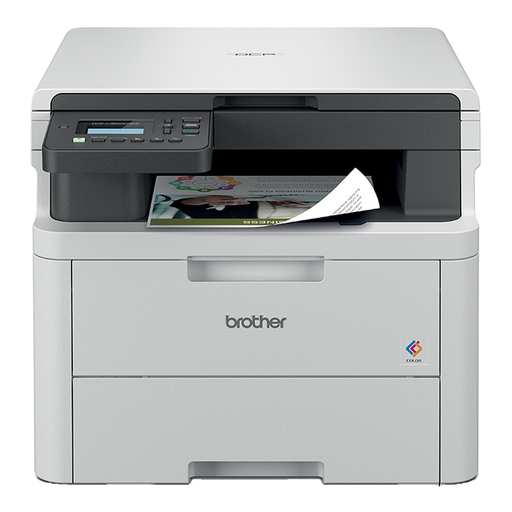
Brother DCP-L3520CDWE colour laser printer
Consider this model when colour printing matters alongside reading lists. Check the exact copy, scan and paper-handling functions before relying on it for other classroom tasks.
View on Joybuy
 No image available
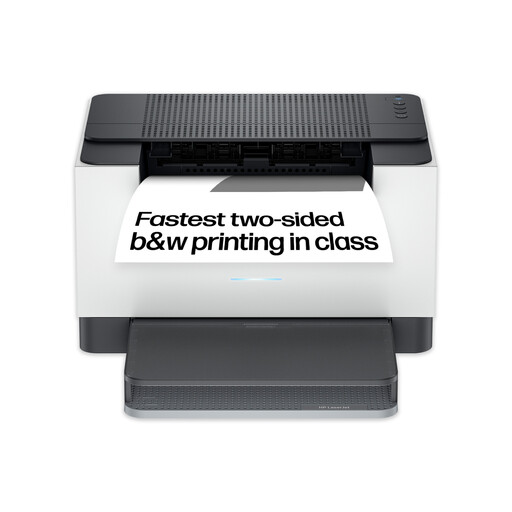
HP LaserJet M209dw wireless mono printer
Consider this model for black-and-white reading lists where wireless printing is useful. Its product name specifies two-sided printing and a 150-sheet input tray; confirm whether it has any copy or scan functions before planning those tasks around it.
View on Joybuy
 No image available
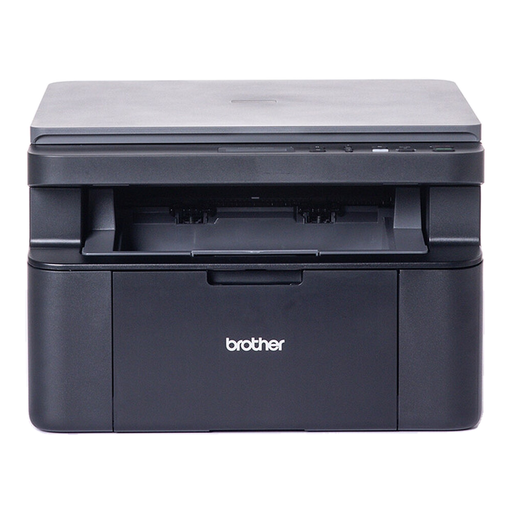
Brother DCP-L1640W mono laser printer
Consider this mono laser model for black-text reading lists if its paper-handling functions fit your class-set runs. Check whether two-sided printing is manual and confirm the copy and scan functions needed for paper originals.
View on Joybuy
Frequently asked questions
Should a small classroom choose mono laser or refillable ink for reading lists?
Start with mono laser when lists are mainly frequent A4 black-text documents; check automatic two-sided printing and tray capacity on the specific model. Refillable colour ink is worth considering when colour-coded lists or handouts are a regular need, but check the chosen model’s speed and whether it also copies or scans.
When does a classroom need a multifunction printer?
Choose multifunction when staff regularly copy or scan paper originals as well as print reading lists. If originals often have several pages, check for an automatic document feeder; Brother UK lists a 50-sheet feeder on the MFC-L2860DW.
What should staff check before connecting a shared classroom printer?
Confirm that its connection methods meet the school’s IT requirements and obtain any required approval. If print jobs may contain personal information, follow the school’s handling procedures; the Department for Education advises school staff to protect personal data.
How should a school handle an old printer?
Check the school’s approved electrical-equipment disposal route and any supplier take-back arrangement. UK government guidance describes waste electrical and electronic equipment rules intended to reduce electrical waste, so do not assume an old printer belongs with ordinary classroom rubbish.


