Start by deciding whether your two-screen workspace means the laptop display plus one monitor, or two external monitors alongside the laptop. For a Windows-oriented desk setup, consider a laptop with documented display outputs, but confirm that its exact configuration supports your monitors; if your development tools require macOS, check the MacBook Pro chip’s display limit and the resolutions you intend to use. Once the screen arrangement and toolchain fit, choose memory and storage for your local workload.
Who needs which setup?
Developers using two external monitors
If you want your editor, terminals, documentation and browser visible across two external monitors, check the laptop’s documented display capacity for the exact configuration. Several ports alone do not establish that both monitors will work as intended.
Hybrid workers using the laptop screen and a monitor
If you move the laptop regularly and connect one monitor at your desk, check the display connection, charging arrangement and any dock you plan to use before prioritising capacity for additional screens.
macOS developers with multiple displays
If your tools call for macOS, choose the MacBook Pro model and chip against your planned number of external monitors. Apple says display support can also vary with resolution.
What matters when choosing?
Settle the screen layout first, then check your development tools and the practicalities of connecting the laptop at your desk.
| Concern |
What to check |
Who this matters to |
| Displays and docking |
Check the exact model’s supported external-monitor count and display modes, then match the dock and cables to your monitors. |
I want two external monitors for my editor and reference material, so the complete connection setup needs to work at my desk. Around 45% of consumers put display and dock capability first. |
| Moving between desks |
Check whether your chosen connection can handle the monitor, charging and peripherals you need when you sit down. |
If I carry the laptop regularly, I want to reconnect to one monitor without rebuilding my workspace each time. For around 28% of consumers, that simpler transition is the primary concern. |
| Tools and local workload |
Confirm operating-system and chip compatibility with required tools; assess memory and storage against the projects you run locally. |
My codebase and local tools have to run on the machine I choose, even if another model offers more display capacity. Toolchain and workload fit come first for around 27% of consumers. |
Mistakes to avoid
-
Counting ports instead of supported monitors
HDMI and USB-C or Thunderbolt sockets offer connection options, but the supported display arrangement can depend on the exact laptop configuration and how the screens are connected.
Compare the manufacturer’s display specifications for your configuration with the monitor resolutions, refresh rates and dock display modes you intend to use.
A different dock, adapter or cable may be needed if the planned connection path cannot support that arrangement.
-
Assuming every MacBook Pro chip has the same display limit
Apple states that additional-display support depends on the Mac model and chip and can vary with display resolution. Apple lists up to two high-resolution external displays for M5 Pro and up to four for M5 Max.
Write down your external-monitor count and intended resolutions before checking the specifications for the particular MacBook Pro chip.
-
Leaving “two screens” undefined
A laptop display plus one monitor is a different requirement from two external monitors, particularly if you also intend to use the laptop panel.
Sketch the final desk layout, including which screens stay in use and whether they connect directly or through a dock, before comparing laptops.
-
Assuming every variant has the same graphics configuration
For the ThinkPad T14 Gen 5 (Intel), Lenovo says Intel Arc graphics is available only on selected H-series configurations with at least 16GB of dual-channel memory.
Check the complete configuration code and its specification sheet rather than relying on the laptop family name.
Relevant brands and model lines
Lenovo
The ThinkPad T14 Gen 5 (Intel) is a reference point for a Windows-oriented desk setup with conventional display connections.
- Lenovo’s specification lists two Thunderbolt 4 ports and HDMI for this model.
- Port count does not establish the display modes of every configuration. Lenovo limits Intel Arc graphics to selected H-series systems with at least 16GB of dual-channel memory.
Apple
MacBook Pro is relevant when the development workflow calls for macOS and the chip’s external-display support fits the desk setup.
- Apple states that MacBook Pro with M5 Pro supports up to two high-resolution external displays, while M5 Max supports up to four.
- Apple says the number of additional displays depends on the Mac model and chip and can vary with display resolution.
Dell
The Pro Max 14 MC14255 provides a model-specific reference if your desk setup may grow beyond two external monitors.
- Dell’s connection guide states that this model can connect up to four 4K external displays or one 8K display through Thunderbolt 4 USB-C and HDMI.
- Apply that guidance to the named model, not every Dell laptop; check the exact configuration and connections you plan to use.
Joybuy laptop choices
These choices include a laptop with two built-in screens, a MacBook Pro for a macOS workflow and a Windows laptop with listed display connections. Match the exact model to your intended external monitors before choosing.
 No image available
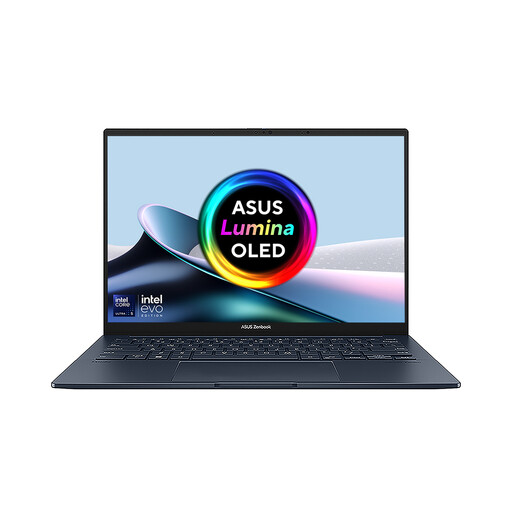
ASUS Zenbook DUO UX8406CA-QL135W 14-inch Dual OLED Touch
Consider its two built-in screens if your workspace does not need two external monitors.
The named configuration has an Intel Core Ultra 7 255H, 16 GB LPDDR5X memory and a 1 TB SSD.
Confirm the exact panel resolution and any external-monitor arrangement you intend to use before buying.
View on Joybuy
 No image available
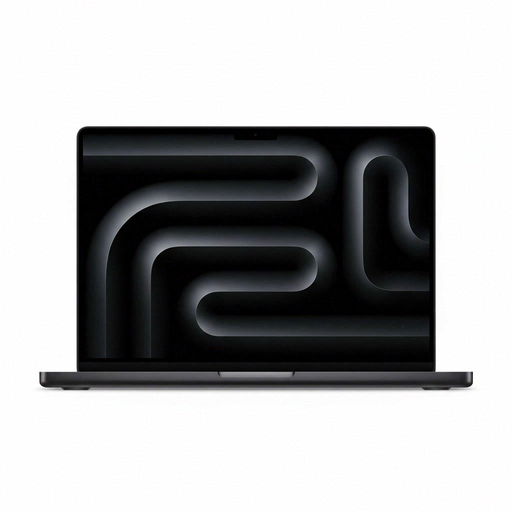
Apple MacBook Pro 14.2-inch M5 Pro, 24GB/2TB, Space Black
Consider this configuration if macOS fits your development tools and you need to plan a multi-monitor desk setup.
The product name specifies a 15-core CPU, 16-core GPU, 24 GB unified memory and 2 TB storage.
Apple states that M5 Pro supports up to two high-resolution external displays; check the exact display arrangement and resolutions for this configuration. Check whether the power adapter you need is included.
View on Joybuy
 No image available
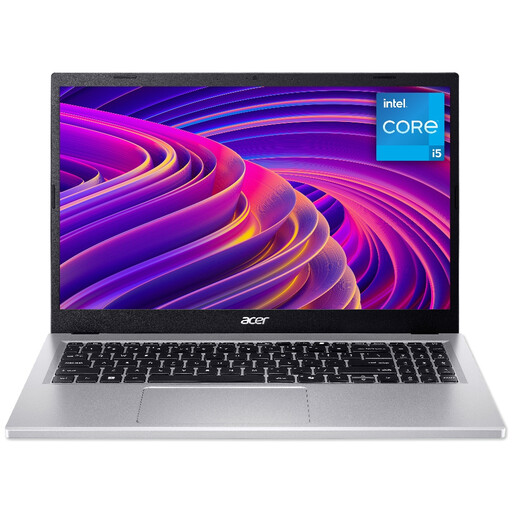
Acer Aspire Go AG15-71P 15.6-inch Full HD, Silver
Consider this Windows laptop for source-code editing if its connections and memory fit your planned desk setup and tools.
The named configuration has a 1920 × 1080 display, an Intel Core i5-13420H, 8 GB memory and a 512 GB SSD.
Check whether its HDMI and USB-C DisplayPort connections can run your intended monitors simultaneously, and confirm the memory options for your workload.
View on Joybuy
Frequently asked questions
What should I check for two external monitors?
Check the external-display capacity of the exact laptop configuration, not just its port count. Match its supported monitor count, resolutions and refresh rates to your screens, then check the dock and cables for the same arrangement.
Can every MacBook Pro run two external monitors?
Do not assume the same limit applies to every MacBook Pro. Apple states that M5 Pro supports up to two high-resolution external displays and M5 Max up to four, while the number supported can depend on the Mac model, chip and display resolution.
Will a dock let me use more monitors than the laptop supports?
A dock offers connection options, but you should not assume it changes the laptop’s documented external-display limit. Check the laptop, dock, monitor inputs and cables as one setup before ordering.
Can I repair a ThinkPad T14 Gen 5 myself?
Lenovo publishes a self-repair guide for ThinkPad T14 Gen 5 variants 21ML, 21MM, 21MC and 21MD. Check the instructions for your exact variant and the applicable warranty terms before attempting a repair.


