What to check before buying
Decide whether you want a separately chosen display or an all-in-one, then check the screen against your window position. Assess desktop performance against the files and applications you actually use.
Desktop with a separate monitor
Consider it when: You need freedom to choose a screen surface and stand that work at your desk, or may change the display later.
Trade-off: The computer, monitor and any required cables or mount must work together and fit the available space.
All-in-one desktop
Consider it when: You prefer an integrated computer and display, and its screen meets your needs at this desk.
Trade-off: Changing an unsuitable built-in display is less straightforward than replacing a separate monitor.
| Concern |
What to check |
Who this matters to |
| Glare and legibility |
Check the screen’s stated surface treatment and adjustment options; assess where window light will reflect at your desk. |
If daylight crosses the screen, I need to read small labels without fighting reflections. Around 36% of consumers put glare control first. |
| Chart workspace |
Compare screen size with native resolution, and match the desktop’s video outputs to the monitor inputs and intended display count. |
When I compare charts with tables or notes, I need enough visible workspace to keep them in view. For around 29% of consumers, workspace is the primary concern. |
| Analysis workload |
Check the requirements of your applications and largest files, including memory and support for the displays you intend to use. |
If my chart review also involves large workbooks or specialist analysis, I need a computer suited to those tasks. Workload headroom comes first for around 21% of consumers. |
| Desk simplicity |
Check the all-in-one’s built-in screen and adjustment, or allow room for a separate desktop, monitor and connections. |
At a crowded desk, I may favour fewer separate components, provided I can still position the screen properly. Around 14% of consumers prioritise a simpler setup. |
Brands to consider for this setup
These examples illustrate features to assess on particular computers or displays, not features shared by every product from a brand.
Dell
Relevant if you want to choose a desktop and adjustable monitor separately.
- Dell lists anti-glare treatment, a USB-C hub and height, pivot, swivel and tilt adjustment for its P2425HE monitor.
- Check whether that model’s Full HD resolution gives you enough room for the chart detail you review.
HP
Relevant to both integrated and separate-display setups.
- HP’s Pro Tower 400 G9 example lists 16 GB RAM, a 512 GB SSD and support for up to three displays; HP also lists all-in-one configurations with anti-glare displays.
- Confirm the screen and display connections on the exact computer configuration rather than applying either example across the range.
Lenovo
Relevant if you are comparing separate monitors for a brightly lit desk.
- Lenovo describes the D32-40 screen as anti-glare and lists HDMI and DisplayPort inputs for that model.
- Its 31.5-inch Full HD specification should be assessed against the amount of fine chart detail you need to see.
Apple
Relevant if you are considering a Mac desktop with a separately selected display.
- Apple describes an anti-reflective coating on Studio Display and offers a nano-texture glass option for bright light sources.
- Those display options do not establish compatibility with every Mac or analysis application; check the intended computer, software and connections.
Monitors for a separate-desktop setup
These are displays to consider alongside a separately chosen desktop for chart review. None is a complete computer: check its screen characteristics and connection to your intended desktop before choosing.
 Image unavailable
ASUS ProArt PA278CV IPS WQHD monitor
Consider this separate monitor if WQHD resolution is important for viewing chart content. Check the screen finish, positioning adjustments and connection to your desktop; you will also need the computer and a compatible cable.
View on Joybuy
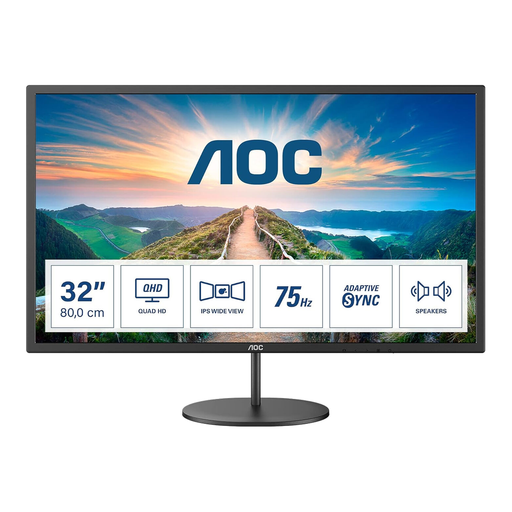 Image unavailable
AOC Q32V4 31.5-inch IPS monitor
This separate monitor is worth assessing if you want a 31.5-inch screen for charts and accompanying material. Confirm its native resolution, screen finish, positioning options and input connection against your desktop and desk layout.
View on Joybuy
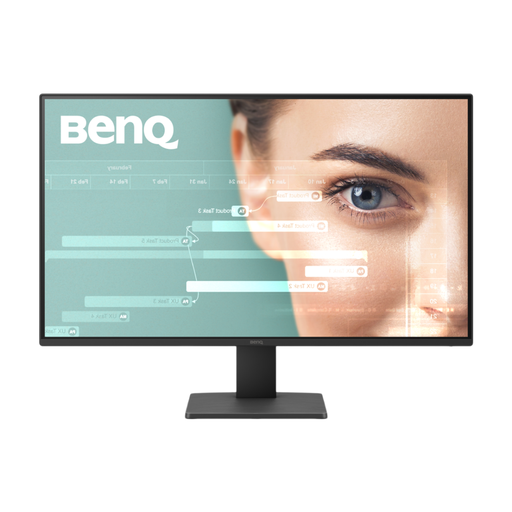 Image unavailable
BenQ GW2791 27-inch IPS Full HD monitor
Consider this separate display if a 27-inch Full HD IPS screen meets your chart-viewing needs. Check whether Full HD leaves enough room for fine labels and side-by-side material, and confirm the screen finish, adjustment and desktop connection.
View on Joybuy
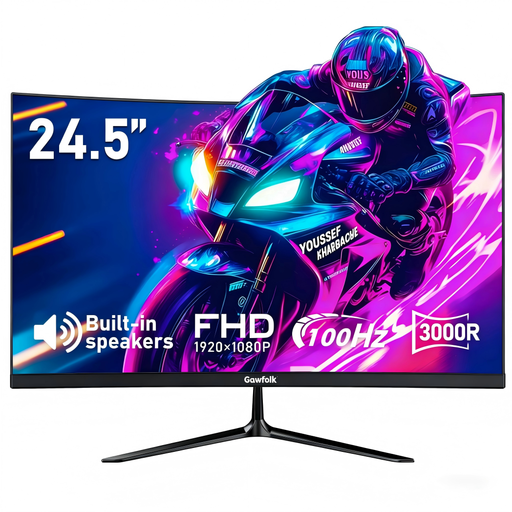 Image unavailable
Gawfolk 24.5-inch FHD 3000R curved anti-glare monitor
If a smaller separate screen suits your desk, assess this anti-glare FHD model at the intended window position. Its title specifies 3000R curvature, HDMI and 75 × 75 mm VESA mounting; check the rated brightness, desktop connection and whether its viewing arrangement suits detailed charts.
View on Joybuy
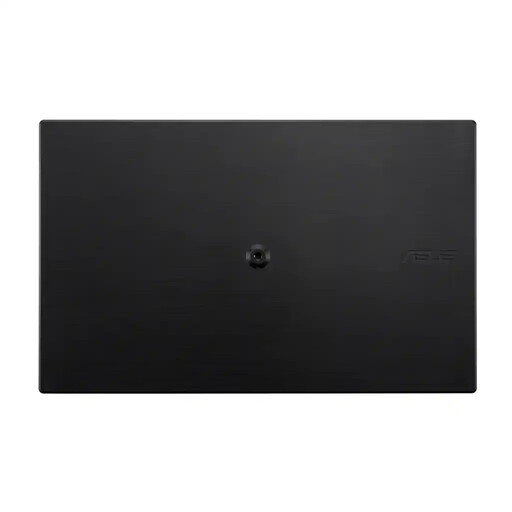 Image unavailable
ASUS ZenScreen MB166C 15.6-inch Full HD portable monitor
This portable IPS display is an option to assess for a compact or secondary chart screen, rather than a complete desktop setup. Its title specifies an anti-glare surface and USB Type-C connection; confirm that your desktop’s USB-C port supports the required video mode and that the screen can be positioned suitably beside the window.
View on Joybuy
Common questions
Do I need a workstation just to review statistical charts?
Not necessarily: match the desktop to the files and applications you use, not the word “charts” alone. Microsoft’s minimum requirements establish a baseline for Microsoft 365, while its Excel guidance says open workbooks depend on available memory and system resources; check specialist software and large-file requirements separately.
Will an anti-glare monitor solve reflections from the window?
An anti-glare surface can be relevant, but you still need to assess the screen’s position and the lighting at your desk. The Health and Safety Executive’s display-screen guidance addresses arranging screens and lighting to avoid reflections and glare.
What should I check before connecting two chart-review monitors?
Check the exact desktop configuration’s supported display count and video outputs, then match each monitor’s inputs and the required cables or adaptors. HP lists support for up to three displays on its cited Pro Tower 400 G9 example, but that specification should not be assumed for another desktop.
Does a desktop used for work need a workstation assessment?
For workers who use display-screen equipment daily as part of normal work, continuously for an hour or more, the Health and Safety Executive says employers must carry out a workstation assessment. That duty concerns the working setup; it is not a certification of a particular desktop or monitor.


