What to check before buying
Start with the service used by both households, then test the real call routine before choosing a device or accessory.
| Priority |
What to check |
Your needs |
| Calling-service compatibility |
Check the selected app or browser route on every participant’s device. Confirm account requirements, current app support, and camera and microphone permissions. |
I need everyone to have a practical way to join the same call without replacing devices unnecessarily. |
| Setup and accessibility |
Try sign-in, call answering and ending, contact selection and relevant accessibility controls. Check whether a trusted supporter can help with the initial setup if needed. |
I want the caller to reach a small set of familiar controls without relying on unfamiliar gestures or tiny text. |
| Connection, sound and camera |
Make a test call in the normal room and at the usual calling time. Check Wi-Fi or mobile coverage, front-camera framing, microphone access and charging. |
I need calls to be clear enough to hear and see family from the place where the device will actually be used. |
| Hands-free positioning |
Check that any stand or folio fits the exact model and leaves cameras, microphones, buttons and the charging port accessible. Consider the device’s weight before relying on handholding. |
I would rather place the screen at a comfortable angle than hold it throughout a longer conversation. |
Joybuy tablet options
Joybuy tablet options for households considering a movable device with a front camera for regular family video calls.
 No image available
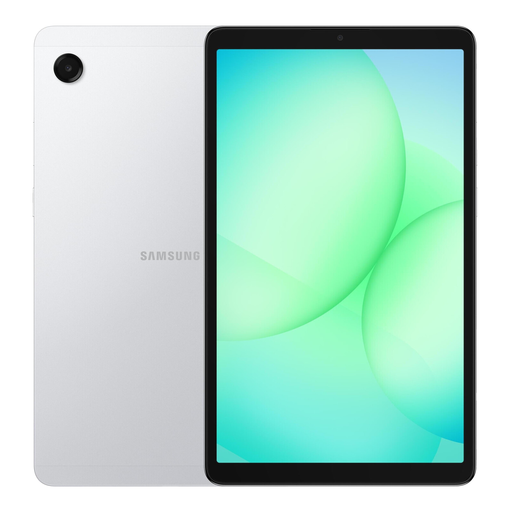
Samsung Galaxy Tab A11 X130 8.7-inch WiFi, 4GB/64GB
A compact option for carrying between rooms or when visiting family.
Listed with an 8.7-inch display, 335g weight, 5MP front camera, Wi-Fi 5, dual Dolby Atmos speakers and a 3.5mm audio jack. Test the family’s calling app, account route and permissions; check charging provision and hands-free support separately.
Joybuy
 No image available
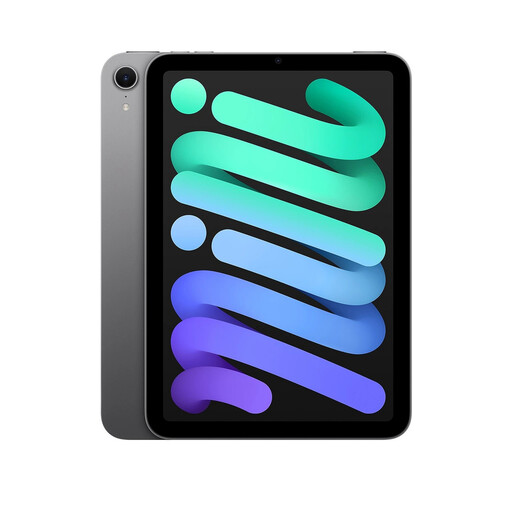
Apple iPad Mini 7 (A17 Pro), 512GB, Space Grey
A compact iPad route for callers who want a small self-contained screen for moving around the home.
Listed with an 8.3-inch format, 293g weight, USB-C and a 12MP front camera with Center Stage. Check the selected service on the installed iPadOS version, and arrange a compatible stand or case if calls will be made seated.
Joybuy
 No image available
Samsung Galaxy Tab S11 Ultra X930 14.6-inch WiFi, 12GB/256GB
A larger-screen choice for a seated household calling position where carrying the device often is less important.
Listed with a 14.6-inch display, 692g weight, 12MP front camera, Wi-Fi 7 and Android 16. Its size and weight make a stable hands-free position especially important; test app support, camera and microphone permissions before buying.
Joybuy
 No image available
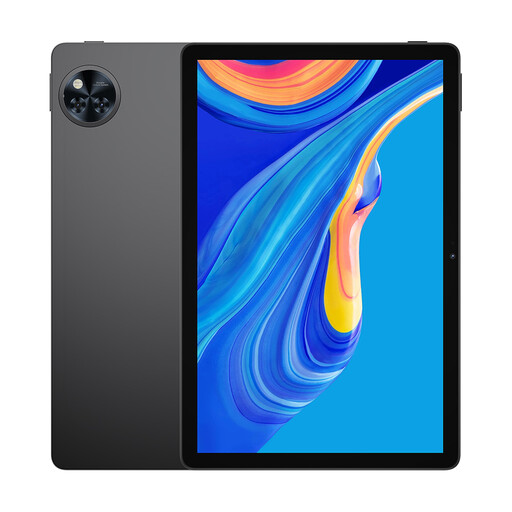
DOOGEE U11 Pro 11-inch Tablet, 30GB/256GB
An 11-inch tablet route for routine calls in different rooms, with wired listening available where useful.
Listed with Android 15, an 11-inch display, 5MP front camera, dual-band Wi-Fi, USB-C and a 3.5mm headphone jack. Confirm current calling-app support, accessibility needs and a suitable stand before relying on it for a regular call routine.
Joybuy
 No image available
TABWEE W90 11-inch Tablet, 24GB/256GB
A tablet option for calls away from home Wi-Fi where mobile connectivity is part of the intended setup.
Listed with an 11-inch display, 8MP front camera, dual-SIM 4G LTE and 2.4/5GHz Wi-Fi. Confirm the installed operating-system version and current app support, and check charging equipment, accessibility controls and hands-free positioning separately.
Joybuy
Frequently asked questions
Can an Android or Windows user join a FaceTime call from an iPad owner?
Yes, where an Apple-device user creates and shares a FaceTime link. Apple Support says Android and Windows participants can join through current Chrome or Edge after allowing camera and microphone access; they need a strong connection, and web participants cannot use SharePlay or screen sharing.
Does everyone need a Google account for a Google Meet family call?
Not always. Google’s joining guidance says people who are not signed in can request to join, although the organiser’s account type and Workspace settings can restrict access. Test the family’s exact setup before relying on it for regular calls.
What should be tested before giving a tablet to the intended caller?
Make a real call from the intended room and seating position. Check joining and ending the call, notifications, front-camera framing, microphone clarity, Wi-Fi reliability, charging, the selected contact or meeting link, and any accessibility settings needed after setup.
Can a stand or folio make a meaningful difference for calls?
It can make hands-free positioning easier when it fits the exact tablet. Logitech describes its tablet stand as intended for video calls, while Apple says its Smart Folio for iPad (A16) can fold into a FaceTime position; compatibility remains model-specific.
How should the household protect the account used for video calling?
Use strong account protection and enable two-step verification where available. The National Cyber Security Centre advises households to use two-step verification, manage passwords through browsers and apps, and review privacy settings.


